

AVAYA DOCUMENTATION CENTER
Find answers to your technical questions and learn how to use our products
Avaya Room System C130 Quick Start Guide
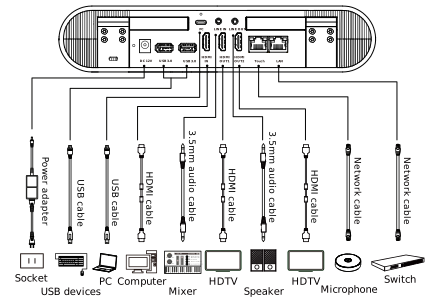
Avaya Room System C130 cables
The following image shows optional configurations and is for reference only. Connect the cables according to your requirements.
Port type |
Description |
|---|---|
Input |
|
First Video Stream Input |
Built-in camera. |
Second Video Stream Input |
Connect an HD camera or the second video stream to the HDMI IN interface to input the second video source. |
Audio Input |
For audio input, use the following options:
|
USB |
Connect a USB microphone or a USB device, such as a keyboard or mouse. Avaya Room System C130 is compatible with Avaya microphones. For Avaya microphones, you must use the following connection options:
|
Output |
|
Audio Output |
For audio output, use the following options:
|
First Video Stream Output |
Connect an HDTV to the HDMI OUT1 interface using an HDMI cable. |
Second Video Stream Output |
Connect an HDTV to the HDMI OUT2 interface using an HDMI cable. |
Connectivity and power |
|
Network |
|
Power Supply |
Connect Avaya Room System C130 to the power outlet using the supplied power adapter. |