

AVAYA DOCUMENTATION CENTER
Find answers to your technical questions and learn how to use our products
Avaya Room System C170 Quick Start Guide
Remote control
All codec models support a remote control unit. You can use the remote control within the range of 15 meters from the device. You must use it by either directly pointing at the codec or at a horizontal or vertical angle of up to 15°. To increase the remote control range, you can use a third-party IR repeater.
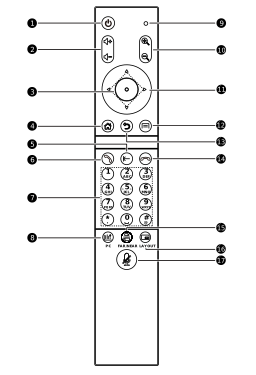
The following image and table show and describe the remote control buttons and their function:
|
Number
|
Name
|
Description
|
|---|---|---|
|
1.
|
Power button
|
Use to go into Standby mode, restart the codec or lock the screen.
|
|
2.
|
Volume +/- button
|
Use to adjust the volume level.
|
|
3.
|
OK button
|
Use to confirm selection.
|
|
4.
|
Home button
|
Use to go to the main menu.
|
|
5.
|
Delete button
|
Use to delete entered characters.
|
|
6.
|
Call button
|
Use to start a call, join a conference, or go to the Meeting menu.
|
|
7.
|
Character buttons
|
Use to enter numbers, letters, or characters.
|
|
8.
|
PC button
|
Use to manage presentation from the connected media source such as a laptop.
|
|
9.
|
IR indicator
|
Flashes when you press a remote control button.
|
|
10.
|
Zoom +/- button
|
Use to zoom in or out a built-in or connected external camera.
|
|
11.
|
Arrow buttons
|
Use to navigate in the GUI menu.
|
|
12.
|
Menu button
|
Use to open a submenu.
|
|
13.
|
Back button
|
Use to return to the previous menu.
|
|
14.
|
End Call button
|
Use to end a two-party call or leave a conference call.
|
|
15.
|
Far/Near button
|
Use to switch between local connected and far-end cameras.
|
|
16.
|
Layout button
|
Use to change the screen layout during an active call.
|
|
17.
|
Mute button
|
Use to turn on or off codec audio.
|
Remote control shortcuts
The following table lists the remote control shortcut combinations and provides their description. When using the remote control shortcuts, press the buttons sequentially in the order described in the table.
|
Shortcut keys
|
Function
|
|---|---|
|
End Call + 1 or End Call + 2
|
Switch HDMI OUT1, HDMI OUT2 output resolution.
|
|
Delete + buttons 1–9
|
Call PTZ presets.
|
|
* # 1/2
|
Switch the main video source: built-in camera or HDMI.
|
|
ZOOM +/-
|
Enter PTZ control mode.
|
|
ZOOM +/- + any button other than an arrow button
|
Exit PTZ control mode.
|