

AVAYA DOCUMENTATION CENTER
Find answers to your technical questions and learn how to use our products
Deploying Avaya Aura® Communication Manager in Virtualized Environment
Deploying Communication Manager on ASP R6.0.x (KVM on RHEL 8.10) using Script
Communication Manager provides a KVM OVA that contains the following files and components:
-
Virtual Disk Images qcow2 files:
-
system.qcow2
-
Var_Disk.qcow2
-
-
OVA Descriptor and Packaging Files:
-
.ovf
-
.mf
-
cert
-
-
Installation and Deployment Scripts:
-
install_vm.py
-
ovf.py
-
__pycache__
-
Note:
-
Disk encryption is possible using the script-based deployment.
-
Always follow A1SC output for deployment of applications on the host(s). There should never be more than one instance of a specific application on the same host.
-
Deployment of applications MUST be performed one at a time and delete the artifacts prior to deploying the next application.Solution Deployment Manager and Solution Deployment Manager Client does not support KVM on RHEL 8.10 images for a virtualized environment.
Before you begin
-
Install ASP R6.0.x (KVM on RHEL 8.10).For more information, see Installing the Avaya Solutions Platform 130 Series at https://support.avaya.com/css/public/documents/101091802.
-
Download the Communication Manager KVM image from PLDS to your computer.
-
Login to the ASP R6.0.x CLI with custadm credentials.
-
Ensure that the staging folder exist:sudo ls -ld /var/lib/libvirt/staging
-
Ensure to remove the older images from the staging folder.
-
Ensure sufficient space is available in the staging folder to copy the KVM image.
-
If the staging folder does not exist, create it using the following commands:
-
sudo mkdir /var/lib/libvirt/staging
-
sudo chown custadm:wheel /var/lib/libvirt/staging
-
-
The chown command now allows custadm to write into the staging directory with sudo. For example, the permissions should look as follows:
drwxr-x---. 2 custadm wheel 6 Oct 23 14:32 /var/lib/libvirt/staging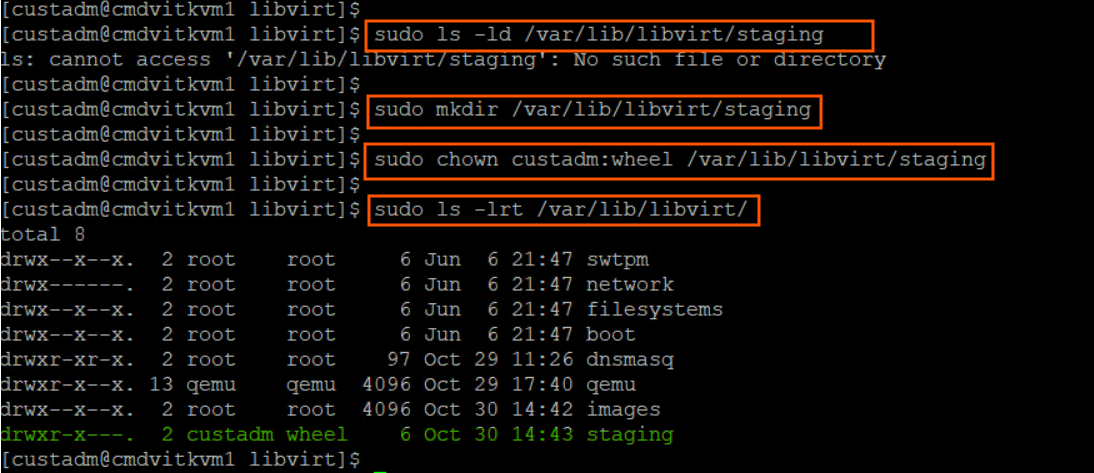
-
Copy the Communication Manager KVM image to the ASP R6.0.x host in /var/lib/libvirt/staging using winscp and custadm credentials.
-
Ensure you are logged into the ASP R6.0.x CLI. If not, login to the ASP R6.0.x CLI with custadm credentials.
-
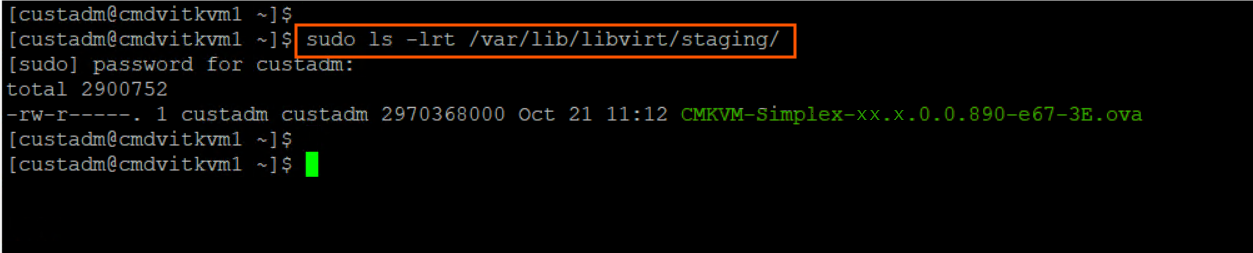
Run the following command to verify the Communication Manager KVM image is available in the staging folder:sudo ls -lr /var/lib/libvirt/staging
-
Ensure that the required network bridges are configured during the KVM deployment. For example, Management VM Network, OOBM Network. Duplex Communication Manager requires Duplication network (Direct attachment). For more information, see Creating Duplication Network on ASP R6.0.x (KVM on RHEL 8.10) using direct attachment.
- Log in to the ASP R6.0.x CLI as a custadm user and verify the ASP version using the following command: swversion
- Go to the staging folder;
ADDITIONAL INFORMATION:sudo cdcd /var/lib/libvirt/staging
- Do the following:
-
ASP is on R6.0.0.0ASP is on R6.0.0.1
-
Run the following command to extract the OVA file:
-
For simplex, run: sudo tar -xvf CMKVM-Simplex-*.ovaKVM OVA extracts the following files:
-
CMKVM-Simplex-*.ovf
-
CMKVM-Simplex-*.mf
-
CMKVM-Simplex-*.cert
-
install_vm.py
-
ovf.py
-
system.qcow2
-
Var_Disk.qcow2
-
-
For duplex, run: sudo tar -xvf CMKVM-Duplex-*.ovaKVM OVA extracts the following files:
-
CMKVM-Duplex-*.ovf
-
CMKVM-Duplex-*.mf
-
CMKVM-Duplex-*.cert
-
install_vm.py
-
ovf.py
-
system.qcow2
-
Var_Disk.qcow2
-
-
-
Run the following script to deploy Communication Manager:sudo python3 install_vm.py
Run the following script to deploy Communication Manager: installVM CMKVM-*.ovaASP completes the auto-verification to ensure the following files are available:
 CM-Duplex-*-KVM-1.ovf
 CM-Duplex-*-KVM-1.mf
 CM-Duplex-*-KVM-1.cert
 install_vm.py
 ovf.py
 system.qcow2
 Var_Disk.qcow2
 CM-Duplex-*-KVM-1.cert: OK
 Verified OK
 CM-Duplex-*-KVM-1.ovf: OK
 install_vm.py: OK
 ovf.py: OK
 system.qcow2: OK
 Var_Disk.qcow2: OK
 CM-Simplex-*-KVM.ova
CM-Duplex-*-KVM.ova -
- Press ENTER to read the EULA.
- Press Y to accept the EULA.
- Enter a name for the Communication Manager virtual machine. For example, CM_Main.
- Select the required Communication Manager profile from the following table:
ADDITIONAL INFORMATION:Communication Manager SimplexCommunication Manager DuplexCM Array Max users 300000CM High Duplex Array Max Users 300000CM Main Max users 1000CM High Duplex Max Users 41000CM Main Max users 2400CM Standard Duplex Array Max Users 300000CM Main/Survivable Max users 41000CM Standard Duplex Max users 30000CM Survivable Max users 1000The following deployment options are for future use:
-
CM Standard Duplex Array Max Users 300000
-
CM High Duplex Array Max Users 300000
-
CM Simplex Array Max users 300000
ADDITIONAL INFORMATION:For more information, see Supported footprints of Communication Manager OVA on ASP R6.0.x (KVM on RHEL 8.10)
-
- Select the Public and OOBM network interfaces.
ADDITIONAL INFORMATION:ASP 6.0.x CLI displays the currently available network interface bridges and select the required bridge for Communication Manager.Note:
-
Simplex Communication Manager requires two NICs.
-
NIC1 is for the Public IP address
-
NIC2 is for the Out of Band Management (OOBM)
-
-
Duplex Communication Manager requires three NICs. Ensure that NIC1 and NIC2 must be in two different networks.
-
NIC1 is for the Public IP address
-
NIC2 is for the Duplication Network
-
NIC3 is for the Out of Band Management (OOBM)
-
Note:The deployment stops if the available disk space is less than the required amount.For Duplex Communication Manager , Duplication Link interface is Mandatory, and MUST use the Direct Attachment (interface name). For example, eno*Ensure that two network interfaces are added for Communication Manager Simplex and three network interfaces are added for Communication Manager Duplex.ADDITIONAL INFORMATION:ASP 6.0.x CLI displays the currently available disk space and the required disk space to deploy Communication Manager.Example below is for Simplex Communication Manager. Duplex Communication Manager will have an additional interface selection for the Duplication link (eno4 if Dell R640 is used and eno12429 if Dell R660xs is used.)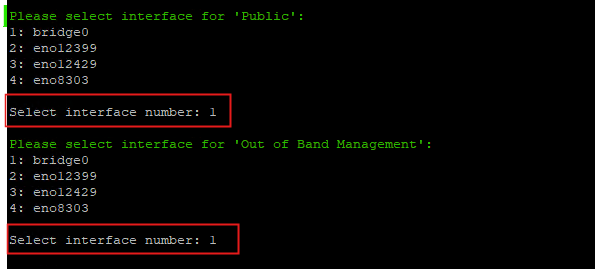
-
- To configure the VM properties, enter Y in the Would you like to configure the VM properties? [y/n]: field, and continue providing the property details:
- Enter IPv4 address. For example, x.x.x.x
- Enter IPv4 Netmask. For example, m.m.m.m
- Enter IPv4 Gateway. For example, g.g.g.g
- For IPv6 address, enter the valid IPv6 address.
- For IPv6 Network Prefix, enter the valid IPv6 network prefix.
- For IPv6 Network Gateway, enter the valid IPv6 network gateway.
- Optional: For Out of Band Management IPv4 address, if you don’t want to use OOBM, enter 0.0.0.0 or enter the valid IPv4 address.
- Optional: For Out of Band Management IPv4 Netmask, if you don’t want to use OOBM, enter 0.0.0.0 or enter the valid IPv4 Netmask.
- For Out of Band Management IPv6 address, enter the valid OOBM IPv6 address.
- For Out of Band Management IPv6 Network prefix, enter the valid OOBM IPv6 network prefix.
-


- In the CM Hostname field, enter a valid host name or a FQDN.
ADDITIONAL INFORMATION:If a FQDN is entered, FQDN also administers the local domain name. Valid characters are, a - z, A - Z, 0 - 9, and hyphen (-).
- Optional: In the NTP Server(s) field, enter a valid NTP address or a hostname.
ADDITIONAL INFORMATION:You can type up to three NTP servers seperated by a comma.
- In the DNS Server(s) field, enter a valid DNS server IP address.
ADDITIONAL INFORMATION:You can type up to three DNS servers seperated by a comma.
- In the Search Domain List field, enter a search list of domain names. For example,mydomain.com
- In the WebLM Server IP Address field, enter the IP address of the reachable WebLM server.
-

- Enable or disable Enhanced Avaya Security Gateway (EASG).
ADDITIONAL INFORMATION:Important:Avaya recommends to enable EASG.ADDITIONAL INFORMATION:Note:Enable: (Recommended)By enabling Avaya Logins you are granting Avaya access to your system. This is necessary to maximize the performance and value of your Avaya support entitlements, allowing Avaya to resolve product issues in a timely manner.In addition to enabling the Avaya Logins, this product should be registered with Avaya and technically onboarded for remote connectivity and alarming. Please see the Avaya support site (support.avaya.com/registration) for additional information for registering products and establishing remote access and alarming.Disable:By disabling EASG, you are denying Avaya access to the system. This setting is not recommended as it can impact Avaya’s ability to provide support for the product. Unless the customer can manage the product, Avaya Services Logins should not be disabled.
-
Enter 1 to enable EASG.
-
Enter 2 to disable EASG.
-
- To create CM Privileged Administrator User Login, do the following:
ADDITIONAL INFORMATION:
-
In the CM Privileged Administrator User Login, enter a privileged user name for the administrator.This is the login name for the Communication Manager privileged administrator.
-
In the CM Privileged Administrator User Password field, enter a password for the Communication Manager privileged administrator.
-
In the Confirm CM Privileged Administrator User Password field, reenter the password for the Communication Manager privileged administrator.
Note:After first login, change the Privileged Administrator password. -
- Enable or disable Data Encryption.
ADDITIONAL INFORMATION:By enabling Data Encryption, your Communication Product's Operational data, Configuration data, along with all of the Log Files will be encrypted. You will be prompted to enter a pass-phrase that will be used to create/access an encryption key. Secondly, you will be asked to configure the option for local key storage.It is important to note that the encryption of the disk may have a performance impact. For further information, contact the Administration guide(s). Before you select an encryption option, please read the Data Privacy Guideline so that you may better understand these options.ADDITIONAL INFORMATION:Enter 1 to Enable Encryption or enter 2 to Disable Encryption.
- In the Data Encryption Active field, if 1 is entered, do the following
ADDITIONAL INFORMATION:
-
In the Enter Encryption Passphrase field, enter the passphrase.
-
In the Confirm Enter Encryption Passphrase field, reenter the passphrase.
-
In the Require Encryption Passphrase at Boot-Time: (yes/no), enter the required value.
If 1 is entered, you must enter the encryption passphrase whenever the Communication Manager reboots.If 2 is entered, there is no need to enter the encryption passphrase whenever the Communication Manager reboots.ADDITIONAL INFORMATION:Important:You MUST remember the data encryption passphrase as the system prompts you to enter the encryption passphrase with every reboot of the application. If you lose the data encryption passphrase, the only option is to reinstall the OVA. -
- In the Data Encryption Active field, if 2 is entered, no action is required.
- In the Data Encryption Active field, if 1 is entered, do the following
- In the Do you want to set a root password?(yes/no) field, enter the required value.
- In the Power on VM automatically after deploy?: [y/n] field, enter one of the following:
-
y: Indicates Communication Manager virtual machine is automatically powered-on after deployment.
-
n: Indicates user has to manually power on the Communication Manager virtual machine on KVM cockpit.
-
- In the Proceed?[y/n] field, enter one of the following:
-
y: Communication Manager deployment begins.
-
n: Communication Manager deployment cancels.
ADDITIONAL INFORMATION:Note:Once the Communication Manager virtual machine is successfully deployed, ASP R6.0.x displays the following message: Domain creation completed. Otherwise, repeat step 3 onwards. -
- Log in to the KVM Cockpit web console as custadm in the following format: https://<IP address or FQDN of KVM host>:9090.
- If Web console is in Limited access mode, click on Turn on administrative access button.
ADDITIONAL INFORMATION:
Figure: Limited access button  ADDITIONAL INFORMATION:Note:VMs are not visible when in Limited access mode.
 - For administration actions, on the top-right of the window, click on the Limited access or Turn on administrative access button.
-
Figure: Switch to administrative access 
- Navigate to .
STEP RESULT:Verify that the Communication Manager virtual machine is deployed.
- Click on the Communication Manager virtual machine.
- If the Power on VM automatically after deploy?: [y/n] field is set to n, then click Run to power on the virtual machine.
ADDITIONAL INFORMATION:If the Power on VM automatically after deploy?: [y/n] field is set to y, Communication Manager virtual machine starts automatically.
- Click on VM Name and login from Console.
- Login to Communication Manager virtual machine console using privilege user credentials created in step 16.
ADDITIONAL INFORMATION:During the first login, change the privilege user password.

- In the Overview section, enable AutoStart to automatically start the virtual machine whenever the host reboots.