

AVAYA DOCUMENTATION CENTER
Find answers to your technical questions and learn how to use our products
Deploying Avaya Aura® Application Enablement Services in Software-Only and Infrastructure as a Service Environments
Creating RHEL instance on Google Cloud Platform
Before you begin
-
Create an account on the Google Cloud Platform
-
Create a ppk file.
Important:
Installing only the required RPMs to the system for security and stability. Do not install a complete Red Hat system.
In a software-only installation, the customer installs the Red Hat provided RPM updates. To avoid possible issues or incompatibilities with new RPMs, check the list of tested RPMs and follow the instructions in the PSN020617u that Avaya publishes periodically on the Avaya Support website.
Note:
Please note that the steps provided in this section are for reference. For the most up-to-date information, see the Google Cloud Platform documentation.
- Log on to the Google Cloud Platform.
- Go to .
- On the VM Instances page, click CREATE INSTANCE
- On the Create an instance page, update the following fields:
- In Name, enter your product name.
- In Region, select the required region.
- In Zone, select the required zone.
- Under Machine configuration, in Series, select E2.
- In Machine type, select the number of vCPUs and memory needed for your deployment.
- Under the Boot disk section, click Change and do the following:
- Select the appropriate RHEL image. For the supported RHEL version, see the
Third party software requirements
section. - In Size (GiB), enter the required disk size and click Select.
- Select the appropriate RHEL image. For the supported RHEL version, see the
- Click , and update the following fields:
- In Network, select the
- In Subnetwork, select an appropriate subnet.
- In Primary Internal IP, select
- In Custom ephemeral IP address, enter an IP address that is within the range of your network.
- In External IP, select an appropriate option.
- Click Done.
- Click Security.
- Under the SSH Keys section, in the Enter entire key data section, copy your private key details.
ADDITIONAL INFORMATION:
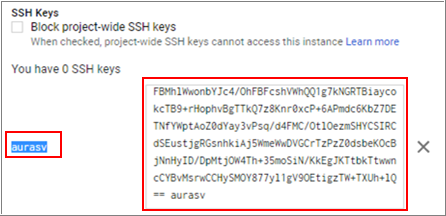 ADDITIONAL INFORMATION:When you paste the key, a user login is also created.
- Click Create.
STEP RESULT:A Virtual machine instance is deployed and it appears under the VM instances page.
Next steps
Uploading the ISO to the RHEL virtual machine instance.