

AVAYA DOCUMENTATION CENTER
Find answers to your technical questions and learn how to use our products
Avaya Aura® Communication Manager Survivability Options
Troubleshooting the IPSI connection
If the IPSI is not connected to the server, use the following steps to try and determine the cause.
- On the System Management Interface of the main server, use the IPSI Version command to verify that all IPSIs have the current hardware and firmware.
ADDITIONAL INFORMATION:For more information, see the Minimum Firmware/Hardware Vintages document at http://support.avaya.com.
- From the System Management Interface pages of the survivable core server that is not connecting, initiate a ping command to the administered IPSIs to verify connectivity between the survivable core server and IPSIs.
- Firewalls or other security measures may preclude the server and IPSI from communicating. Verify that the following ports are open through the network between the server and the IPSI:
ADDITIONAL INFORMATION:
-
5010 IPSI/Server control channel
-
5011 IPSI/Server IPSI version channel
-
5012 IPSI/Server serial number channel
-
- Use the status ess port-networks command to identify the Cluster IDs of the survivable core servers a port network (IPSI) is connected to.
ADDITIONAL INFORMATION:You can run this command at a main server or a survivable core server. With a fragmented network it may be necessary to execute this command at each server in the system configuration to acquire a complete view of the IPSI connectivity. The following figure shows an example of an IPSI (the standby IPSI in PN 2) that does not have a connection established with the server.
Figure: status ess port-networks example 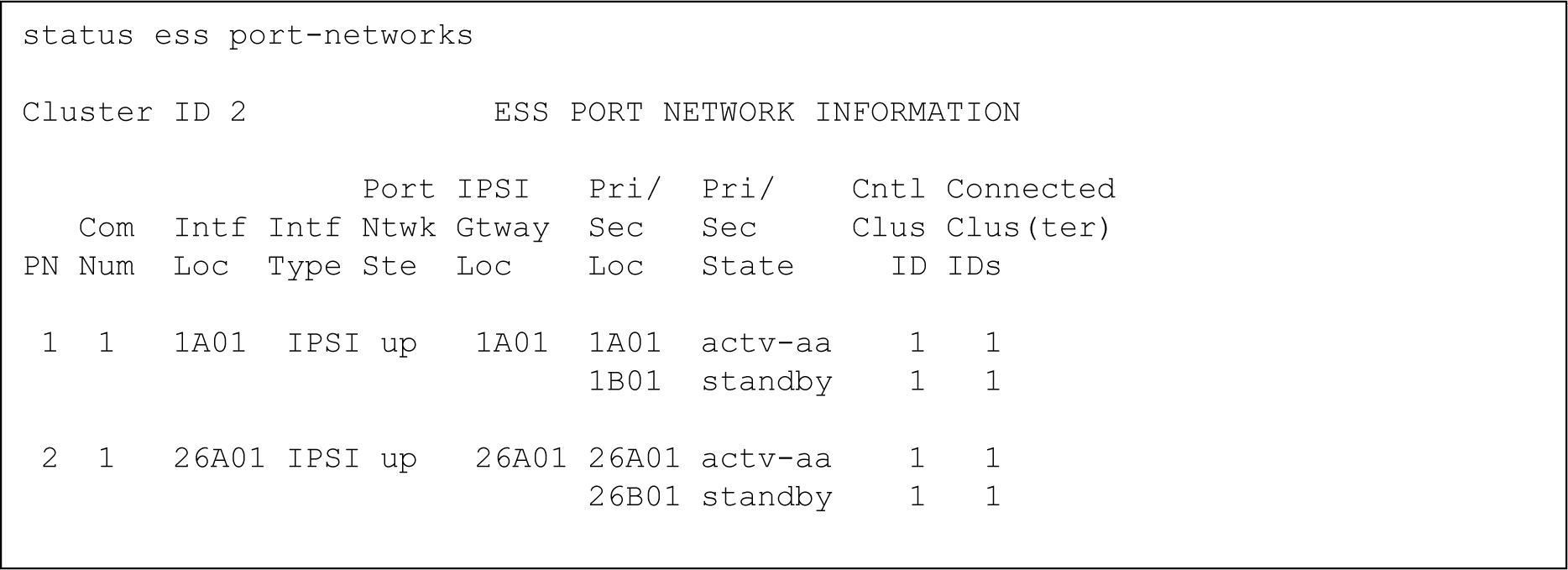
- Resolve network fragmentation and outage issues using your local practice.
- To verify that all port networks or IPSIs are communicating with servers, use the status ess port-network command.