

AVAYA DOCUMENTATION CENTER
Find answers to your technical questions and learn how to use our products
Deploying Avaya Aura® Communication Manager in Virtualized Environment
Creating Duplication Network on ASP using direct attachment
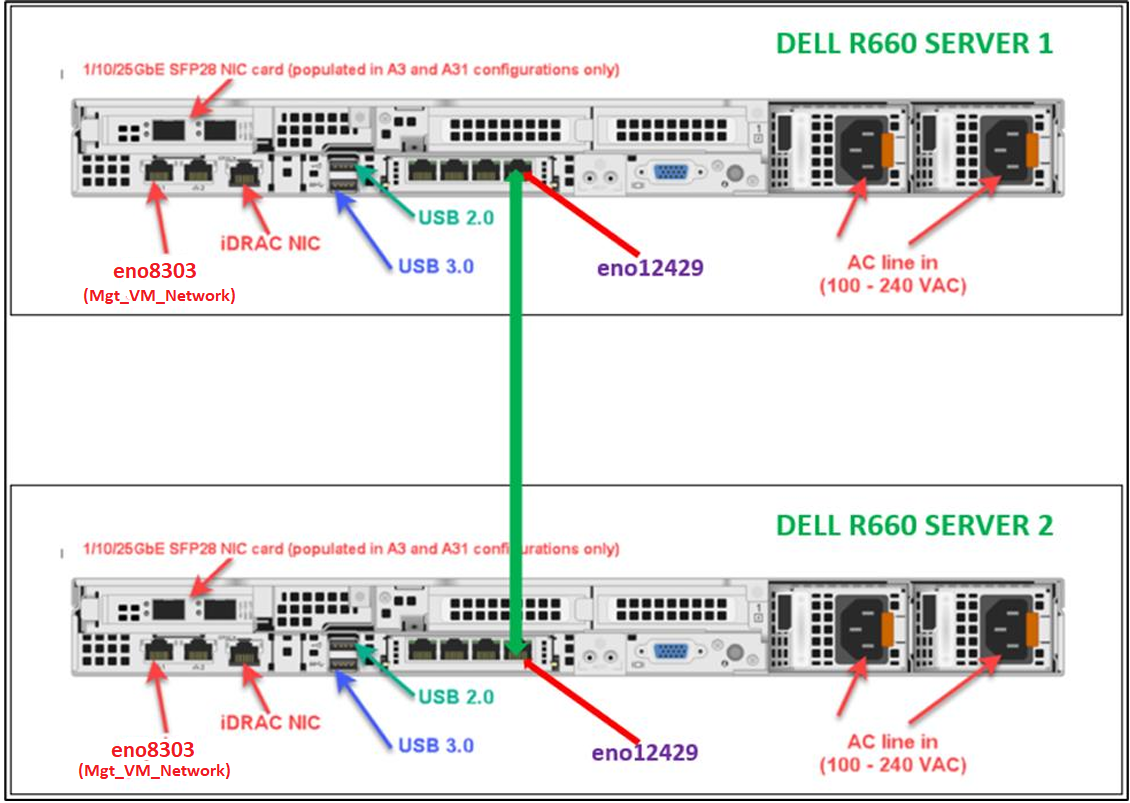
You must connect two servers ethernet port with each other to enable duplication network.
Following is an example of a duplication network where ethernet ports are connected between two servers:
- Login to the KVM Cockpit web console as custadm in the following format: https://<IP address or FQDN of KVM host>:9090
- For administration actions, on top-right of the window, click Limited access button.
ADDITIONAL INFORMATION:The button changes to Administrative access.ADDITIONAL INFORMATION:Warning:Administrative access is equivalent to root access. Be careful when you change the settings!
- Go to and click on the name of the duplication interface.
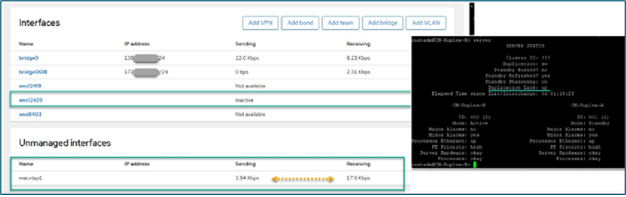
ADDITIONAL INFORMATION:For ASP R6.x (R660xs), the duplication interface name will be eno12429.For ASP R6.x (R640), the duplication interface name will be eno4.ADDITIONAL INFORMATION:In the Interfaces window, ensure that the duplication interface shows Inactive in the Sending column.In the associated Unmanaged interfaces window, the macvtap[n] entry does NOT have an IP address but shows Sending/Receiving. Note that the macvtap[n] name will increment by one on every reboot.ADDITIONAL INFORMATION:Note:Do NOT assign any IP address to the duplication interface in Cockpit. The example below is from an ASP R6.x (Dell R660xs).ADDITIONAL INFORMATION:
- On top right corner of the Network interface window, enable the toggle button.
- In the Network interface window, ensure that the interface status and IPv4 address appears.
- In the Interfaces window, ensure that the interface is assigned with the configured duplication IPv4 address.
- To add another server, repeat 1 to 6.