AVAYA DOCUMENTATION CENTER
Find answers to your technical questions and learn how to use our products
Deploying Avaya Session Border Controller on Microsoft® Azure
Configuring the network interfaces
About this task
Before you install and configure the Avaya SBC software, you must configure the network interfaces on Azure as follows:
For an EMS+SBC deployment – Four network interfaces (M1, A1, B1, M2)
For all other deployments, including HA – Six network interfaces (M1, A1, B1, M2, A2, B2)
By default, Azure creates only the one M1 interface automatically, so you have to manually create the rest of the interfaces required by your deployment.
Important:
You must verify that none of the network interfaces have already been assigned prior to configuring them for use with Avaya SBC. If you have not verified this before you configure the network interfaces, you might need to follow a special procedure to detach and then attach the network interfaces. For more information, see the following KB article:
https://docs.microsoft.com/en-us/azure/virtual-network/virtual-network-network-interface-vm
Note:
The screen examples shown in this procedure are shown to assist you using the Azure user interface. Your actual screens may differ than those shown here.
Before you begin
Create three different subnets, one each for Avaya SBC Management, Avaya SBC external, and Avaya SBC internal networks.
Procedure
- Select Network interfaces.
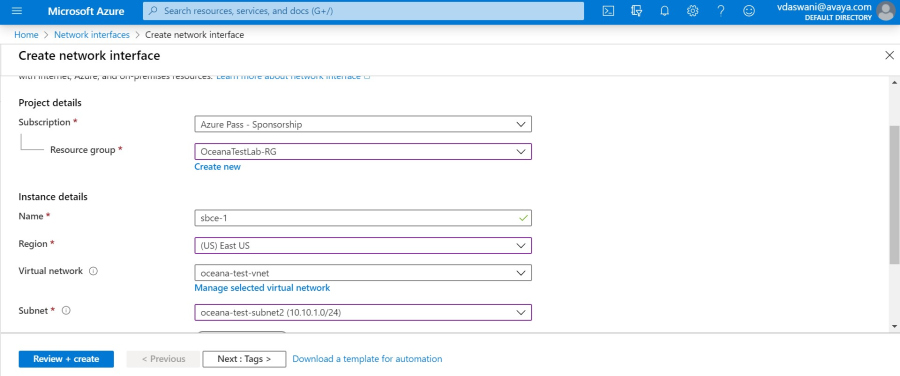
The system displays the Create network interface window.