

AVAYA DOCUMENTATION CENTER
Find answers to your technical questions and learn how to use our products
Deploying standalone Avaya WebLM in Virtualized Environment
Updating the CPU resources for KVM Cockpit
- Log in to the KVM Cockpit web console as custadm in the following format: https://<IP address or FQDN of KVM host>:9090.
- For administration actions, on the top-right of the window, click on the Limited access button.
ADDITIONAL INFORMATION:
Figure: Limited access button  Note:You require administrator access in order to view virtual machines. Administrator access is like root access. Ensure that you take care making updates.
 - In the Switch to administrative access window, enter the password for custadm.
ADDITIONAL INFORMATION:
Figure: Switch to administrative access 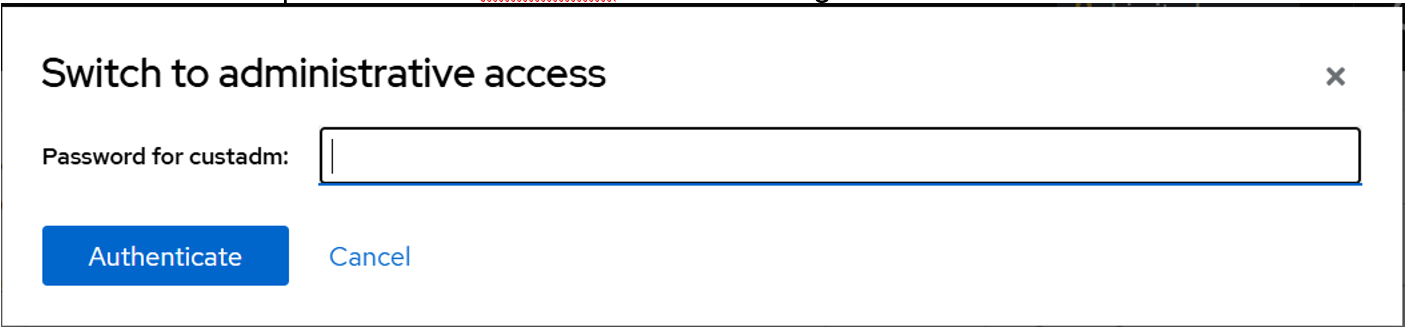 The Limited access button on the top-right of the window changes to Administrative access.
Figure: Administrative access button 
- Navigate to .
- If the virtual machine is running, right-click on the virtual machine to update and select Shut Down.
- Right-click on the virtual machine and choose Open/Edit, and go to Overivew section.
ADDITIONAL INFORMATION:KVM Cockpit displays the CPU details window.
- Update the CPU reservation details such as vCPU maximum, vCPU count, Sockets, Core per socket, and Threads per core.
- Click Apply.
- Click Run to start the virtual machine.