

AVAYA DOCUMENTATION CENTER
Find answers to your technical questions and learn how to use our products
Deploying Avaya Session Border Controller on a Hardware Platform
Dell R340 Avaya Solutions Platform 110 Appliance front view
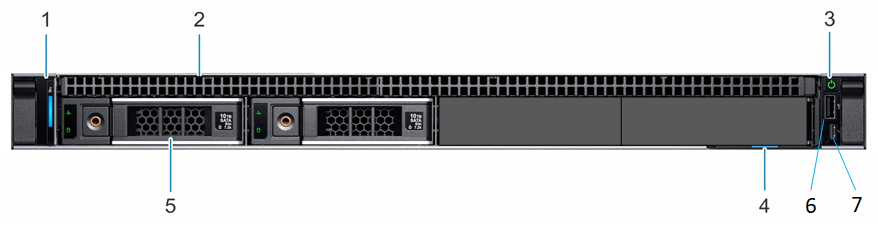
Callout |
Description |
|---|---|
1 |
The LCD panel displays system ID, status information, and system error messages. The LCD lights blue during normal system operation. When the system needs attention, the LCD lights amber.
Note:
LCD panel is not available in a cabled hard drive chassis. |
2 |
The spot where an optional optical drive slot would be located. For Avaya SBC, an optical drive is not provided. |
3 |
The System identification buttons on the front and back panels can be used to locate a particular system within a rack. When one of these buttons is pressed, the LCD panel on the front and the system status indicator on the back flashes blue until one of the buttons are pressed again. Press to toggle the system ID on and off. If the system stops responding during POST, press and hold the system ID button for more than five seconds to enter BIOS progress mode. To reset the iDRAC (if not disabled in F2 iDRAC setup) press and hold the button for more than 15 seconds. |
4 |
The information tag is a slide-out label panel, which allows you to record system information, such as Service Tag, NIC, MAC address. |
5 |
Hard drive slots that contain two 2.5–inch hot-swappable hard drives in 3.5–inch drive carriers. |
6 |
The USB 2.0 connector enables you to connect USB devices to the system.
Caution:
Do not use this USB ports to install Avaya SBC software on this server. |
7 |
The micro-USB 2.0 iDRAC managed port provides access to iDRAC Direct features.
Caution:
Do not use this USB port to install Avaya SBC software on this server. |