

AVAYA DOCUMENTATION CENTER
Find answers to your technical questions and learn how to use our products
Using Avaya J159 SIP IP Phone in Avaya Aura®
Physical layout of a J159 IP Phone
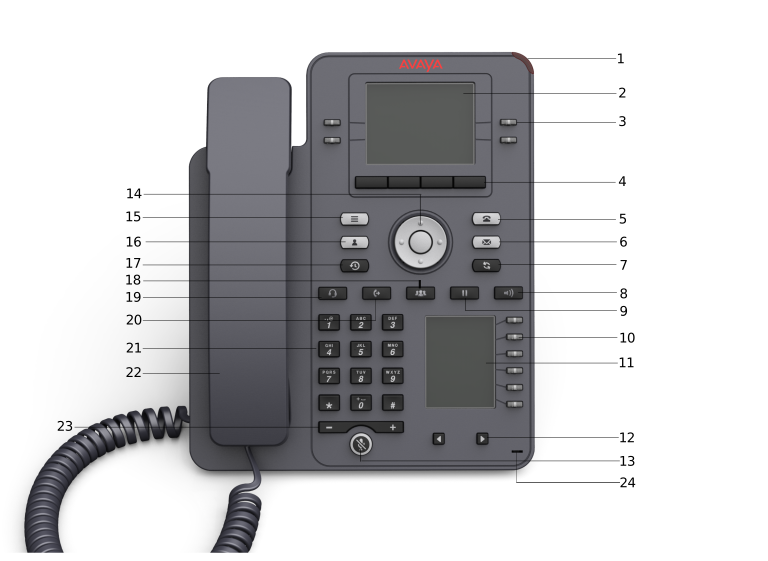
|
No.
|
Name
|
Description
|
|---|---|---|
|
1
|
Beacon LED
|
Provides visual alerts for the following:
|
|
2
|
Phone display
|
Displays two areas:
|
|
3
|
Line keys
|
Used to select the corresponding line or feature. Each line key has a combination of red and green LEDs that provide call or feature specific visual alert.
Note:
The default action depends on the application and the context.
|
|
4
|
Soft keys
|
Used to select the corresponding label of context-specific actions.
With the Help soft key, you can view a short description of the features available on your phone.
|
|
6
|
Voicemail
|
Used to dial the configured voice mail number to receive a voice message.
|
|
7
|
Redial
|
Used to redial the most recently dialed number from any screen of the phone.
|
|
8
|
Speaker
|
Used to turn on the speaker.
|
|
9
|
Hold
|
Used to put an active call on hold and resume a held call.
|
|
10
|
Line keys
|
Used to select the corresponding line or feature. Each line key has a combination of red and green LEDs that provide call or feature specific visual alert.
Note:
The default action depends on the application and the context.
|
|
11
|
Secondary display
|
Provides quick access to line appearances, features, and phone menus.
|
|
12
|
Left, Right keys
|
Used to navigate on the Secondary Display screen.
|
|
13
|
Mute
|
Used to mute and unmute the outgoing audio.
|
|
14
|
Navigation cluster
|
Used to navigate on the phone screen.
|
|
18
|
Conference
|
Used to initiate a conference call and also to add a participant to a conference call.
|
|
19
|
Headset
|
Used to turn on headset, and also to toggle your call from the speaker to headset.
|
|
20
|
Transfer
|
Used to transfer a call.
|
|
21
|
Dialpad keys
|
Used to dial the phone extensions or enter alphanumeric characters and special symbols.
|
|
22
|
Handset
|
Used to receive and make calls.
|
|
23
|
Volume
|
Used to adjust volume of a handset, speaker, or ringtone.
|
|
24
|
Mic
|
The Mic of the phone.
|
Application keys provide direct access to the corresponding applications:
|
No.
|
Application keys
|
Description
|
|---|---|---|
|
5
|
Phone key
|
Displays the Phone screen.
|
|
15
|
Main Menu
|
Displays the list of options, such as Features, Applications, Settings, and Network Information.
|
|
16
|
Contacts
|
Displays the entries in your Contact list.
|
|
17
|
Recents
|
Displays the list of all calls.
|