AVAYA DOCUMENTATION CENTER
Find answers to your technical questions and learn how to use our products
Configuring Avaya Workspaces for Avaya Experience Platform® On-Prem with Avaya WebRTC Connect
Publishing COMM_ADDR_HANDLE values on Avaya Aura® Device Services
- On the Avaya Aura® Device Services web administration portal, click .
- On the Configuration page, click the Group tab.
- In the COMM_ADDR_HANDLE_TYPE field, click Avaya SIP.
- In the COMM_ADDR_HANDLE_LENGTH field, enter the number of digits in the extension number of the SIP agent.
- Click Publish.
STEP RESULT:The portal displays the Publish/Delete Settings dialog box.
- Select the Group settings will be applied to group check box.
- In the text box, type the first five characters of the LDAP group that contains the agents.
ADDITIONAL INFORMATION:For example, AADS_User.
- In the drop-down list, click the group.
- Click Publish.
- Click Yes.
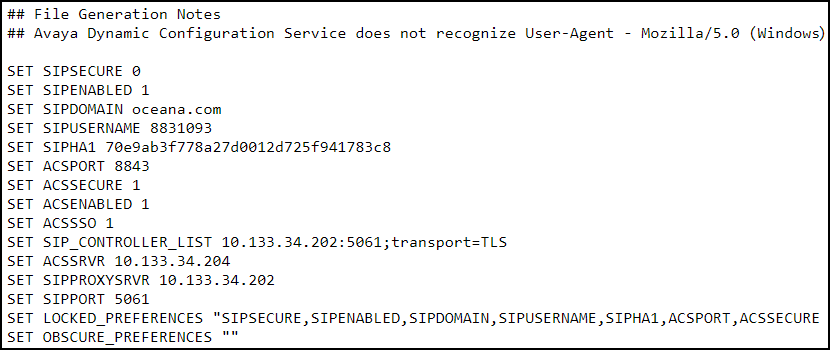
- To verify whether the values are published, in your web browser, enter the following URL:
ADDITIONAL INFORMATION:https://<Avaya Aura Device Services_FQDN>:8443/acs/resources/configurations
- On the prompt, enter the login credentials of the LDAP user who is a part of the LDAP user group.
- Verify the output.
ADDITIONAL INFORMATION:The following is an example of the output: