AVAYA DOCUMENTATION CENTER
Find answers to your technical questions and learn how to use our products
Installing, Maintaining, and Troubleshooting Avaya Solutions Platform S8300
Registering a new device
About this task
Use this task to register and onboard a new Avaya device. For more information, refer to HealthCheck Tool Registration Feature Description on https://support.avaya.com/css/public/documents/101067434.
Before you begin
Ensure that you have the following:
An SSO account with a valid user ID and password registered with Avaya to login.
A Location ID (FL Number) of the device that you want to register.
Note:US Sold To (functional location) location number format: 000XXXXXXX (000 + 7 digits or can be 00 + 8 digits as well).
Outside of US (Rest of the World) FL# (Ship To) location number: 00XXXXXXXX (always 00 + 8 digits).
The install base of the device that needs to be onboarded must be created in Siebel.
Note:Secure Access Link Registration (also called technical onboarding) requires a verified customer install base and FL or Sold to.
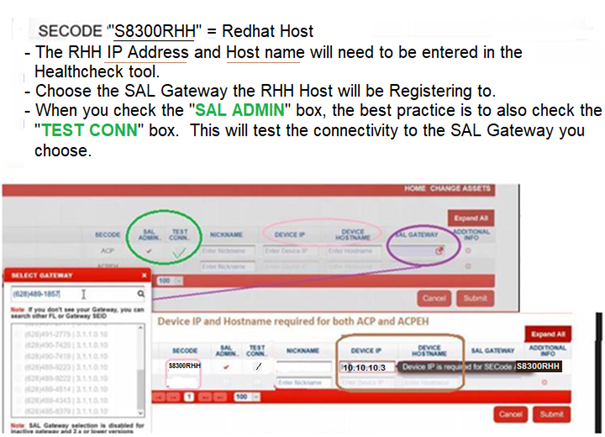
Ensure you have your IP address and host name for the KVM on RHEL host.
Ensure that you have placed a SAP order with the Avaya Solutions Platform S8300 material codes.
The SAP order will automatically populate Assets under the GRT Install Base Creation.
The ASP S8300 R6.0.x new order material codes are the following:
700520308 → S8300E R6 PRELOADED TAA
700520309 → S8300E R6 PRELOADED
Login to the GRT install base and verify that the S8300 hardware has been added.
Procedure
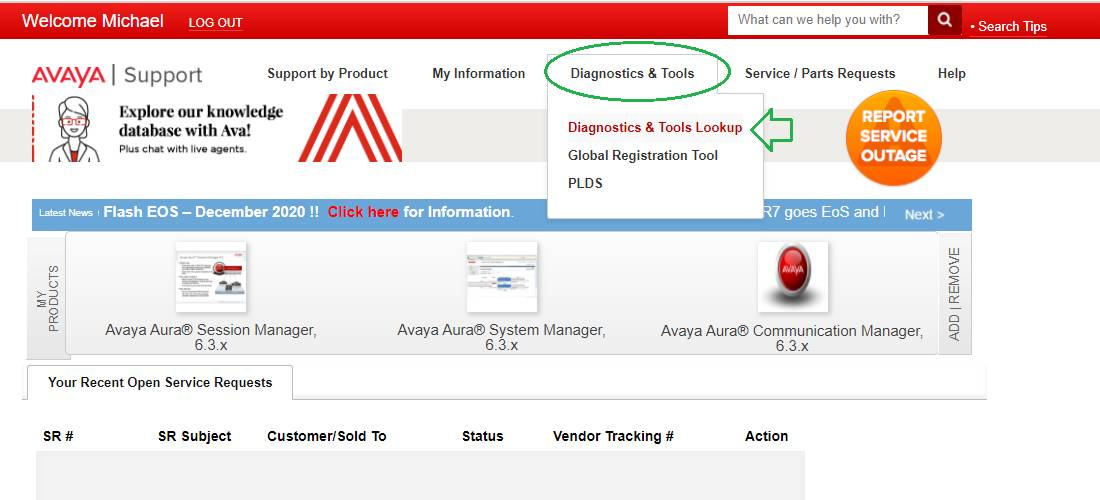
- On the Home page, click Diagnostic & Tools.
- Enter the details in the S8300RHH and SAL Gateway fields for the Avaya Solutions Platform S8300E.