Adding the System Manager IP address

Last Updated : Nov 27, 2018 |

Procedure

  1. Type https://<fqdn>:8443/emlogin in a Web browser.
  2. Log on to the Avaya Aura® Media Server Element Manager interface using the customer login ID and password created when you deployed the OVA.
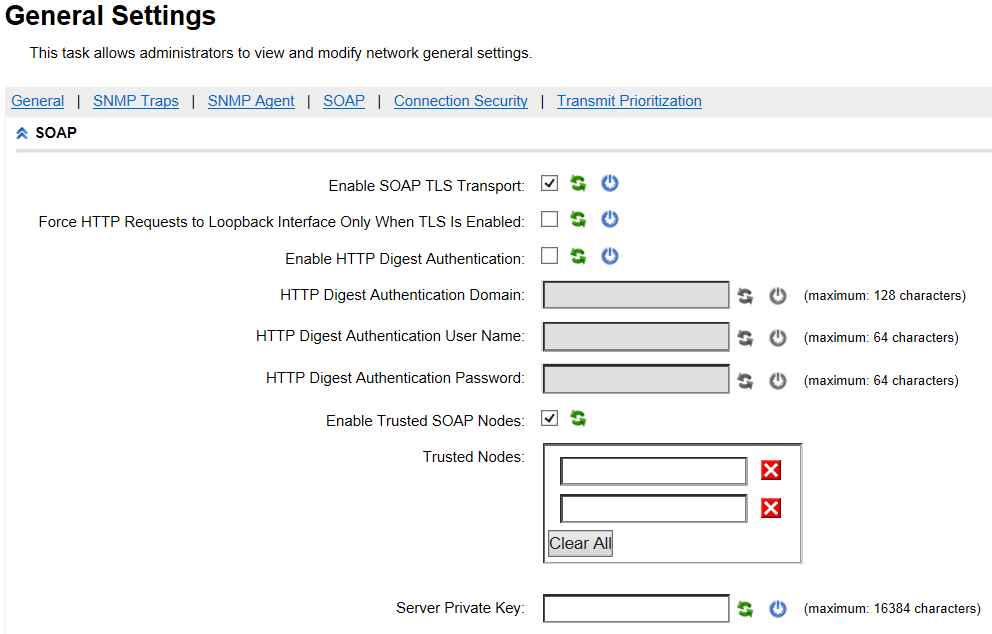
  3. Navigate to System Configuration  > Network Settings  > General Settings.


  4. In the SOAP section, Trusted Nodes field, type the IP address of the primary System Manager that is used to manage Avaya Breeze® platform. If this is a geo-redundant deployment, type the secondary System Manager IP addresses in the second text field in the Trusted Nodes box.
  5. Click Save .
  6. Repeat this procedure for each Avaya Aura® Media Server.

Next Steps

Configure announcements for services on each Avaya Aura® Media Server. For additional information, see Media File Provisioning in Implementing and Administering Avaya Aura® Media Server. All Media Servers must be configured with the same announcement files.