AVAYA DOCUMENTATION CENTER
Find answers to your technical questions and learn how to use our products
Configuring corporate contacts for Avaya Workspaces with Avaya Experience Platform™ (On-Prem + Connect)
Microsoft Teams integration overview
Microsoft Teams is a business messaging and collaboration platform that provides access to channels and teams, direct messaging, and group chats. It also integrates with other Microsoft 365 platforms, including Dynamics 365 applications.
Agents and supervisors can log in to the Microsoft Teams provider in Avaya Workspaces and access Microsoft Teams contacts from the Corporate Contacts widget. They can also view the Presence states of Microsoft Teams users, search for the required users, make direct and consultation calls, make multiple calls simultaneously, and transfer calls. By default, agents and supervisors can send chat messages to Microsoft Teams contacts and groups and manage channel conversations. You can disable chat from Application Center if you do not require this functionality.
To configure the integration, you must perform the required steps on Microsoft administration portals and Application Center. You must first purchase a calling plan and assign it to Microsoft Teams contacts in the Microsoft 365 admin center. You must then access the Microsoft Teams admin center, add phone numbers and emergency addresses, and assign users and emergency addresses to the added numbers. Next, you must access the Microsoft Azure portal and assign the added numbers to Microsoft Teams contacts.
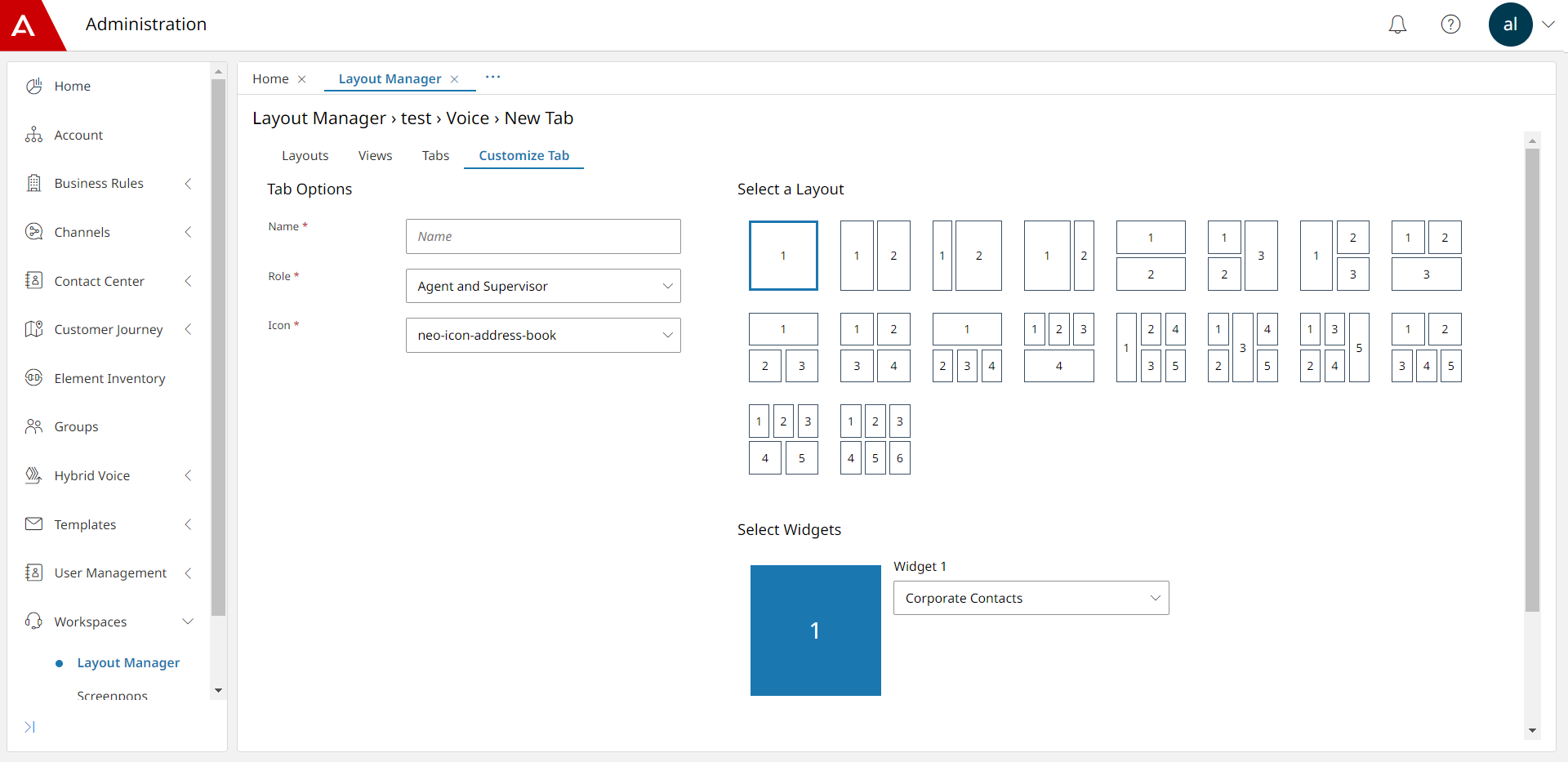
In Application Center, you must add the Microsoft Teams application to Element Inventory and add the Corporate Contacts widget to the layout Avaya Workspaces agents and supervisors are using.
You can also configure and enable the single sign-on (SSO) integration between Avaya Experience Platform™ (On-Prem + Connect) and Microsoft Teams. If SSO is configured, agents and supervisors can log in to Avaya Workspaces with their Microsoft credentials and get automatically signed in to the Microsoft Teams provider on the Corporate Contacts widget. For more information about configuring SSO for agent and supervisor login, see SSO configuration for Microsoft Teams.
For more information about working with Microsoft Teams corporate contacts in Avaya Workspaces, see Microsoft Teams integration overview.