

AVAYA DOCUMENTATION CENTER
Find answers to your technical questions and learn how to use our products
Using Avaya Room Camera RC212 and Avaya Room Camera RC220
Remote control
Avaya Room Camera RC212 and Avaya Room Camera RC220 support a remote control unit. You can use the remote control within the range of 15 meters from the device. You must use it by either directly pointing at the camera or at a horizontal or vertical angle of up to 15°. To increase the remote control range, you can use a third-party IR repeater.
The following image shows the camera remote control:
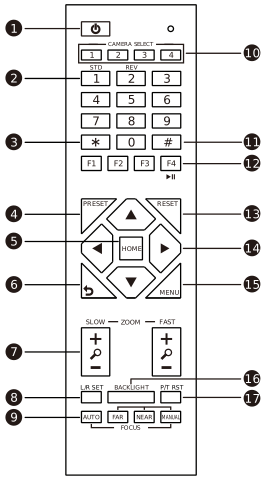
The following table describes remote control buttons and their functions.
Number |
Button name |
Description |
|---|---|---|
1. |
Standby |
Press the Standby button to go into Standby mode. |
2. |
Number buttons |
|
3. |
* |
Use the * button in a combination with other buttons. For example, press * + # + 4 to view the camera IP address. |
4. |
Preset |
Use the Preset button in a combination with number buttons: press Preset and then a number button. |
5. |
Home |
Use the Home button to confirm selection or to set the camera pan, tilt, and zoom to the middle position. |
6. |
Return |
Press the Return button to return to the previous menu or exit the OSD menu. |
7. |
Zoom |
|
8. |
L/R Set |
Use the L/R Set button to reverse the direction of pan arrow buttons. The settings are stored on the remote control.
|
9. |
Focus |
Use the Auto, Far, Near, and Manual buttons to set camera focus. |
10. |
Camera Select |
Press a button to select and control the corresponding camera. |
11. |
# |
Use the # button in a combination with other buttons. For example, press *+#+6 to restore the default settings. |
12. |
Auto Tracking |
Use the following buttons in the section to manage AI tracking modes:
|
13. |
Reset |
To clear a preset PTZ position, press Reset and a number button from 0 to 9. |
14. |
PT arrow buttons |
Use arrow buttons to manage the camera pan and tilt position. |
15. |
Menu |
Press the Menu button to enter or exit the On Screen Display (OSD) menu. |
16. |
Backlight |
If there is light behind the object and the object becomes dark, press the Backlight button to enable backlight compensation. Press the button again to disable this function. This function is available in Auto Exposure mode. |
17. |
P/T RST |
When you press the P/T RST button, the camera performs pan and tilt calibration. |
Remote control shortcuts
The following table lists the remote control shortcut combinations and provides their description:
Shortcut |
Description |
|---|---|
*+#+1 |
To display the On Screen Display (OSD) menu in English. |
*+#+3 |
To display the OSD menu in Chinese. |
*+#+4 |
To view the current IP address. |
*+#+6 |
To quickly restore the default settings. |
*+#+8 |
To view the camera version. |
*+#+9 |
To quickly enable inversion. |
*+#+MANUAL |
To refresh an IP address when using DHCP. |