

AVAYA DOCUMENTATION CENTER
Find answers to your technical questions and learn how to use our products
Deploying and Upgrading Avaya G450 Branch Gateway
Adding and removing MP160
The G450 main board has four slots for VoIP engines. You can install up to two Media Processor 160s (MP160). An MP160 provides 160 channels for voice transport. Alternatively, if no standard voice is required, a maximum of 120 V.150.1 call traffic channels are supported. A combination of voice calls and V.150.1 calls are supported per the Avaya configuration guidelines.
Note:
G450 supports up to 320 active channels for voice transport. You can install up to two MP160 modules, or a combination of Media Processor modules for voice transport, for example, one MP160 and two MP80s.
The following table lists the permitted combinations of Media Processor modules for the G450:
|
Combination of cards
|
MP20
|
MP80
|
MP160
|
|---|---|---|---|
|
Combination #11
|
-
|
-
|
1 or 2
|
|
Combination #2
|
1 or 2
|
-
|
1
|
|
Combination #3
|
-
|
1 or 2
|
1
|
|
Combination #4
|
1
|
1
|
1
|
Note:
-
G450 v4 supports only Combination # 1.
Important:
You can only install an MP160 in slots 2 and 4 on the G450 v1 (1.x) or slots 1 and 2 on the G450 v2, v3, v4 (2.x, 3.x, and 4.x). (See Location of DSP module slots in a G450 1.x and Location of DSP module slots in a G450 2.x, 3.x, and 4.x). On the G450 1.x, the ASB button is to the right of the RST button. On the G450 2.x and newer, the RST button is above the ASB button.
You can also use the show system CLI command to identify the main board HW version.
Other:
Hold the modules only by the edges to avoid damage from static electricity. Do not touch the top or bottom of the circuit board. Wear an antistatic wrist ground strap when you handle module components. Connect the strap to an approved ground, such as an unpainted metal surface. Use an antistatic bag.
Caution:
The connector pins can get bent or damaged if you handle the module roughly or misalign the module before forcing the module into position.
Attach the correct standoff according to the hardware version of the G450. Using the wrong standoff prevents you from installing the MP160 correctly.
Before you begin
You do not need to configure the G450 when installing an MP160. However, you must configure V.150.1 in Communication Manager to support V.150.1 applications such as modem-over-ip. To configure V.150.1, see Configuring V.150.1 on the Avaya G450 Branch Gateway.
- Insert the provided plastic standoff in the hole, see Location of Standoff on MP160
ADDITIONAL INFORMATION:The standoff type differs depending on the hardware version of the G450. Ensure you use the correct standoff.ADDITIONAL INFORMATION:
Figure: Location of Standoff on MP160 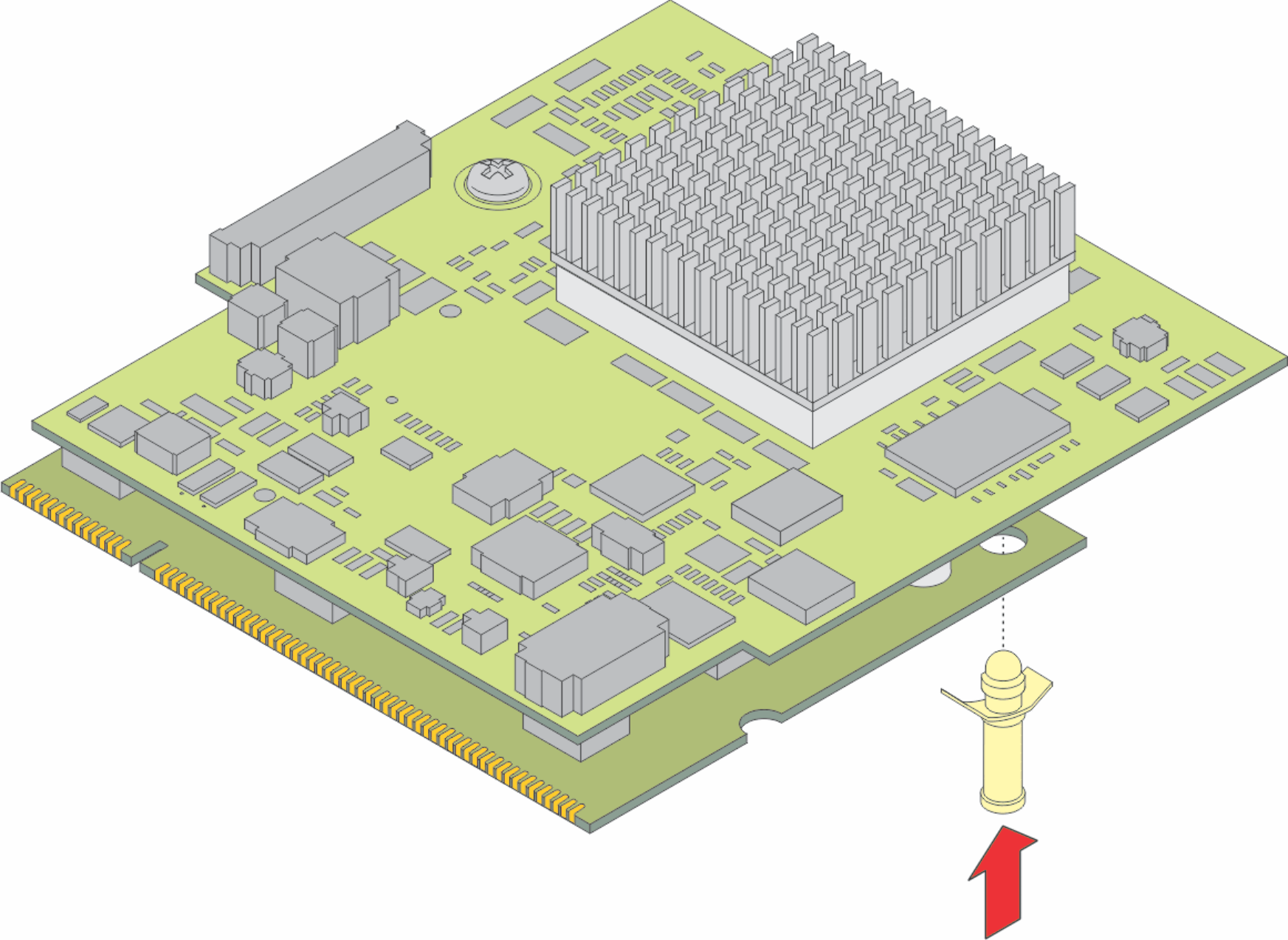
-
Use the short standoff for G450 1.x.
-
Use the long standoff for G450 2.x and 3.x.
-
Remove standoffs and lower the board for G450 4.x.
ADDITIONAL INFORMATION:Note:The current MP 160 ships with long standoffs. -
- Locate the MP160 module slot. The location differs depending on the hardware version of the G450, see Location of DSP module slots in a G450 1.x and Location of DSP module slots in a G450 2.x, 3.x, and 4.x.
ADDITIONAL INFORMATION:
Figure: Location of DSP module slots in a G450 1.x 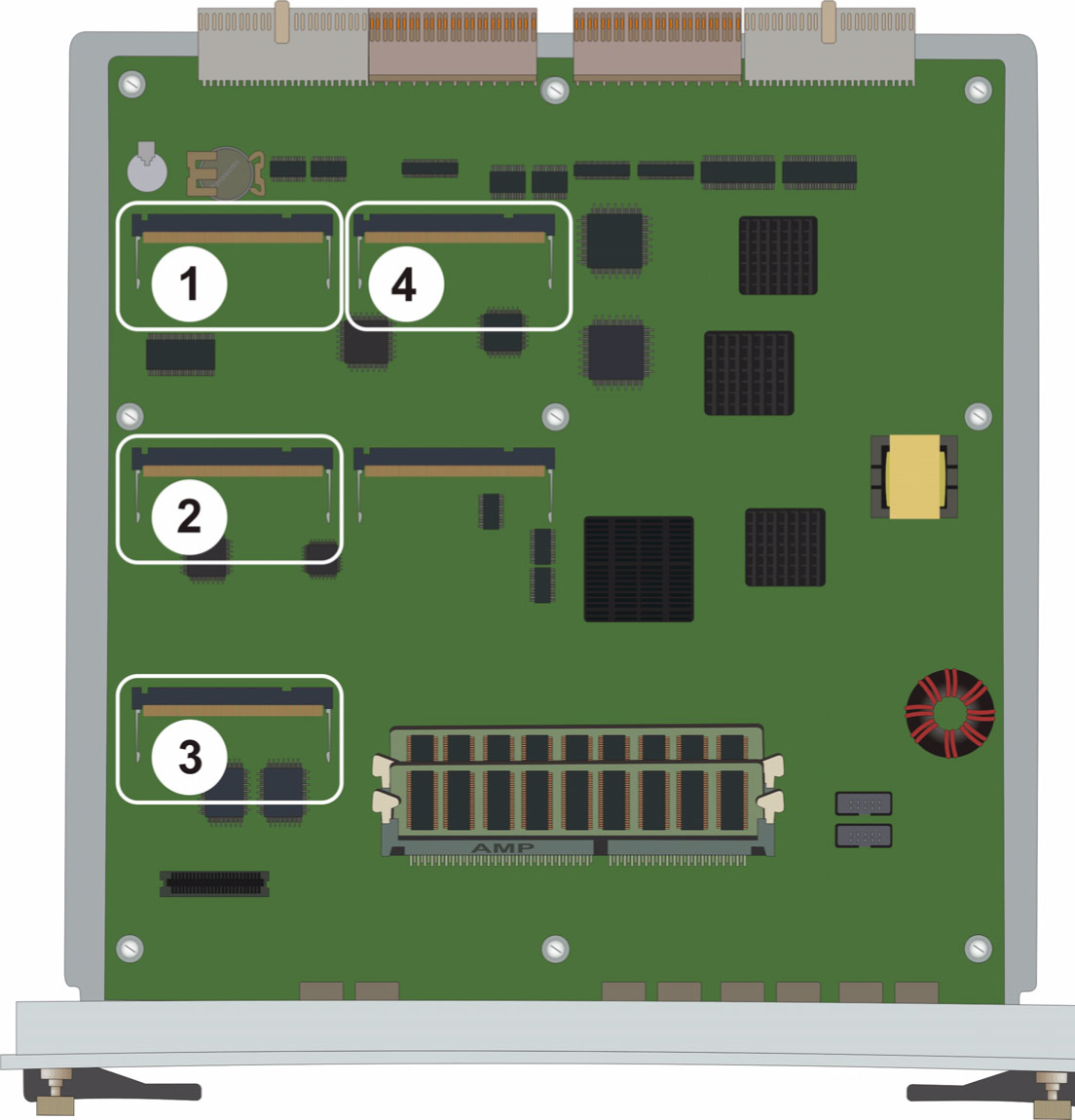
Figure notes: 1. MP20 or MP80 module slot2. MP20, MP80, or MP160 module slot3. MP20 or MP80 module slot4. MP20, MP80, or MP160 module slotFigure: Location of DSP module slots in a G450 2.x, 3.x, and 4.x 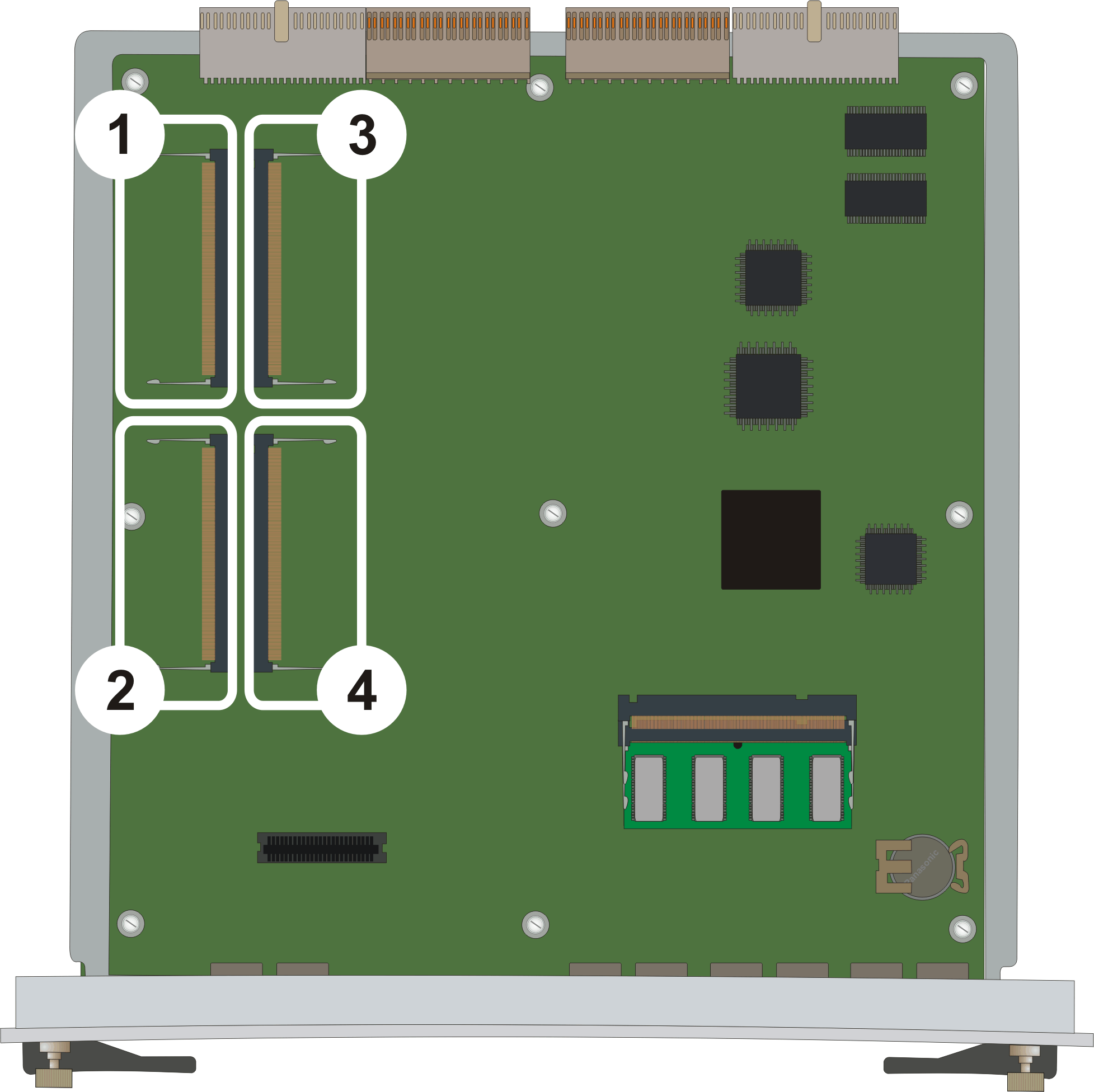
Figure notes: 1. MP20, MP80, or MP160 module slot2. MP20, MP80, or MP160 module slot3. MP20 or MP80 module slot4. MP20 or MP80 module slot - To insert the module into the slot, position the module at a 45-degree angle to the main board.
ADDITIONAL INFORMATION:
Figure: Adding or removing an MP160 in a G450 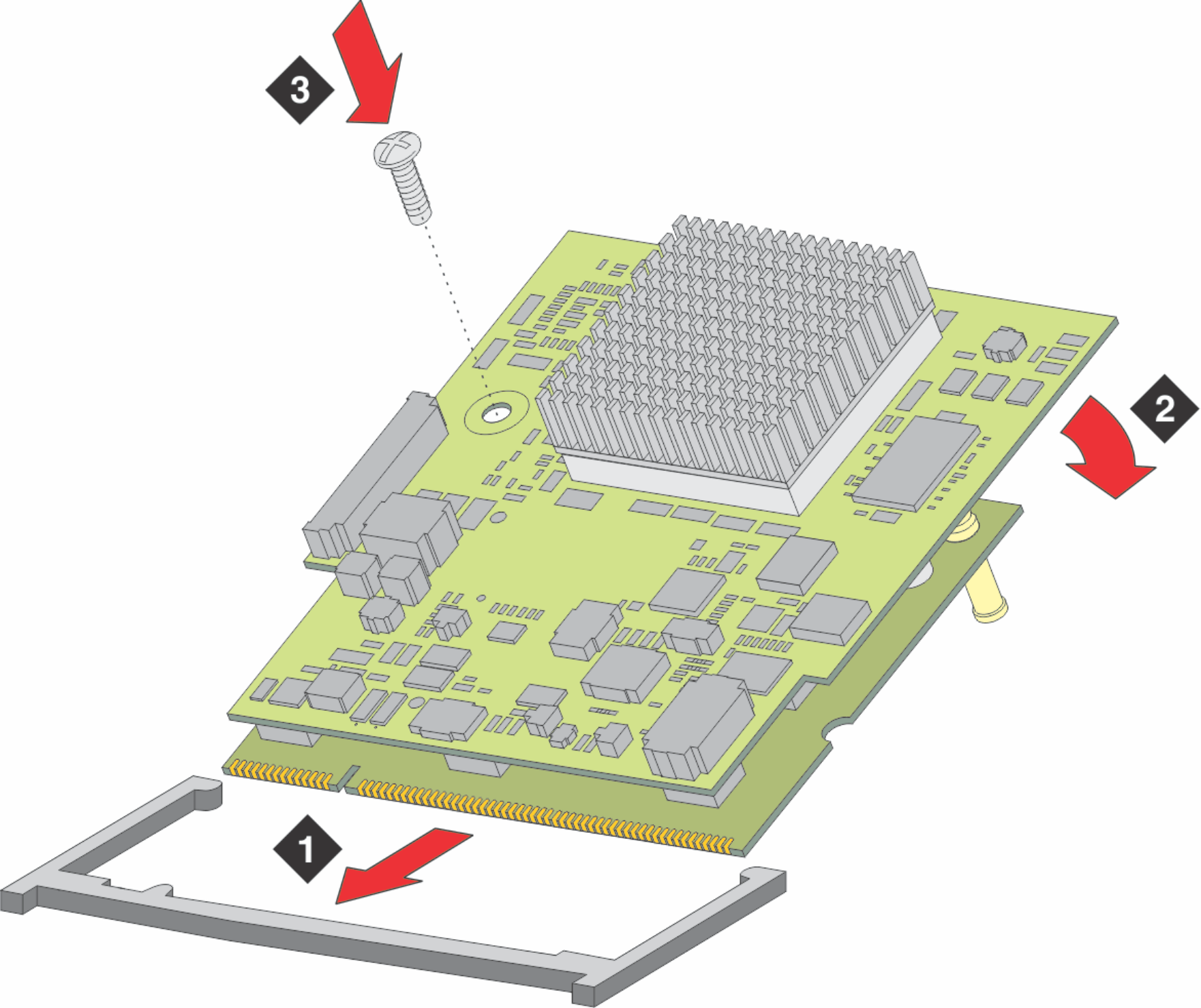
- Push the module in all the way. Do not use too much force.
- Flatten the module to flush with the main board.
ADDITIONAL INFORMATION:The latches at both sides click shut.
- Insert the M3 X 5 screw provided with the kit.
- Tighten the screw to secure the VoIP module to the motherboard.
-
To install MP160 in G450 v4, do the following:
- Remove the two screws from the MP160 module and separate the lower board from the upper board.
ADDITIONAL INFORMATION:The lower board and the two screws are not required for installation on G450 v4.
- Plug the MP160 upper board into the module slot 1 or module slot 2 location.
- Secure the MP160 upper board to the main board with the two M2 X 10 mm screws from the kit. Fasten the screws to the metal standoffs.
STEP RESULT:The MP160 is now installed in the G450 v4.
Next steps
After powering up, use the show platform mainboard CLI command to verify the installation.