

AVAYA DOCUMENTATION CENTER
Find answers to your technical questions and learn how to use our products
Deploying and Updating Avaya Aura® Media Server Appliance
Reinstalling the Avaya Aura® MS physical appliance running on Dell R660XS hardware (no DVD drive)
New Avaya Aura® MS appliances are shipped with the appliance software already installed. The Avaya Aura® MS appliance software is reinstalled only to support field replacement procedures, For example, disk replacement.
Important:
All data is lost when you reinstall Avaya Aura® MS appliance.
Perform the following procedure to format the system disk and reinstall Avaya Aura® MS appliance.
Before you begin
-
Obtain the Avaya Aura® MS physical appliance software installation ISO. The install ISO must be version 10.2.0.52_A2 or later.
-
Write the ISO to a USB drive of at least 8GB in size. A tool such as Rufus or the Linux command dd can be used.
-
Ensure the server is powered off.
- Connect the bootable USB drive into one of the USB ports on the server.
ADDITIONAL INFORMATION:Note:If a USB 3.0 device is used, it must be plugged into the lower USB port on the back of the server (port 2 in the diagram), as that is the only USB 3.0 compliant port.
Figure: Rear view of R660XS 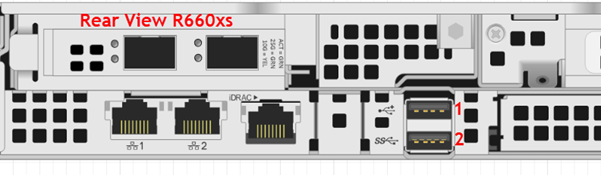
- Power on the server.
- While the server is booting, press the F11 key when prompted to enter the Boot Manager.
ADDITIONAL INFORMATION:
Figure: Boot Manager 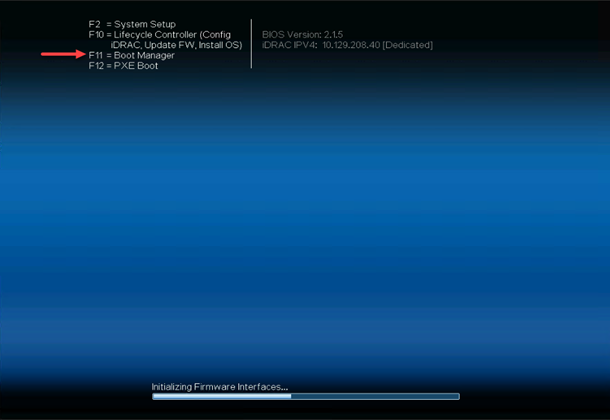
- Use the arrow keys on the keyboard to navigate the Boot Manger menu. Select the One-shot UEFI Boot Menu and press Enter. Then select the USB device containing the install image and press Enter. The name of the menu item will depend on which port is used, and the type of the USB device. For example, it may say Disk connected to back USB 2: <Name of USB device>.
ADDITIONAL INFORMATION:The system will now boot from the installation device. After several minutes, the system displays the Avaya Aura® Media Server Welcome screen.ADDITIONAL INFORMATION:Tip:The Welcome screen displays the appliance build number, a list of detected network interfaces, and a list of attached storage devices with their sizes. Review this information for accuracy to verify whether these characteristics are as expected.
- Press Y to proceed with the installation.
ADDITIONAL INFORMATION:The system installs the operating system, and automatically reboots. The system proceeds with the installation of the Avaya Aura® Media Server after the reboot. After several minutes, the system displays the installation result.Note:When you type N in response to the confirmation prompt, then the installation is cancelled, and the server is automatically turned off. The installation can be restarted later.
- Press Enter to turn off the server.
ADDITIONAL INFORMATION:The system turns off and is ready to be configured the next time that the server is turned on. The USB installation device can now be removed.ADDITIONAL INFORMATION:Note:The next time the server is turned on, the system confirms that a configuration must be performed. If N is provided as the response, then the server is immediately turned off. This procedure is useful for verifying that the system successfully starts after it is reinstalled. Use the Y response only when the system is ready to be configured.
Next steps
Deploy the Avaya Aura® Media Server physical appliance.