AVAYA DOCUMENTATION CENTER
Find answers to your technical questions and learn how to use our products
Deploying Avaya Session Border Controller on a Virtualized Environment Platform
Verifying the interface mapping
About this task
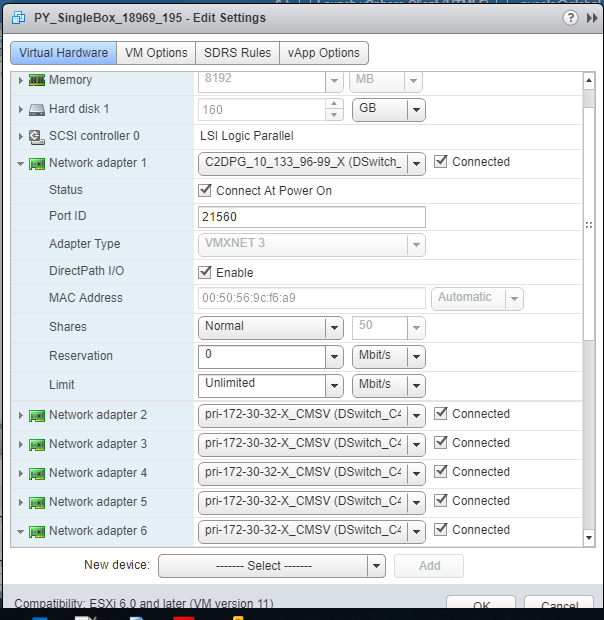
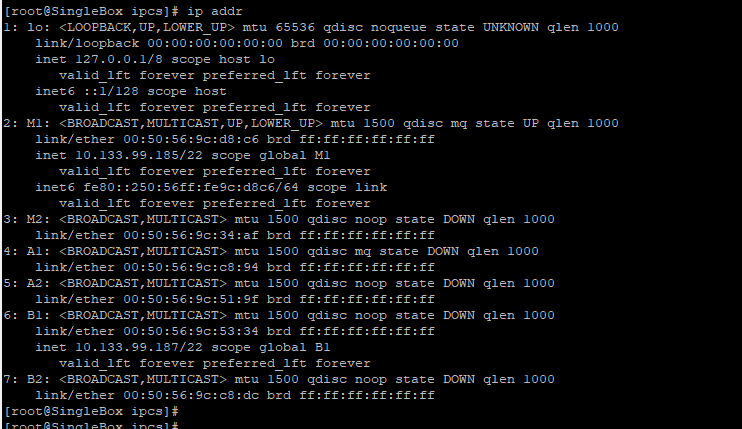
Use this task to verify that the interface mapping done when deploying an OVA or ISO is valid. You must verify that the MAC address shown in the CLI output matches the MAC address shown in the VMware GUI display.
Before you begin
Deploy the OVA or ISO and administer the interface mapping.
Procedure
- Run the following command:
ip addr
The system displays status of the interface ports, for example:
- Navigate to for the Network Adapters. For example, see Network adapter 1 in the following example: