

AVAYA DOCUMENTATION CENTER
Find answers to your technical questions and learn how to use our products
Administering Avaya Experience Platform for supervisors
Preparing content for publishing on the Avaya Documentation Center
About this task
To publish content on the Avaya Documentation Center, you must add the required metadata to the bookmap and add the new AvayaDocPortal output format.
Before you begin
Know the metadata values, such as bundle name, product family, and product name that you must provide in the bookmap of the document.
In the Title field of the topic properties, include only alphanumeric characters, dashes, and underscores. Avoid special characters.
Ensure that the topic that you reference using scope=peer is added to the Resources section of the publication.
Procedure
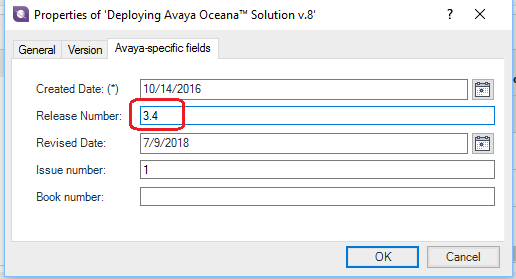
- In the Tridion Docs repository, select the publication, and set Release Number correctly in the publication properties.
Important:
If you do not add the release number correctly, user cannot filter the information by release number on the Avaya Documentation Center.
- To ensure that the correct product family and product name are set in the bookmap of your publication:
- Right-click the bookmap, click , and change the value if the product family and product are set to Common DITA supporting content or any other incorrect project name.
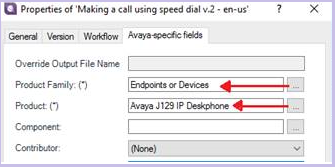
- Right-click the bookmap, click , and change the value if the product family and product are set to Common DITA supporting content or any other incorrect project name.
- To set the bundle name:
- Set the following bundle parameters:
name=bundle
content=<bundle-name>.
Where <bundle-name> is a unique name that identifies document type, product name, and release number.
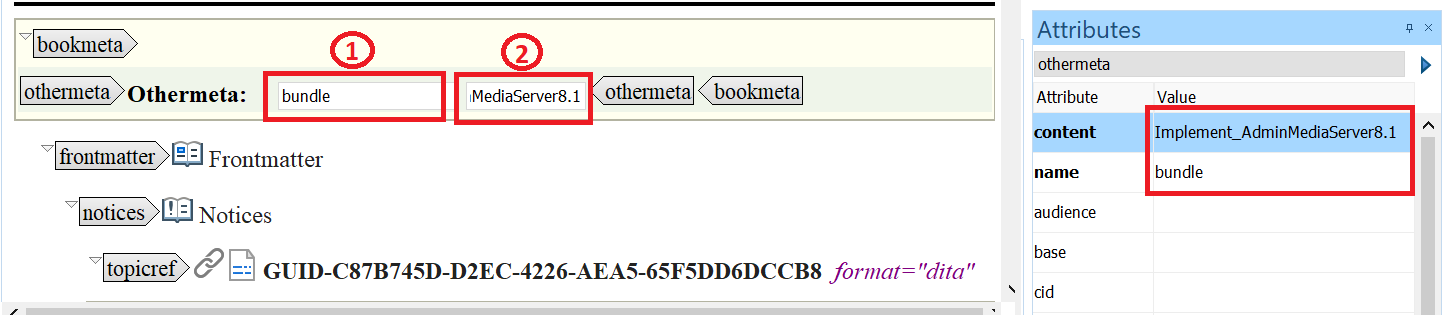
Important:Use a unique release number to prevent overwriting documents the older release on Avaya Documentation Center. For example
For Release 8.1 document, UsingSolutionDeploymentManagerClient_r81
For Release 8.2 document, UsingSolutionDeploymentManagerClient_r82
- Set the following bundle parameters:
- To set the homepage in the publication:
- In the Attributes window, set outputclass = homepage.
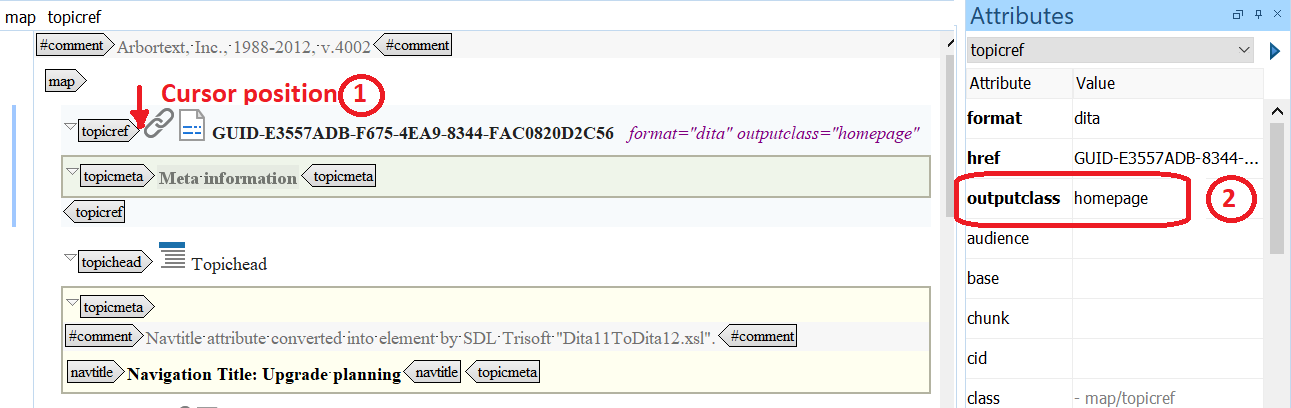
- In the Attributes window, set outputclass = homepage.
- Go to https://documentation.avaya.com, log in using your global handle and password, and verify if the document is published correctly, and topics show up.
