

AVAYA DOCUMENTATION CENTER
Find answers to your technical questions and learn how to use our products
Using Avaya Device Enrollment Services to Manage Endpoints
Searching for device information
Use the advanced search to view detailed device information, and search for a single device or a few devices.
- On the Device Enrollment Services web portal, navigate to .
- At the top right corner, click
 .
. - Select Advanced Search.
- Select one of the search categories from the list:
ADDITIONAL INFORMATION:
-
MAC Address
-
Serial Number
-
Product ID
-
Model Number
-
Hardware
-
Manufacturing Date And Time
-
Is Active
-
Thumbprint
-
Owner Account Name
-
ACO Product ID
-
Phone Number
-
Label Name
-
- Select one of the following options:
-
Equals
-
Not Equals
-
Starts With
-
Ends With
-
Contains
-
- Enter a search value or keyword.
ADDITIONAL INFORMATION:The following are examples of how Device Enrollment Services searches based on the specified search settings:
-
If the previous fields were set to MAC Address and Equals, enter the MAC address to search for.
-
If the previous fields were set to MAC Address and Not Equals, and you enter 15 in this field, Device Enrollment Services searches for devices without 15 in the MAC address.
-
- To add another search option, do the following:
- Click +.
- Select AND or OR from the list.
- Repeat steps 4 to 6 to define the search criteria for the new line.
ADDITIONAL INFORMATION: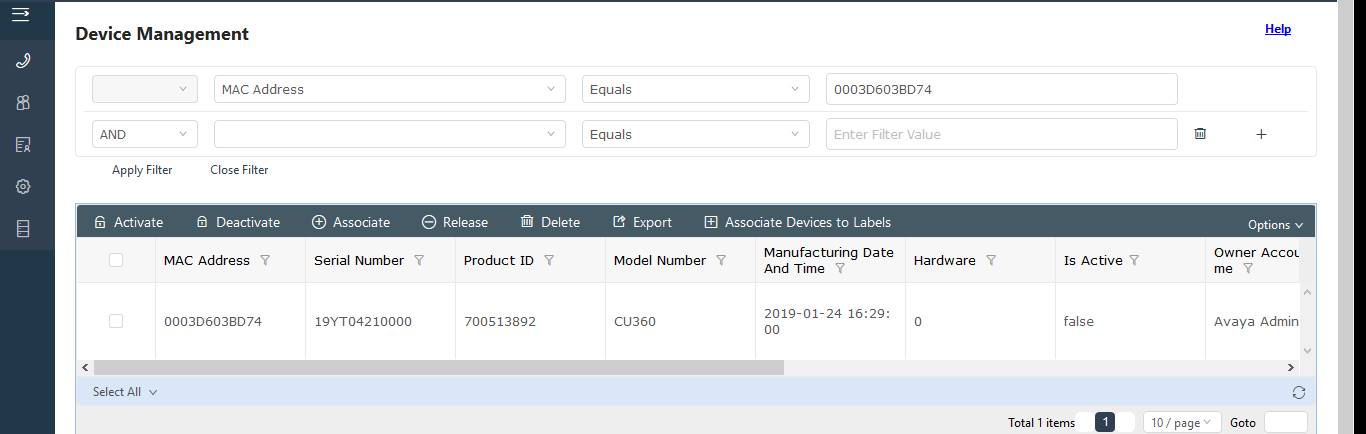
- To delete a search condition, click
 .
ADDITIONAL INFORMATION:This button is available only when you add multiple search conditions.
.
ADDITIONAL INFORMATION:This button is available only when you add multiple search conditions. - When you are ready to perform the search, click Apply Filter.