AVAYA DOCUMENTATION CENTER
Find answers to your technical questions and learn how to use our products
Deploying IP Office Server Edition and Application Servers
Logging in as a root user
Occasionally it may be necessary to login as the Linux root user.
Before you begin
Download and install an SSH secure shell application.
To login as a root user using SSH Secure Shell.
-
Only use this process when instructed to do so by Avaya.
-
Logging in as the root user is only supported when connected directly to the server (or the console on virtual servers).
- Connect to the IP Office Server Edition using an SSH tool.
- Type the IP address of the IP Office Server Edition server in the Host Name field.
- Type the User Name as Administrator.
- Set the Protocol as SFTP/SSH.
- Set the Port as 22.
ADDITIONAL INFORMATION:When you connect to the IP Office Server Edition using an SSH File transfer tool for the first time the system prompts you to accept the trusted key. Accept the trusted key.
- Type the password for the Administrator. The default password for the Administrator is Administrator.
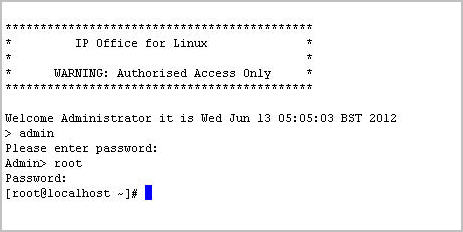
- In a new terminal window at the command prompt, type admin
STEP RESULT:The system prompts for a password. The default password is Administrator
- At the Admin > prompt, type root
- Type the root password. The default password is Administrator
STEP RESULT:The system displays the root user prompt. For example, root@<name of the server>