

AVAYA DOCUMENTATION CENTER
Find answers to your technical questions and learn how to use our products
Using Avaya J159 SIP IP Phone in Avaya Aura®
Physical layout of a J159 IP Phone
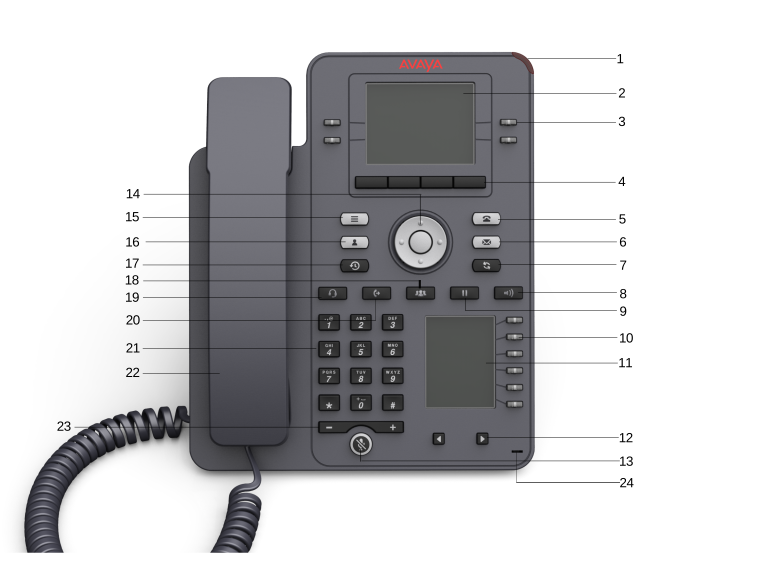
No. |
Name |
Description |
|---|---|---|
1 |
Beacon LED |
Provides visual alerts for the following:
|
2 |
Phone display |
Displays two areas:
|
3 |
Line keys |
Used to select the corresponding line or feature. Each line key has a combination of red and green LEDs that provide call or feature specific visual alert.
Note:
The default action depends on the application and the context. |
4 |
Soft keys |
Used to select the corresponding label of context-specific actions. With the Help soft key, you can view a short description of the features available on your phone. |
6 |
Voicemail |
Used to dial the configured voice mail number to receive a voice message. |
7 |
Redial |
Used to redial the most recently dialed number from any screen of the phone. |
8 |
Speaker |
Used to turn on the speaker. |
9 |
Hold |
Used to put an active call on hold and resume a held call. |
10 |
Line keys |
Used to select the corresponding line or feature. Each line key has a combination of red and green LEDs that provide call or feature specific visual alert.
Note:
The default action depends on the application and the context. |
11 |
Secondary display |
Provides quick access to line appearances, features, and phone menus. |
12 |
Left, Right keys |
Used to navigate on the Secondary Display screen. |
13 |
Mute |
Used to mute and unmute the outgoing audio. |
14 |
Navigation cluster |
Used to navigate on the phone screen.
|
18 |
Conference |
Used to initiate a conference call and also to add a participant to a conference call. |
19 |
Headset |
Used to turn on headset, and also to toggle your call from the speaker to headset. |
20 |
Transfer |
Used to transfer a call. |
21 |
Dialpad keys |
Used to dial the phone extensions or enter alphanumeric characters and special symbols. |
22 |
Handset |
Used to receive and make calls. |
23 |
Volume |
Used to adjust volume of a handset, speaker, or ringtone.
|
24 |
Mic |
The Mic of the phone. |
Application keys provide direct access to the corresponding applications:
No. |
Application keys |
Description |
|---|---|---|
5 |
Phone key |
Displays the Phone screen. |
15 |
Main Menu |
Displays the list of options, such as Features, Applications, Settings, and Network Information. |
16 |
Contacts |
Displays the entries in your Contact list. |
17 |
Recents |
Displays the list of all calls. |