AVAYA DOCUMENTATION CENTER
Find answers to your technical questions and learn how to use our products
Upgrading Avaya Aura® Session Manager
Adding trusted certificates
About this task
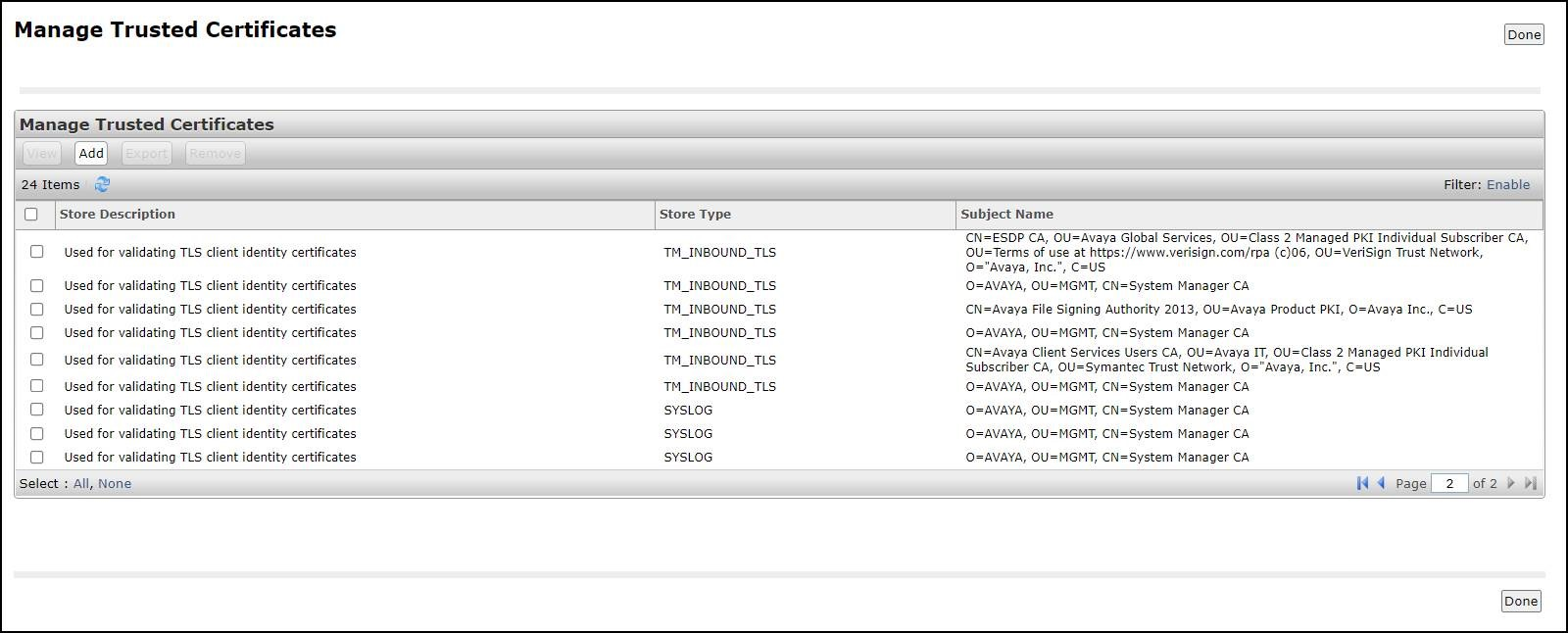
Use the following procedure to import the certificates that you want to add as trusted certificate in the trust store of the element.
Note:
From Release 8.1, you can add trusted certificates for multiple elements. All the elements must be of same Type and Version. When you add trusted certificates for multiple elements, the system creates a scheduled job. To view the certificate management job status, select the element, and click View Certificate Add Status on the Manage Elements page.
If you select multiple elements, click , and the version of the elements is not up to date or empty then System Manager displays the following error message:
ElementType and Version of Selected Elements do not match.
Before you begin
Perform the Refresh Element(s) operation under Pre-upgrade Actions on the page and ensure that the version in the Current Version column is up to date for all the elements on which you plan to add trusted certificates at once.
Procedure
- On the Manage Trusted Certificates page, click Add.