AVAYA DOCUMENTATION CENTER
Find answers to your technical questions and learn how to use our products
Deploying Avaya Breeze® platform
Configuring startup settings using the vSphere desktop client
Before you begin
Confirm that you have the proper level of permissions to configure the automatic startup settings. If you do not have the proper level of permissions, contact your system administrator.
- In the vSphere Client inventory, select the host where the virtual machine is located.
- Click the Configuration tab.
- In the Software section, click Virtual Machine Startup/Shutdown.
- Click Properties in the upper right corner of the screen.
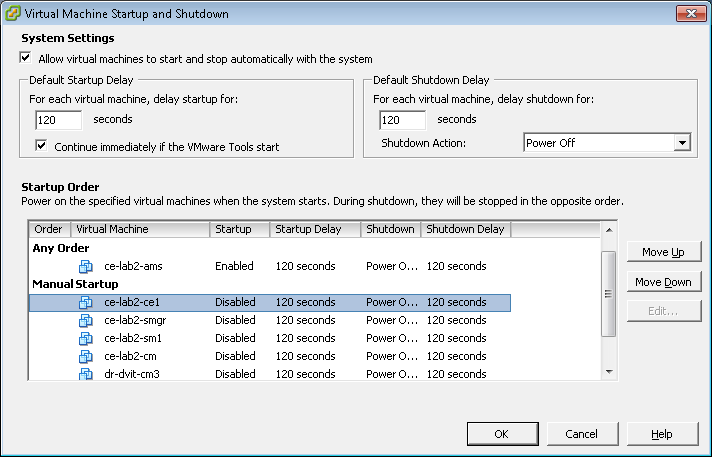
- In the System Settings section, select Allow virtual machines to start and stop automatically with the system.
- In the Default Startup Delay section, set the For each virtual machine, delay startup for setting to 300 seconds. The hosting platform applies this setting to the start time between each virtual machine set for automatic startup.
- In the Manual Startup section, select the virtual machine.
- Use the Move up button to move the virtual machine under Automatic Startup.
- Click OK.
The following is an example of the Virtual Machine Startup/Shutdown screen.