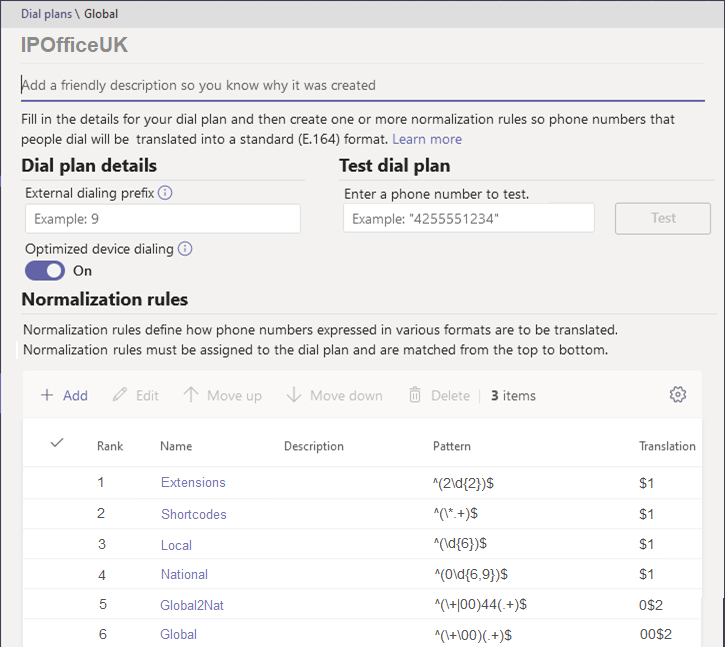
If necessary, select Voice and then select Dial plans.
Either select the Global dial plan or click Add to add a new plan.
MS Teams applies the global plan to the dialing of any users who do not have an associated user dial plan.
Adding a new plan creates a copy of the existing global plan including its existing translations.
Edit the plan details as required.
For a new plan, replace the label at the top of the menu with a unique descriptive name for the dial plan.
Edit the dialed digits matches and their translations as required:
To add a new match, click Add.
Enter a name for the dialing rule and, if needed, a description.
Either select Basic or Advanced mode to define the actions of the dialing rule. Basic mode uses the menu options to create the required regex expressions. Advanced mode allows direct entry of the regex strings used for the match and translation.
Enter the regex string needed to match the number and the string for the resulting translation. For details of regex, see Using Regular Expressions (regex).
To edit an existing match, click to the left of the rule translation name and then click Edit.
Sort the matches by selecting the match that needs moving and then clicking Move up or Move down. In use, MS Teams checks entries from the top-down and uses the first match.
The final plan should for our example scenario looks like the following.