Creating a Voice Route

Last Updated : Oct 16, 2023 |

Use the following process to create voice routes.

Procedure

  1. Log in to the MS Teams admin portal at https://admin.teams.microsoft.com/direct-routing/v2/voice-routes.
  2. Select Voice and then Direct Routing.
  3. Select the Voice Routes tab.


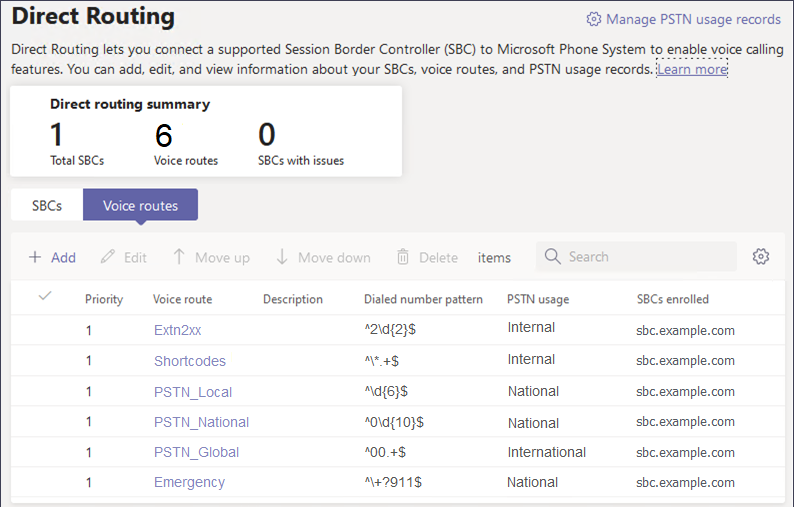
    • In this example from the simple single server scenario (see Example Direct Routing Scenario), the Dial number pattern matches any dialed number following their processing through the user voice routing policies. The single ASBCE is set as the destination for calls.

  4. To add a new route, click Add. To edit an existing route, select it and then click Edit.
    1. Enter a unique descriptive name for the voice route and, if necessary, a description.
    2. Set the Priority. When multiple voice route matches occur, MS Teams checks the one with the highest priority first.
    3. Enter the Dialed number match. MS Teams uses this dial pattern to match numbers that it will route using the voice route. The dial pattern uses regex format syntax. For example, ^2\d{2})$ matches 3-digit extension numbers being with a 2. See Regular Expressions.
    4. To add an SBC to the list of SBCs used by this voice route:
      1. Click Add SBCs.

      2. Select the ASBCE from the list of enrolled SBCs and click Apply.

    5. Add a PSTN usage for the voice route. Only calls by users who have the same usage in their associated voice routing policy can use the voice route.
      1. Click Add PSTN usage or from the list of those already shown, click Add.

      2. Select an existing PSTN usage from the list of those available and click Save and apply. Alternatively, to create a new PSTN usage, click Add and when completed, select it and click Save and apply.

    6. Click Save.
  5. Repeat the process to define any additional voice routes required.
  6. Once you have added the voice routes required, check they are in the required order. If necessary, select a record and click Move up or Move down.

Next Steps