

AVAYA DOCUMENTATION CENTER
Find answers to your technical questions and learn how to use our products
Deploying IP Office as an Avaya Cloud Office ATA Gateway
Setting up the ACO user phone details
The configuration of the IP Office ACO line requires details provided by Avaya Cloud Office™.
- As a system administrator, login to Avaya Cloud Office™ at https://service.cloudoffice.avaya.com.
- Select .
- Within the Avaya Cloud Office™ administration menus, setup the Avaya Cloud Office™ user's phone.
- Click the Existing Phone link next to the required user.
- Click Setup & Provision.
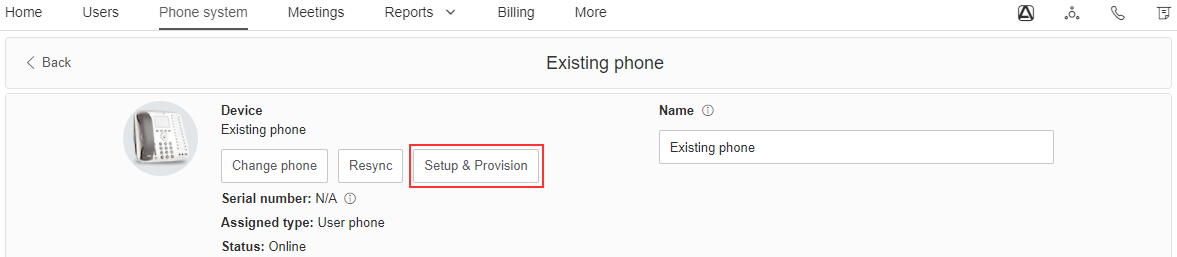
- In the Select device menu, select Other phones.
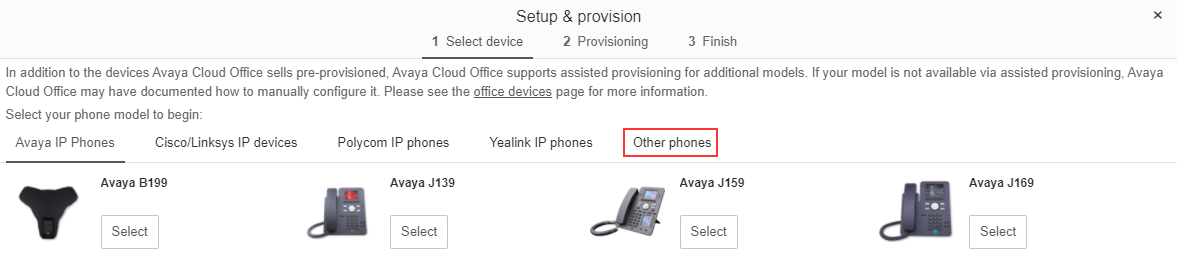
- Under Existing Phone, click Select.
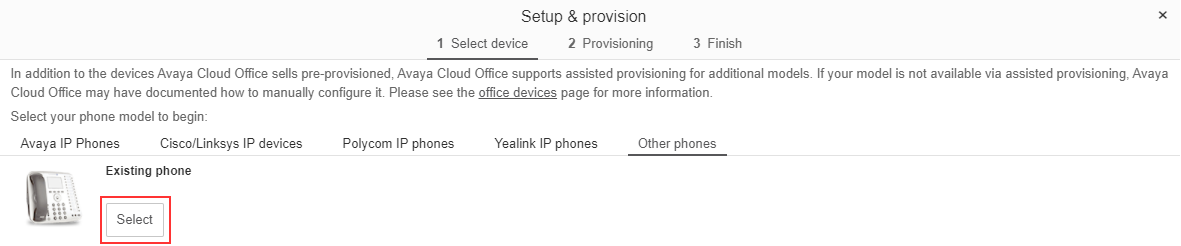
- In the Provisioning menu, set Will you be using secure voice transport on this device? to Yes.
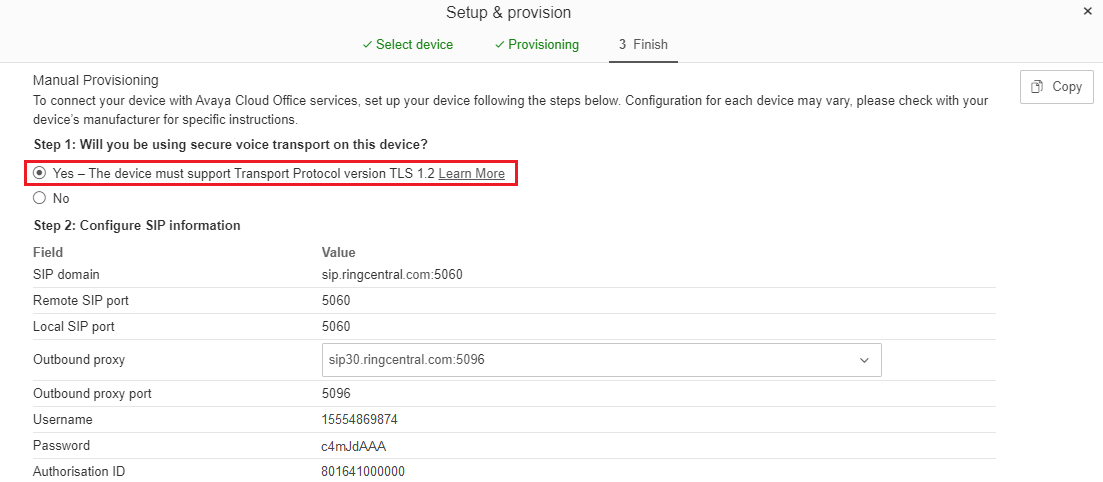
- Note the settings. You can use the Copy button to copy the details into a document. Whilst the line settings are the same for each user, the user/extension values are different for each user.
ADDITIONAL INFORMATION:ACO ValueIP Office Line ValueSIP Domainwithout the port number.Outbound proxywithout the port number.ACO ValueIP Office User/Extension ValueUsernamePasswordAuthorization ID
- Click Done.
Next steps