

AVAYA DOCUMENTATION CENTER
Find answers to your technical questions and learn how to use our products
Using Avaya Workspaces for Avaya Oceana®
Agent Workspace page
The Agent Workspace page has an intuitive layout that provides simultaneous contact channels such as Voice, Chat, Social, SMS, Email, and Messaging.
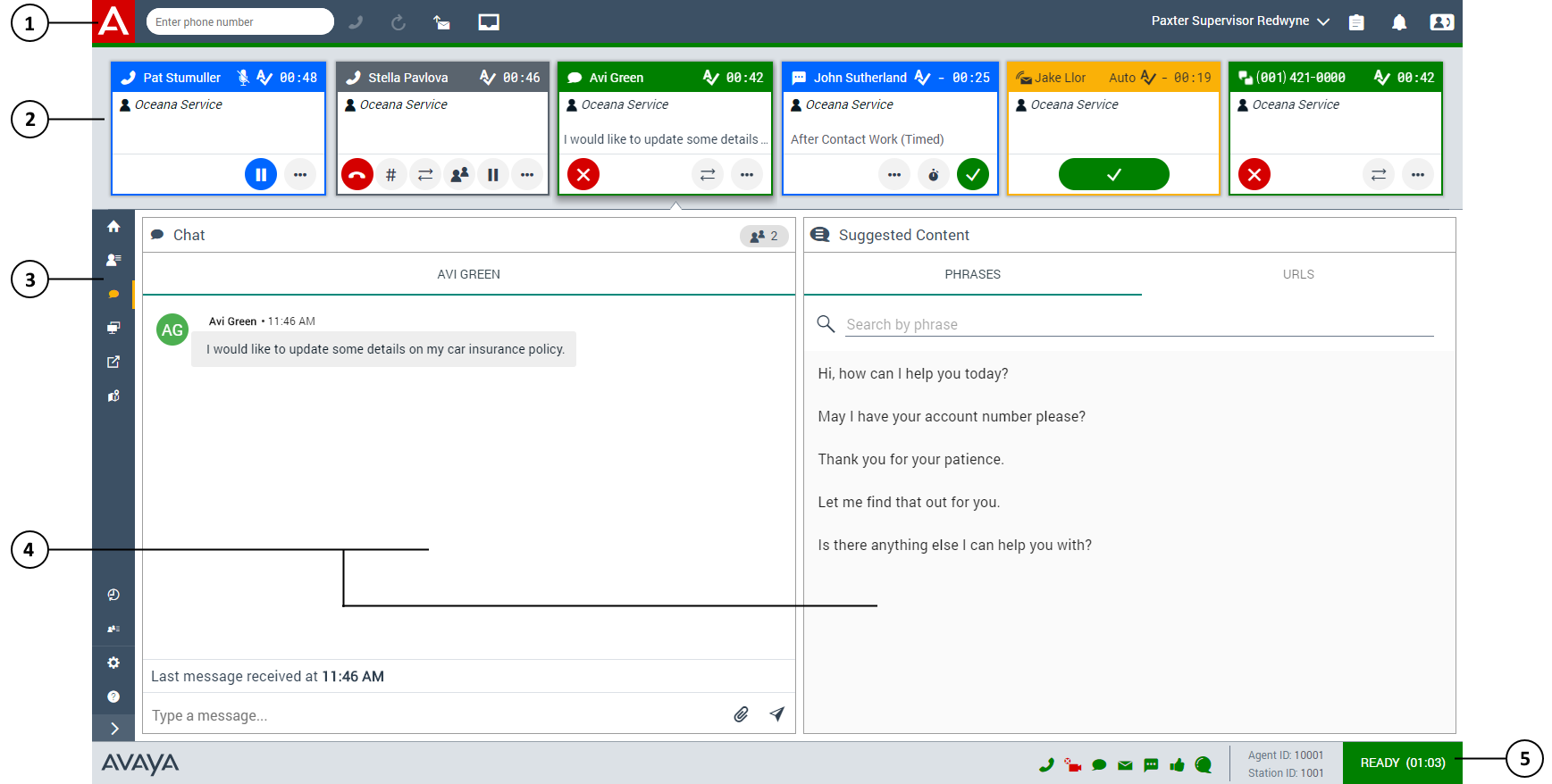
The page has the following areas:
Number |
Name |
Description |
|---|---|---|
1 |
Agent toolbar |
Provides options for quickly making voice calls, creating required emails, viewing interaction logs, viewing notifications, viewing deferred interactions list, changing agent states, accessing team view, and accessing the Address Book. |
2 |
Interaction area |
Displays all incoming interactions for the agent on any channel, as a Work Card. The interaction cards are queued for the agent at any time. |
3 |
Navigation menu |
Provides options according to the type of interaction. |
4 |
Interaction widgets |
Displays information related to the interaction. |
5 |
Agent state summary |
Displays the agent ID, Station ID, the current state of the agent, and the channels available for interactions. Agent state summary also includes Time in State Timer when enabled. |
Avaya Workspaces does not dynamically update the drop-downs within the work card for Services, Work Code, and Disposition Code. Avaya Workspaces populates the list for the agent when the agent accepts an interaction and selects the drop-down. Avaya Workspaces caches this list and updates it if the agent refreshes the browser.
Compressed layout
An administrator can enable compressed layout for all agents through the Administrator Settings in Avaya Workspaces. The compressed view maximizes the on-screen area in Avaya Workspaces for widgets by minimizing the Agent toolbar, the footer and the work cards.
However, with compressed view:
You must hover over the card button area to make the button visible. For example, a chat agent with multiplicity cannot view the text of recent messages on out of focus work cards. To view the text of the incoming chat, the chat agent must bring the chat interaction card into focus.
The size of the work card is reduced.
The administrator determines whether to enable or disable the compressed view.
Administrator mode
When a user logs into Avaya Workspaces as an administrator, Avaya Workspaces displays the Widget Framework home page. Administrators can access tools and documentation using which they can modify and create layouts and widgets for agent and/or supervisors in Avaya Workspaces. The following is a brief overview of these tools, comprehensive documentation is presented when the administrator logs into Avaya Workspaces.
The Layout Manager allows the administrator to change the layout of the widgets within Avaya Workspaces. These layouts can be configured based on interaction type.
The Widget Manager gives the administrator the ability to add or remove widgets from Avaya Workspaces. This includes custom widgets.
The Layout Migrator assists the user in migrating layouts and widgets from older versions of Avaya Workspaces. The Layout Migrator checks that layouts and widgets are compatible with the latest version of Avaya Workspaces. If not, it assists the administrator in merging custom layouts and widgets into the new release. The Layout Migrator also removes any core widgets that are no longer compatible with Avaya Workspaces.
The Widget Framework API enables third-party developers to write custom widgets and deploy them in Avaya Workspaces. To write a custom widget, you need access to the Widget API Developer Documentation and code examples. The Widget API is designed to make it easier for anyone with a basic understanding of HTML, CSS and JavaScript to write a custom widget and deploy it in Avaya Workspaces.
Neo Framework is a CSS framework that can be used in the creation of custom widgets for Avaya Workspaces. It contains a color palette and a number of core components that assist the development and rapid prototyping of custom widgets. Widgets developed using the Neo CSS framework have a consistent look and feel to core Avaya Workspaces widgets.