

AVAYA DOCUMENTATION CENTER
Find answers to your technical questions and learn how to use our products
IP Office Voicemail Pro Example Exercises
Adding the Still Queued Actions
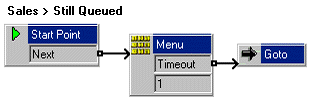
You can add a Still Queued start point for the Sales hunt group.
The following is an image of a completed call flow:
Procedure
- Under
 Groups, right-click Sales and select Edit.
 - Add Still Queued to the selected options and click OK.
- Select the Still Queued start point under Sales.
- Add a new Menu action and open its Properties.
- In the Entry Prompts tab, add sales still queued.wav.
- In the Touch Tones tab, tick 1.
- Set Wait for a key press for up to to 3 and select OK.
- From Basic Actions, add a Goto action and open its properties.
- In the Specific tab, click Browse.
- Select Start Point or module, and from the list, select Sales Leave.
- Do the following to add a connection:
- Click
 Connection.
 - Click Start Point and select Menu.
- Connect the Timeout result to the Goto action.
- Click
- Click the
 Save & Make Live icon.
 - Do the following to make a test call that is queued.
- Make 208 busy and dial 301 from 207. You will hear to a message, for example You are placed in a queue and the default queued greeting is played with your queue position and estimated time answer.
- Wait for another 20 seconds. The call flows to Still Queued start point.
- Press 1 to stay in the queue. Wait, and on the second turn, do not press 1. The call is transferred to the actions in the Sales Leave call flow.