

AVAYA DOCUMENTATION CENTER
Find answers to your technical questions and learn how to use our products
IP Office Voicemail Pro Example Exercises
Creating the Queued Call Flow
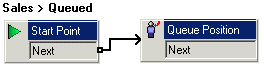
You can add a new Queued start point for the Sales group.
The following is an image of a completed call flow:
Procedure
- Under
 Specific Start Points for
  Groups, right-click Sales and select Edit.
 - Check Queued and choose OK.
- Select the Queued start point.
- From Queue Actions, add a Queue Position action and open its properties.
- Click the
 Save & Make Live icon.
 - Make extension 208 busy and dial 301 from 207. After 10 seconds, you are placed in the queue, and sales queued.wav is played, indicating your position in the queue. If you continue to hold, you eventually hear the queued message, which repeats every 30 seconds.