

AVAYA DOCUMENTATION CENTER
Find answers to your technical questions and learn how to use our products
IP Office Voicemail Pro Example Exercises
Using the Condition
Having created the condition for normal business hours (see Creating the Attendant Hours Condition), we need to add a test for it to the auto-attendant.
The following is an image of a completed call flow:
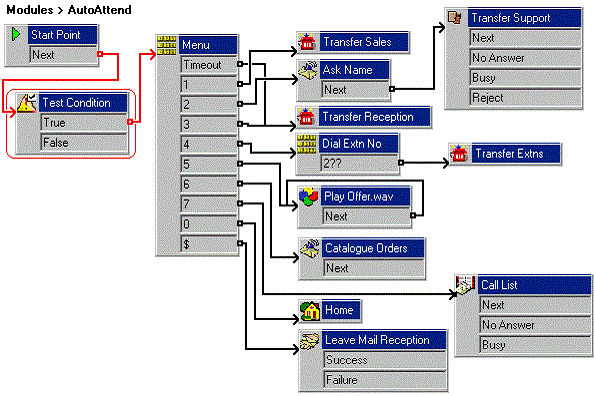
The red arrow or arrows in the call flow are the changes added in this section.
Procedure
- In the
 AutoAttend module, delete the existing connection from the Start Point to the Menu action:
- Select the connection between Start Point and Menu.
- Press Delete.
- Add a Test Condition action:
- Click the Configuration Actions icon and select Test Condition.
- Click the Details pane to place the action.
- Open Properties for the new Test Condition.
- Click the Specific tab.
- Click the Return the result of the following condition arrow and select the BusinessHours condition.
- Click OK.
- Connect the new action into the callflow:
- Click
 Connection.
 - Click Start Point and click Test Condition action.
- Select the actions True result and connect it to the Menu action.
- Click
- Click the
 Save & Make Live icon.
 - The attendant menu is now only available between 09:00 and 18:00, Monday to Friday.