

AVAYA DOCUMENTATION CENTER
Find answers to your technical questions and learn how to use our products
IP Office Voicemail Pro Example Exercises
Using the Generic Action
Callers can be given an option to hear a specific message. For example, details about the latest sales offer. You can add a touch-tone to the AutoAttend module through this exercise. A looped connection is used to repeat the recording continually.
The following is an image of a completed call flow:
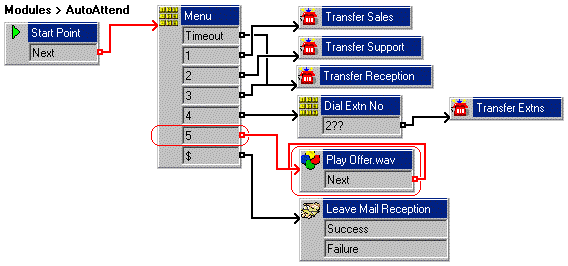
The red arrow or arrows in the call flow are the changes added in this section.
Procedure
- Do the following to add Menu action:
- Select the AutoAttend module.
- Open Properties for the
 Menu action.
 - In the Touch Tones tab, select 5.
- Click OK.
- Do the following to add Generic action:
- Click the
 Basic Actions icon and select
  Generic.
 - Click the Details pane to place the action.
- Open the Properties for the new Generic Action.
- In the General tab, change the Token Name to Play offer.wav.
- Click the
- Do the following to record a message:
- In the Entry Prompts tab, select the
 Add a Prompticon. The Wave Editor window opens.
 - Click the Use which media device? arrow and select Telephony Handset.
- In Extensions, type the extension number to record from.
- In Please select a file or enter a new file name, type offer.wav.
- Select
 Record. The telephone corresponding to the extension number entered rings, and you can start to record the prompt.
 - The latest sales offer message is recorded. For example. "Latest Avaya offers – 50% discount on all products until the end of the month. Contact your account manager for further information".
- Click
 Stop when you finish the recording.
 - Click
 Play to reply to the recorded message.
 - Optional To re-record the message, select Record.
- When recording is complete, replace the telephone handset.
- In the Entry Prompts tab, select the
- Select Close and OK.
- Do the following to add connections:
- Click
 Connection.
 - Set 5 to the Play offer.wav action.
- Click Next.
- Click
- Select Close and OK.
- Click the
 Save & Make Live icon.
 - The auto-attendant greeting needs to be re-recorded to include the new options. For example: "Welcome to Avaya. Please press 1 for Sales, 2 for Support, 3 for Reception, 4 to dial the extension you want or 5 to hear the latest sales offer. Alternatively hold for further assistance. Thank you." This can be done using the callflow and short code (*80) created earlier.
- Do the following to test the new announcement:
- To make a test call to the auto-attendant, dial *90.
- Dial 5. The recording is repeated until the call ends.