

AVAYA DOCUMENTATION CENTER
Find answers to your technical questions and learn how to use our products
IP Office Voicemail Pro Example Exercises
Using a Default Start Point
Through this exercise can use the to change the options available to all users when they collect their messages.
A specific start point for a specific user or group precedes a default start point.
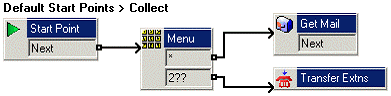
The following is an image of a completed call flow:
Procedure
- In Default Start Points, select Collect.
- Add a Menu action and in its Touch Tones tab, add * and 2??.
- From Mailbox Actions, add a Get Mail action and open its properties.
- In the Specific tab, ensure the Caller's Mailbox option is selected.
- Add a Transfer action and open its properties.
- Change its Token Name to Transfer Extn.
- In the Specific tab, enter $KEY in the Mailbox action.
- Do the following to add a connection:
- Click
 Connection.
 - Click Start Point and click Menu action.
- Click * for the call flow to Get Mail action.
- Click 2?? for the call flow to Transfer Extn action.
- Click
- Add a wav file of the options to the Entry Prompts of the Menu action.
- Click the
 Save & Make Live icon.
 - At any extension, dial *17 and test that the new start point is operational.