

Creating the Campaign

Last Updated : Dec 22, 2021 |

Procedure

  1. Click the Campaign Editor icon.

    The Campaign Wizard Introduction window opens.

  2. Select Create a new Campaign.
  3. Click Next.

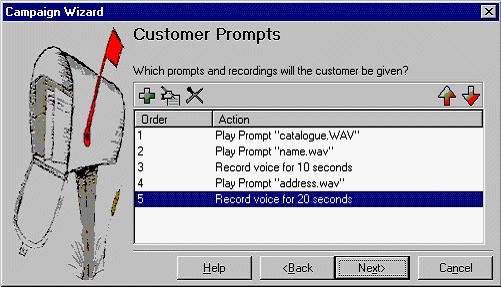
    The Customer Prompts window opens.

  4. In Customer Prompts window, do the following:
    1. Click Add.

      The Please edit the Campaign Action window opens.

    2. Select the option Play a prompt to the customer.

      A .wav file created in the earlier exercises is reuse.

    3. Click Browse.

      The Wave Editor window opens.

    4. In Please select a file or enter a new file name, click Open.
    5. Select catalogue.wav and click Open.

      You return to the Wave Editor window.

    6. Click Close.

      You return to the Please edit the Campaign action, window.

    7. Click OK.

      You return to the Customer Prompt window.

    8. Click Add and in Play a prompt to the customer enter name.wav.
    9. Click OK.

      You return to the Customer Prompt window.

    10. Click Add and select the Allow the customer to input information option.
    11. In Please enter the maximum recording length, enter 10.
    12. In Please enter a unique name that will describe the input, enter CustomerName.
      Note:

      When entering a name, ensure that you use no spaces.

    13. Click OK.

      You return to the Customer Prompt window.

  5. Repeat the procedure to add address.wav, allow 20 seconds recording time, and enter CustomerAddress as the unique name.
  6. Click Next.

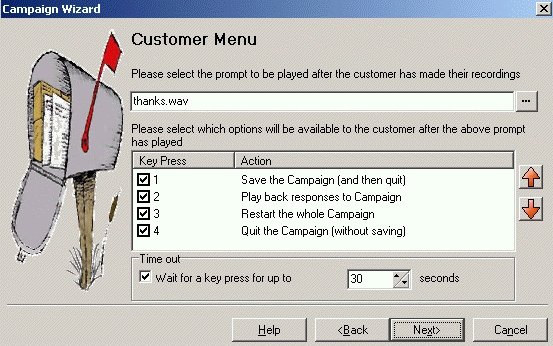
    The Customer Menu window opens.

  7. Do the following in the Customer Menu window:
    1. In Please select the prompt to be played after the customer has made their recordings, use the Browse to enter the wav file called thanks.wav.
    2. Under Please select which options will be available to the customer after the above prompt has played, select 1, 2, 3, and 4.
      Note:

      Ensure the prompt thanks.wav recording is recorded with selected options.

    3. Click Browse to open the Wave Editor window and re-record the prompt.

      Return to the Customer Menu window.
    4. Click Next.

      The Campaign Identification window opens.

  8. In Campaign Identification, do the following:
    1. In Where should this Campaign be parked when information is either left by a customer or collected by an agent?, enter 5000.
    2. In The name of this Campaign is, enter Sales Catalog.
    3. Click Next.

      The A new Campaign called "Sales catalogue" will now be produced window opens.

    4. Click Finish to produce the campaign.