

AVAYA DOCUMENTATION CENTER
Find answers to your technical questions and learn how to use our products
Using Avaya Cloud Office Mobile App
User profile management
The user profile page contains information about you and enables you to make changes to your account. When you tap your profile icon at the top-left corner of the screen,displays the profile page where you can view and edit your profile badge, presence indicator, and status message. Your presence and status message are synchronized across allapplications, helping your coworkers see your availability.
From the same section, you can quickly adjust your call handling rules and manage your additionalaccounts.
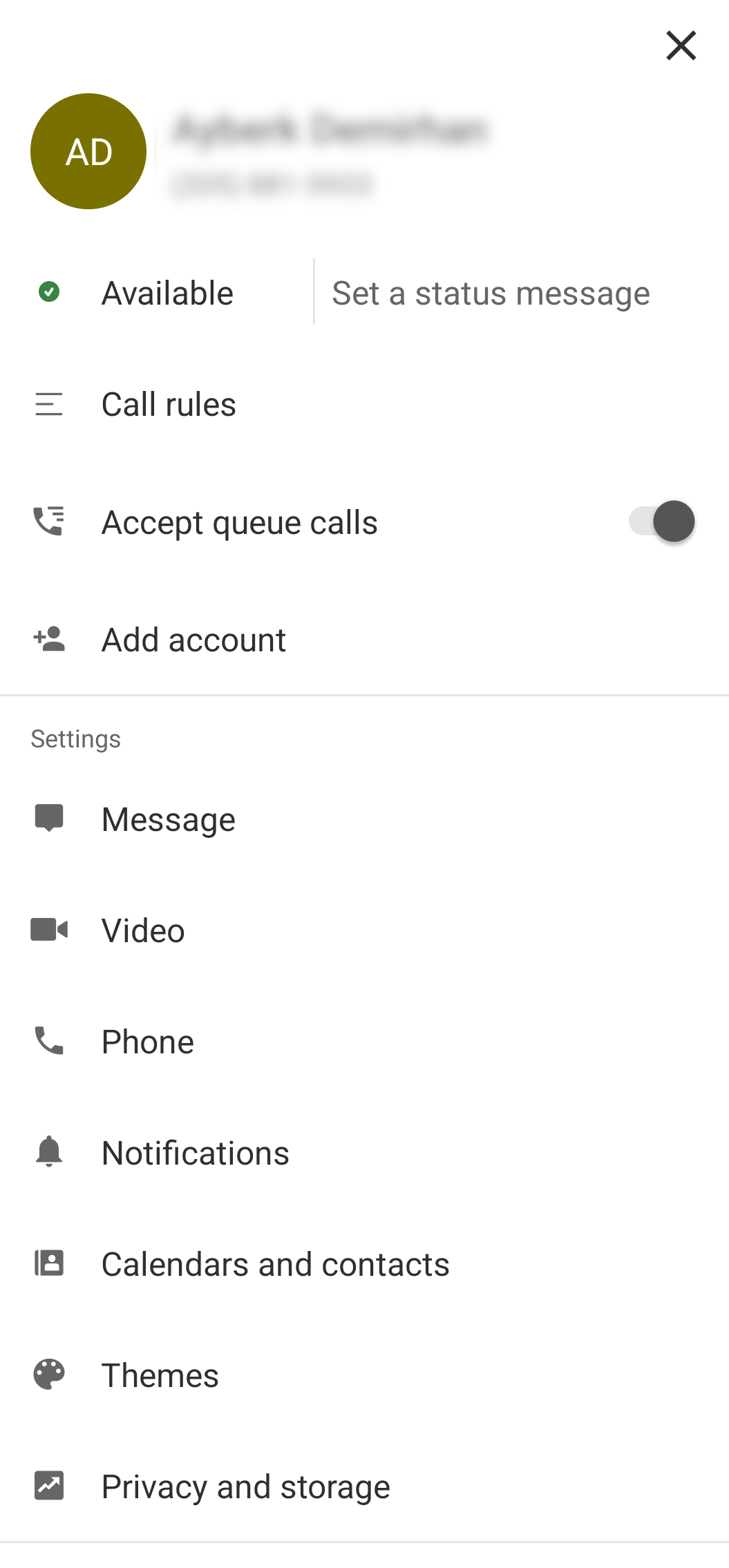
Below the profile section, you can also access the application settings and the help center. While the most settings only affect the mobile application, some settings, such as the call handling and connected account settings, apply across allapplications.
Account synchronization
After you set up your profile, you might want to connect your other company accounts, such as Microsoft 365, Exchange, or Google, to. This enables you to view and join events from your calendars and make calls with contacts across these accounts through. You can also connect the calendar and the contacts from your mobile device for the same effect.
Notification customization
also provides various notification settings for customization. You can disable notifications for unimportant items or adjust notification behaviors to prevent receiving duplicate notifications acrossapplications. By default,sends notifications only after 15 minutes of inactivity.
Modifying your profile information
To keep your personal information current, update your personal information, such as your name, profile picture, and contact details. You can also view your extension, primary number, email, and company information. You can update the following information:
-
First name
-
Last name
-
Job title
-
Email
-
Department
- At the top corner of the screen, tap your profile picture.
- At the top of the screen, tap your name.
STEP RESULT:displays the Edit profile page.
- Update your personal details.
Resetting your password
Reset your password if you forget your credentials or need to update them. After resetting your password, you are logged out of.
- At the top corner of the screen, tap your profile picture.
- At the top of the screen, tap your name.
STEP RESULT:displays the Edit profile page.
- Tap Reset password.
STEP RESULT:displays the following information message: You are logged in as johndoe@avaya.com. You will be immediately logged out if you choose to reset your password. Are you sure you want to continue?
- Tap Continue.
STEP RESULT:displays the following information message: You will receive a confirmation email to the email address associated with your login ID: j***e@a***a.com.
- Tap Send Email.
STEP RESULT:
- sends an email to youremail address with instructions for resetting your password.
- Follow the instructions in the email to reset your password.
Changing your presence status
Change your presence status to inform your coworkers. You can select from one of the following presence options:
-
Available: To inform other users that you are active and available for calls. When you are on a call,changes your presence to Busy to inform other users that you are unavailable for calls.
-
Do not disturb: To inform other users that you are unavailable for calls. When you select this option,turns off the notifications and forwards incoming calls according to your call handling settings.
-
Invisible: To appear as Offline to other users. When you select this option, you continue receiving notifications.
- Tap your profile picture.
- Under your profile badge, tap the current presence status.
- Tap one of the following options:
-
Available
-
Do not disturb
-
Invisible
STEP RESULT:changes your presence status according to your selection. -
Setting a status message
Set a status message to share your current status with your coworkers.displays your status message in your profile badge, in the calendar, and all the past and present messages you send in the message threads.
When setting a status message, you can select from a set of default status messages. However, you can also create a custom status message. The default status messages you can set are as follows:
-
In a meeting
-
Out of office
-
Out sick
-
Working remotely
-
Vacationing
-
Traveling
When you create a custom status message,adds this custom message to the list of default messages so that you can use it again later.
- Tap your profile picture.
- Under your profile badge, tap Set a status message.
- Do one of the following:
-
Select one from the default status messages.
-
To create a custom status message, tap Enter a custom status, type your message, and tap
 .
.
STEP RESULT:displays the Status updated message. -
Removing your status message
Remove the status message from your profile badge.
- Tap your profile picture.
- Under your profile badge, tap your current status message.
- Next to your status message, tap
 .
. - Tap .
STEP RESULT:displays the Status updated message.
Connecting youraccount
Synchronize youraccount withto connect your calendar and contacts. The components you can synchronize are as follows:
-
Calendars: Connects your calendar so that you can view and join yourmeetings through.
-
Personal contacts: Connects your personal contacts so that you can send messages and make video or phone calls tocontacts.
-
Directory: Connects the directory so that you can send messages and make video or phone calls to your coworkers in thecorporate directory.
-
Shared contacts: Connects your personal contacts so that you can send messages and make video or phone calls to sharedcontacts.
- Tap your profile picture.
- In the Settings section, tap Contacts and calendars.
- In the Accounts section, tap Google.
- Select the components you want to synchronize and tap Connect Google.
- Sign in to youraccount.
- On the pop-up window, tap Allow to grantthe necessary permissions.
ADDITIONAL INFORMATION:Additional pop-up windows can appear depending on the components you select.
- On the Confirm your choices page, review your selections and tap Allow.
STEP RESULT:synchronizes with youraccount.
- To synchronize your calendar with the connected accounts, on the Contacts and calendars page, toggle on the Enable calendar presence switch.
Synchronizing your presence status with your calendar
After synchronizing youraccount withto connect your calendar, enable your calendar presence to update your presence status on thewith your availability on your calendar.
- Tap your profile picture.
- In the Settings section, tap Contacts and calendars.
- On the Contacts and calendars page, enable Enable calendar presence.
Configuring your work hours
Configure your work hours to customize how the incoming calls during work hours are handled.
- At the top corner of the screen, tap your profile picture.
- Tap Incoming call rules.
- In the MY WORK DAY section, tap Incoming calls.
- On the Incoming calls page, tap 24 hours, every day.
- On the Edit schedule page, tap Add schedule.
- In the Days and time section, configure your working hours.
ADDITIONAL INFORMATION:For example, set a time for the start and end of the working hours and select the dates.
- Tap Set.
- Tap Save.
Changing the mobile notifications
Change the settings for thenotifications you receive on your mobile device. You can change the following parameters:
-
Receive notifications: Governs whether you receive notifications. By default, you receive notifications on your mobile device after 15 minutes of inactivity on the desktop or web applications.
-
Direct messages: Governs whether you receive direct message notifications on your mobile device. Direct message notifications are enabled by default.
-
Mentions: Governs whether you receive mention notifications on your mobile device. Mention notifications are enabled by default.
-
Teams: Governs whether you receive team notifications on your mobile device. Team notifications are disabled by default.
-
Missed calls, VMs, faxes and texts: Governs whether you receive notifications for missed calls, voicemails, faxes, and text messages on your mobile device. These notifications are enabled by default.
-
Upcoming meeting reminder: Governs whether you receive a reminder on your mobile device before a meeting. By default,sends a reminder 2 minutes before a meeting starts.
- Tap your profile picture.
- In the Settings section, tap Notifications.
- To change the mobile notification behavior, tap Receive notifications and select from the following options:
-
When inactive
-
Always
-
Never
-
- To turn off direct message notifications, disable the Direct messages switch.
- To turn off mention notifications, disable the Mentions switch.
- To change the team notification behavior, tap Teams and select from the following options:
-
Every message
-
First new message only
-
Off
-
- To turn off the missed call, voicemail, fax, and text notifications, disable the Missed calls, VMs, faxes and texts switch.
- To change the meeting reminder behavior, tap Upcoming meeting reminder and select from the following options:
-
None
-
30 seconds before
-
1 minute before
-
2 minutes before
-
5 minutes before
-
10 minutes before
-
15 minutes before
-
Changing the unread message badge counts
Configure the unread message badge counter to specify which types of new messages increment the counter. By default, the counter displays the total number of unread messages for all message types next to your conversations. You can adjust the setting to count only direct messages and mentions.
- At the top corner of the screen, tap your profile picture.
- In the Settings section, tap Message.
- Tap New message badge count.
- To count only the direct messages and mentions, tap Direct messages and @mentions.