

AVAYA DOCUMENTATION CENTER
Find answers to your technical questions and learn how to use our products
Avaya Subscription Reference
Process to perform technical onboarding of applications to Avaya Global Registration Tool
Before you begin
Ensure that you have configured the required WebLM and applications in your Avaya OneCloud™ Subscription system.
- Steps to be performed by Avaya customers:
- Download the Excel file containing the list of applications that are configured in your Avaya OneCloud™ Subscription system.
ADDITIONAL INFORMATION:For more information, see Downloading the list of applications within an Avaya OneCloud Subscription system.
- Email the Excel file to Avaya at: recordsupport@avaya.com
- Download the Excel file containing the list of applications that are configured in your Avaya OneCloud™ Subscription system.
- Avaya will add the following additional columns to the Worksheet sheet and email the updated Excel file to the Avaya Business Partner or Avaya Professional Services personnel who is providing implementation and deployment support to the customer:
ADDITIONAL INFORMATION:
-
AddIB: Set to True if the application can be onboarded.
-
Onboard: Set to True if the application can be onboarded.
-
IBNumber: The Installed Base number of the application.
-
SEID: N/A
-
- Steps to be performed by Avaya Business Partner or Avaya Professional Services personnel:
- Go to: https://support.avaya.com
- Click .
- Use the information in the Excel file to onboard each application to the Avaya GRT and generate an SEID for the application.
ADDITIONAL INFORMATION:Note:Perform a technical onboarding of only those applications for which the AddIB and Onboard columns are set to True, and the Installed Base number is provided in the Excel file.When performing the technical onboarding, you must:
-
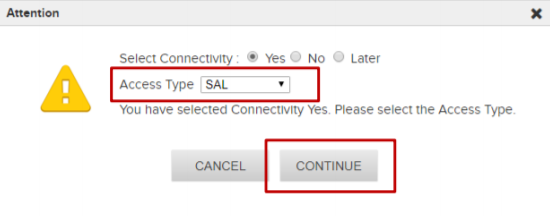
Click Yes in the Select Connectivity field and configure the SAL GW details.This allows Avaya to remotely monitor the Avaya OneCloud™ Subscription system of the customer and provide remote maintenance and troubleshooting support.
-
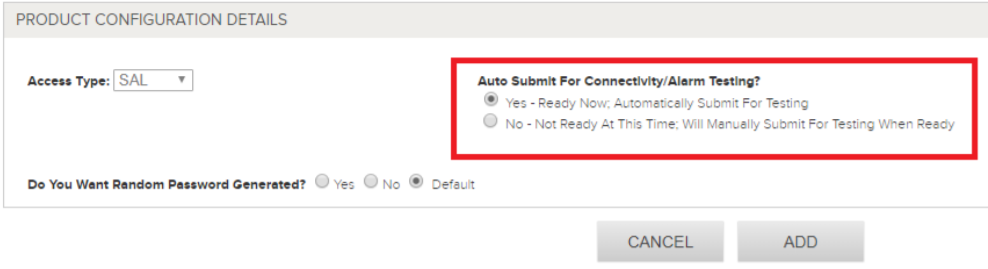
In Auto Submit For Connectivity/Alarm Testing, click Yes - Ready Now; Automatically Submit For Testing to automatically initiate connectivity and alarm testing after the technical onboarding of the application is completed.
The documentation to perform technical onboarding of applications to the Avaya GRT is available on the Avaya Support site at: https://support.avaya.com -
- Update the SEID column in the Worksheet with the SIED of the application that is generated by the GRT and email the Excel file to Avaya at: recordsupport@avaya.com