

AVAYA DOCUMENTATION CENTER
Find answers to your technical questions and learn how to use our products
IP Office Platform H.323 Telephone Installation
Configuring and editing file settings
Most Avaya IP phones download a settings file when restarted, This file contains a range of settings.
Note:
Where possible that you use the IP Office system's as the file server and let it auto-generate the settings files. This helps as the system automatically adjusts the settings provided to phones to match changes made in the system configuration.
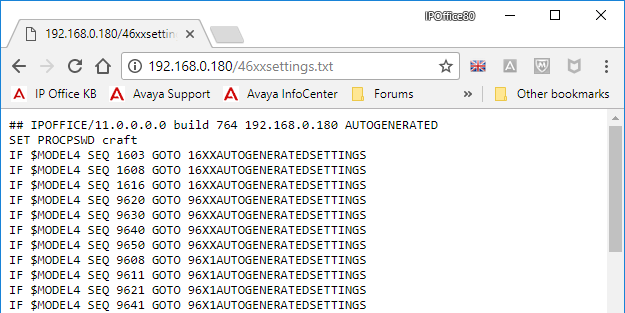
- Browse to the system and enter the name of the particular phone settings file required, for example http://192.168.42.1/46xxsettings.txt. The auto-generated file is displayed in the browser.
ADDITIONAL INFORMATION:
-
Most Phones: 46xxsettings.txt
-
1100/1200 Series: 11xxsettings.txt
-
H175: H1xxsettings.txt
-
- Save the file as a local text file.
-
To save the file using Chrome browser, right-click on the window and select Save As.
-
To save the file using Explorer browser, select .
-
To save the file using Firefox browser, select Save Page As.
STEP RESULT:The downloaded file can now be edited using a text editor. The supported fields are described in the appropriate administration manual for the phone series. -
- When completed, upload the file to the file server being used by the telephones.
- Restart the phone or phones in order for them to reload their files including downloading the edited settings file.