

AVAYA DOCUMENTATION CENTER
Find answers to your technical questions and learn how to use our products
Deploying Avaya Aura® Session Manager and Avaya Aura® Branch Session Manager in Virtualized Environment
Deploying Branch Session Manager on ASP R6.0.x (KVM on RHEL 8.10) using KVM Cockpit
About this task
Branch Session Manager requires two network interfaces.
Branch Session Manager has 2 different profiles, Profile 1 supports/recommended to deploy on S8300E card and Profile 2 supports/recommended to deploy on Dell R640 and R660xs Servers.
Branch Session Manager provides OVA that contains bsm.qcow2 file.
Note:
Solution Deployment Manager and Solution Deployment Manager Client does not support KVM on RHEL 8.10 images for a virtualized environment.
Before you begin
Always follow A1SC output for deployment of applications on the host(s). There should never be more than one instance of a specific application on the same host.
Deployment of applications MUST be performed one at a time and artifacts cleaned up/removed prior to deploying then next application.
Install ASP R6.0.x (KVM on RHEL 8.10).
For more information, see Installing the Avaya Solutions Platform 130 Series at https://support.avaya.com/css/public/documents/101091802.
Download the BSM KVM image from PLDS to your computer.
Log in to the ASP R6.0.x CLI with custadm credentials.
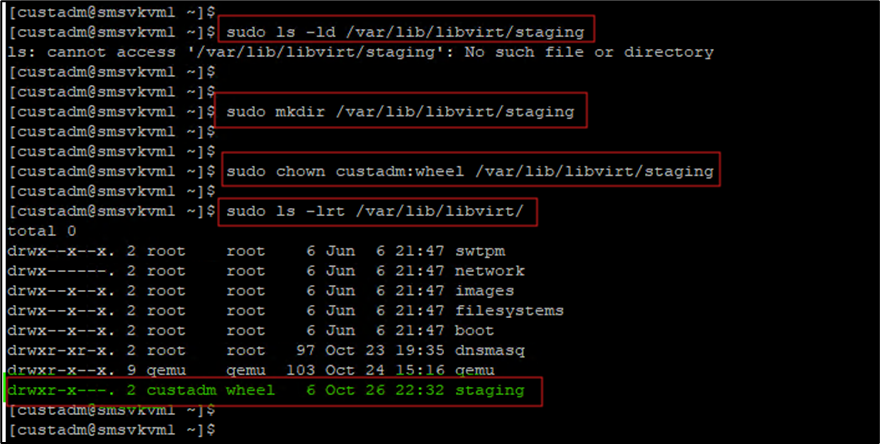
Ensure that the staging folder exists: /var/lib/libvirt/staging.
sudo ls -ld /var/lib/libvirt/images
Ensure to remove the older images from the staging folder.
Ensure sufficient space is available in the staging folder to copy the KVM image.
If the staging folder does not exist, create it using the following commands:
sudo mkdir /var/lib/libvirt/staging
sudo chown custadm:wheel /var/lib/libvirt/staging
Verify file permissions. The above sudo chown custadm:wheel /var/lib/libvirt/stagingcommand enables the custadm to write into this directory with sudo. The permissions must appear as seen below:
drwxr-x---. 2 custadm wheel 6 Oct 23 14:32 /var/lib/libvirt/staging
Copy the Branch Session Manager KVM image to the ASP R6.0.x host in /var/lib/libvirt/staging using winscp and custadm credentials.
If not still in the CLI, login again to the ASP R6.0.x CLI with custadm credentials.
Important:
Preface the following commands with sudo.
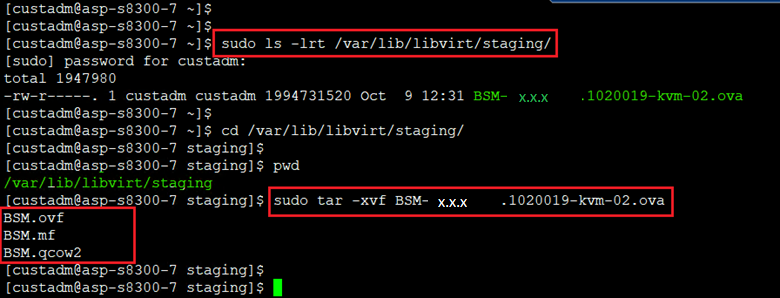
Run the following command to verify the Branch Session Manager KVM image available in the staging folder: sudo ls -lr /var/lib/libvirt/staging
Go to /var/lib/libvirt/staging folder, and run the following command to extract the ova file: Sudo tar -xvf SM-x.x.x.x.x-kvm-0x.ova
The command extracts the following files:
BSM.ovf
BSM.mf
BSM.qcow2
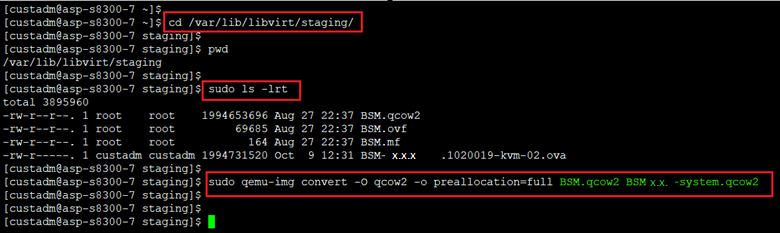
The extracted qcow2 images are in thin provision format. The qcow2 images must be converted to thick provision. Ensure you are in the /var/lib/libvirt/staging directory before the next steps. When running the commands to convert to thick provision, a unique identifier can be added to the new qcow2 image. Avaya recommends to use VM name as a unique identifier. For example:
BSMx.x[unique identifier]-system.qcow2
The examples in this document will simply use the following:
BSMx.x-system.qcow2
Convert BSM.qcow2 (thin) to BSMx.x-system.qcow2 (thick)
sudo qemu-img convert -O qcow2 -o preallocation=full BSM.qcow2
BSMx.x-system.qcow2
To verify that the conversion is successful and to verify the disk size, run the following commands:
sudo qemu-img info BSMx.x-system.qcow2
Disk size must be displayed based on the profile. 50GB
Copy BSMx.x-system.qcow2, to the /var/lib/libvirt/images directory. Ensure you are in the /var/lib/libvirt/staging directory before performing these steps.
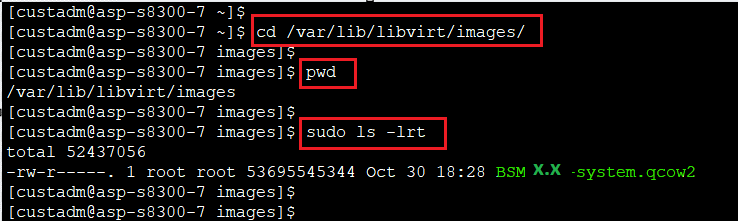
sudo cp BSMx.x-system.qcow2 /var/lib/libvirt/images
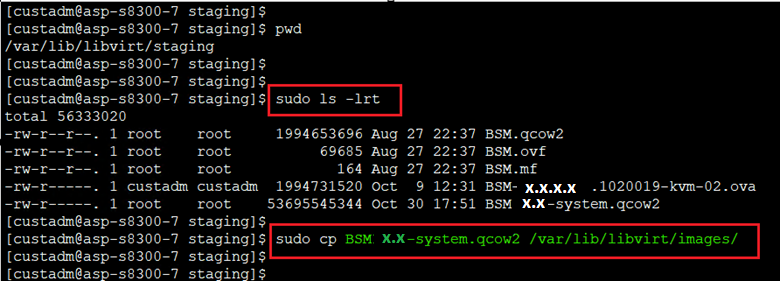
Verify the images are present in the /var/lib/libvirt/images directory.
cd /var/lib/libvirt/images
sudo ls -lrt
From the /var/lib/libvirt/images directory, run the following commands to change the owner and permissions to 640 on the files:
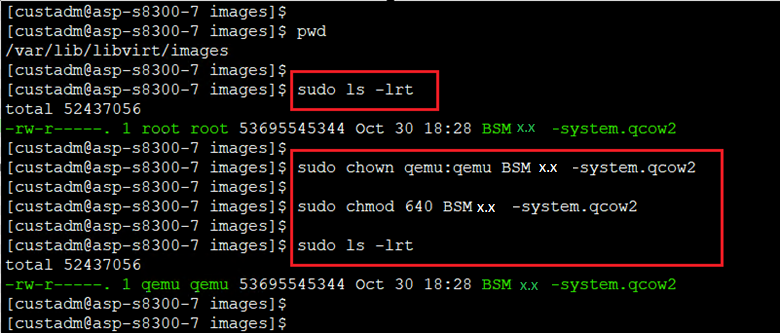
sudo chown qemu:qemu BSMx.x-system.qcow2
sudo chmod 640 BSMx.x-system.qcow2
Go to /var/lib/libvirt/staging directory and remove all the extracted images and converted images. This is important to ensure that there is sufficient space for future deployments of KVM images. Do NOT remove files from the images directory.
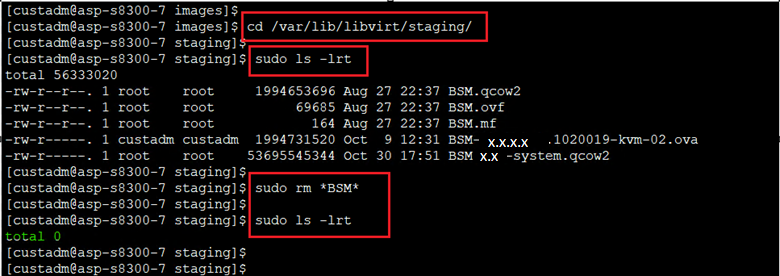
cd /var/lib/libvirt/staging
sudo ls -lr
sudo rm *BSM*
Procedure
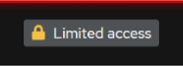
- For administration actions, on the top-right of the window, click on the Limited access button.
Figure : 1. Limited access button
Note:You require administrator access in order to view virtual machines. Administrator access is like root access. Ensure that you take care making updates.
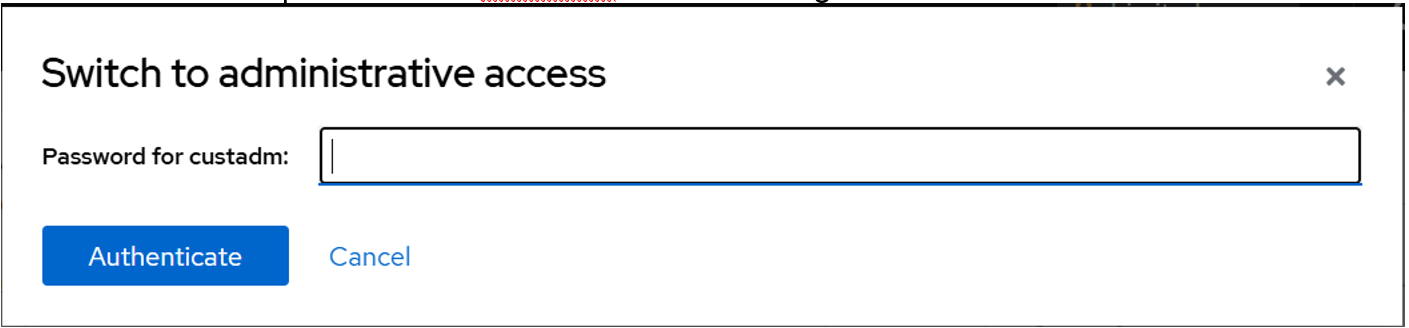
- In the Switch to administrative access window, enter the password for custadm.
Figure : 2. Switch to administrative access
The Limited access button on the top-right of the window changes to Administrative access.
Figure : 3. Administrative access button
- In the Import a virtual machine window, do the following:
- Click Import and edit.
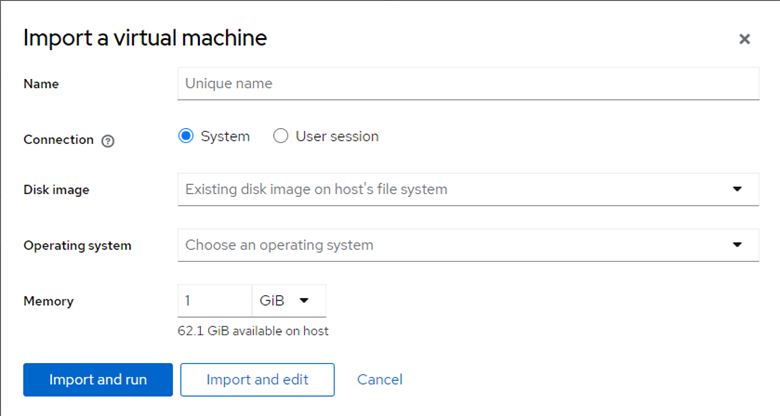
Virtual Machine details page appears.
Under the Disks section, verify the BSMx.x- system.qcow2 image disk image size is correctly displayed in the Capacity field. By default, virtio is selected under the Bus field, and this needs to be modified.
- Click Import and edit.
- In the Edit <attributes name> window, do the following:
- click Save.
In the Disks section, ensure that scsi appears under the Bus field and directsync appears under the Additional Cache field.
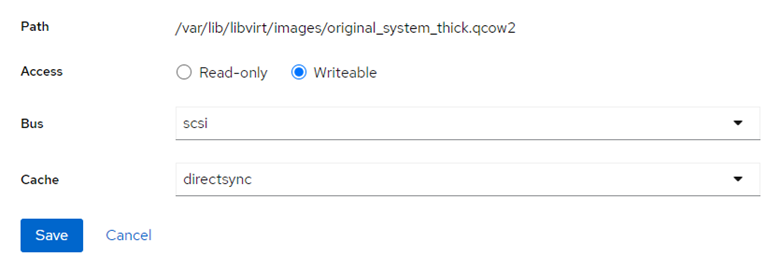
- click Save.
- In the CPU details window, based on the required footprint, enter a value in the vCPU Maximum and vCPU Count fields.
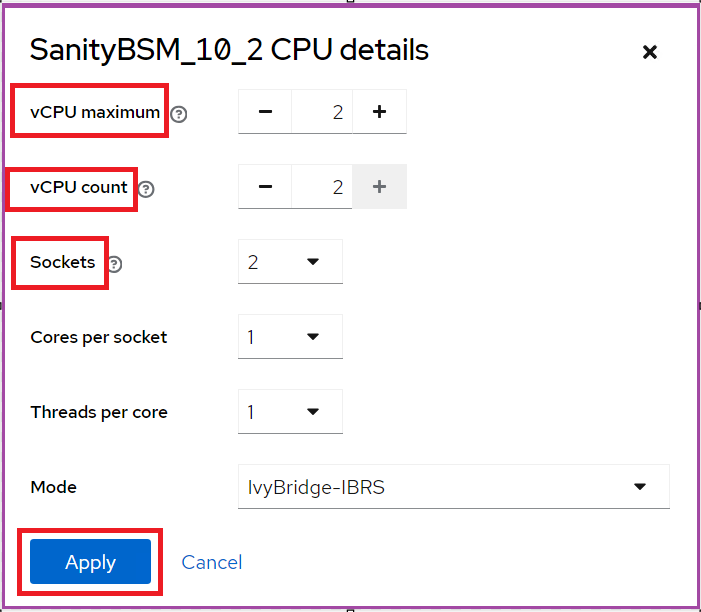
For more information on footprints, see Supported footprints of Branch Session Manager on ASP R6.0.x (KVM on RHEL 8.10).
- To add more network interfaces, under the Network interfaces section, click Add network interface and do the following:
- Click Add.
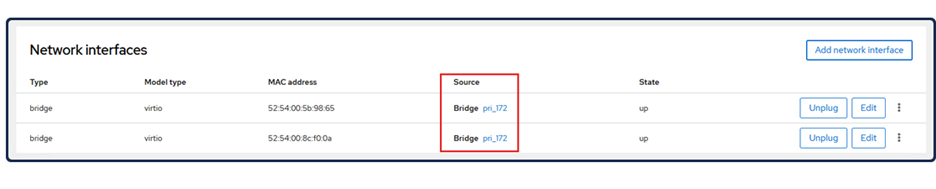
- Click Add.
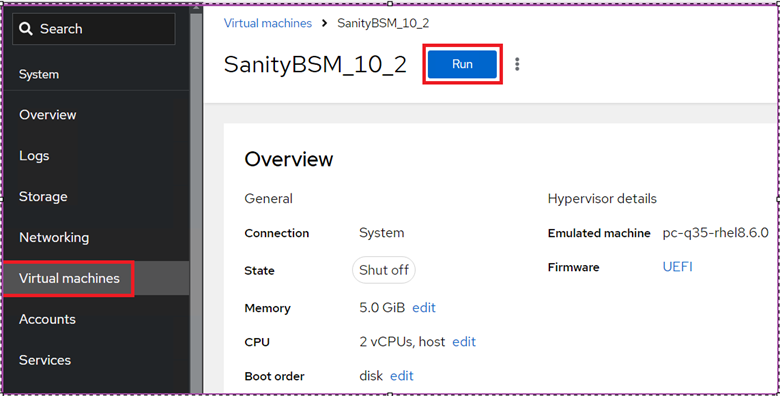
- On the virtual machine, click Run to start the Session Manager virtual machine.
Next Steps
On first boot of the Session Manager configure the virtual machine, network properties and follow the Session Manager deployment guide.