

Log in to the KVM Cockpit web console as custadm in the following format: https://<IP address or FQDN of KVM host>:9090.
For administration actions, on the top-right of the window, click on the Limited access button.
Figure : 1. Limited access button
Note:
You require administrator access in order to view virtual machines. Administrator access is like root access. Ensure that you take care making updates.
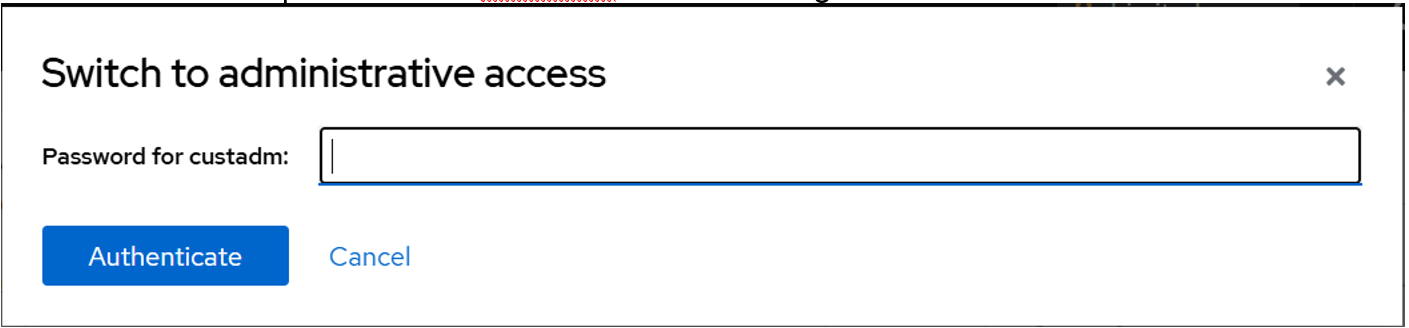
In the Switch to administrative access window, enter the password for custadm.
Figure : 2. Switch to administrative access
The Limited access button on the top-right of the window changes to Administrative access.
Figure : 3. Administrative access button
Navigate to System > Virtual Machines > Import VM.
In the Import a virtual machine window, do the following:
In the Name field, enter a name for the WebLM virtual machine.
In the Disk Image field, select the WebLM-10.1.2.0.0-39690-KVM-4E-THICKdisk1.qcow2 image of the Communication Manager on the KVM Cockpit host under /var/lib/libvirt/images/ directory.
In the Operating System field, select RHEL 8.6 (Oopta) version.
In the Memory field, select the required memory in MiB format.
Note:
Based on the required footprint, enter a value in the Memory field.
For more information on footprints, see Upgrading standalone AvayaWebLM.
Click Import and edit.
Virtual Machine details page appears.
Under the Disks section, verify the WebLM-10.1.2.0.0-39690-KVM-4E-THICKdisk1.qcow2 disk image size is correctly displayed in the Capacity field.
By default, virtio is selected under the Bus field, and this needs to be modified.
Under the Disks section, click Edit.
In the Edit <attributes name> window, do the following:
In the Bus field, select scsi.
In the Cache field, select directsync.
Click Save.
In the Disks section, ensure that scsi appears under the Bus field and directsync appears under the Additional Cache field.
In the Overview section, in the Firmware field, select UEFI and click Save.
In the Overview section, in the CPU field, click edit.
CPU Details window opens.
In the CPU details window, based on the required footprint, enter a value in the vCPU Maximum and vCPU Count fields.
In the Mode field, keep the default host-model.
Click Apply.
In the Network interfaces section, click Edit and select the Network Bridge, and click Save.
On the virtual machine, click Run to start the System Manager virtual machine.
Next Steps
On first boot of the System Manager virtual machine, log in to the virtual console using the craft/craft01 and provide the configuration and networking parameters.