

AVAYA DOCUMENTATION CENTER
Find answers to your technical questions and learn how to use our products
Using Avaya Workspaces for Avaya Experience Platform® On-Prem
Agent Workspace page
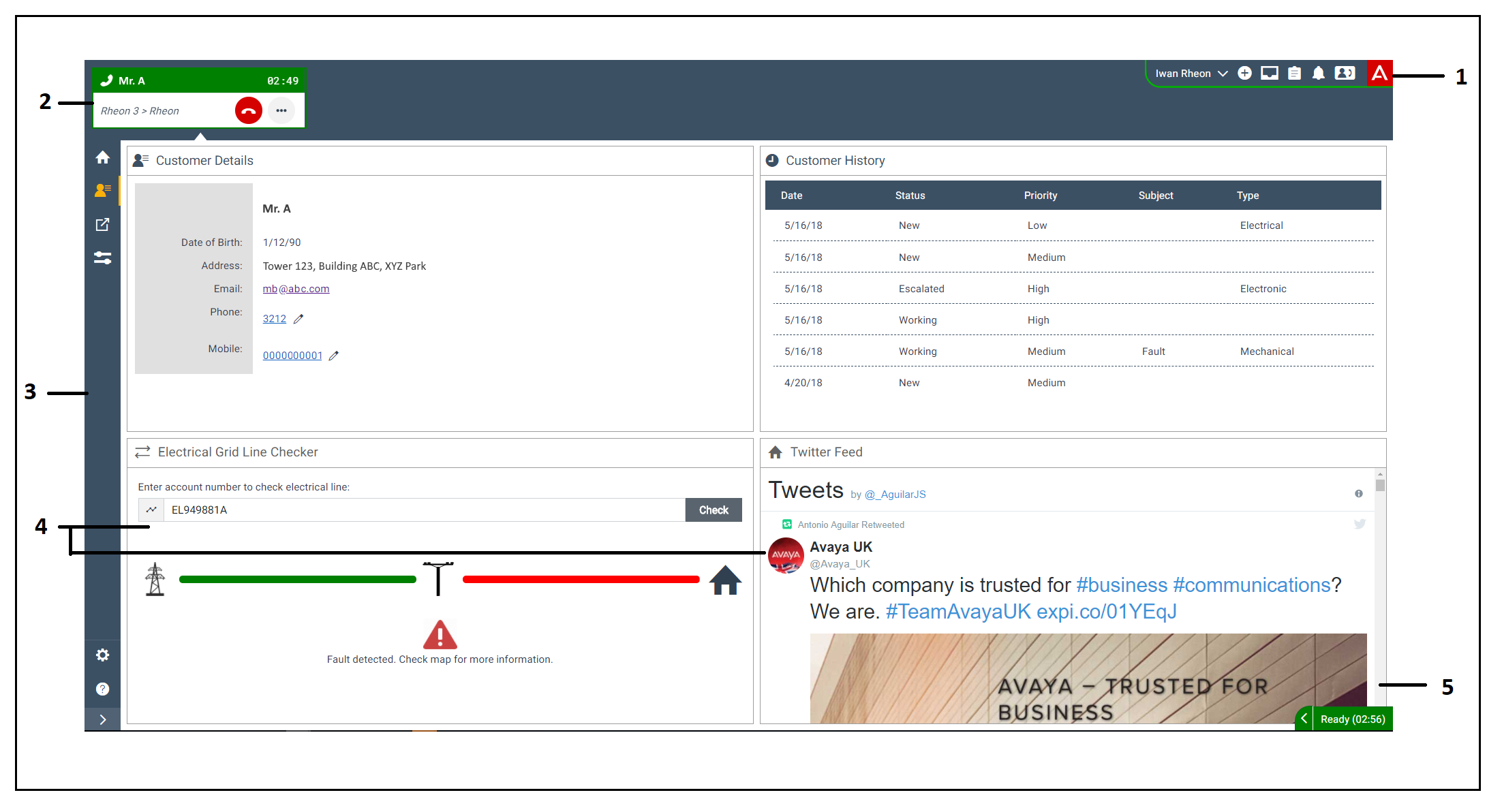
The Agent Workspace page has an intuitive layout that provides you a visual representation of voice interactions. Use this page to:
-
Accept interactions
-
Hold or resume interactions
-
Transfer interactions
-
Consult another agent
-
Add another agent to the interaction
|
Number
|
Name
|
Description
|
|---|---|---|
|
1
|
Agent toolbar
|
Provides options for:
|
|
2
|
Interaction area
|
Displays all incoming contacts as interaction cards for the agent. The interaction cards are queued for the agent at any time.
|
|
3
|
Navigation menu
|
Provides options for an agent to interact with the customer.
|
|
4
|
Interaction widgets
|
Displays information related to the interaction.
|
|
5
|
Agent state summary
|
Displays the agent ID, Station ID, the current state of the agent, and the channels available for interactions. Agent state summary also includes Time in State Timer when enabled.
|
Layout
Compressed layout
The Agent Workspace page also provides the option of a compressed layout. When the administrator enables compressed layout, Avaya Workspaces minimizes the interaction area on the interface and enables more space for additional widgets. Avaya Workspaces applies this setting to all agents. See Figure 1 for compressed layout.
Administrator mode
When you log on to Avaya Workspaces as an administrator, Avaya Workspaces displays the Widget Framework home page. The Widget Framework home page includes the Widget Framework Developer Documentation, which administrators can read and download. When you log on as an administrator, you can modify and create layouts and widgets for agents and supervisors in Avaya Workspaces. The following is a brief overview of these tools; for more detailed information refer to the Widget Framework Developer Documentation.
The Layout Manager allows you to change the layout of the widgets within Avaya Workspaces. You can configure layouts based on interaction type.
The Widget Manager allows you to add or remove widgets from Avaya Workspaces. This includes custom widgets.
Using the Layout Migrator, you can migrate layouts and widgets from older versions of Avaya Workspaces. The Layout Migrator checks that layouts and widgets are compatible with the latest version of Avaya Workspaces. If not, you can merge custom layouts and widgets into the new release. The Layout Migrator also removes any core widgets that are no longer compatible with Avaya Workspaces.
The Widget Framework API enables third-party developers to write custom widgets and deploy them in Avaya Workspaces. To write a custom widget, you need access to the Widget API Developer Documentation and code examples. The Widget API is designed to make it easier for anyone with a basic understanding of HTML, CSS and JavaScript to write a custom widget and deploy it in Avaya Workspaces.
Neo Framework is a CSS framework that developers can use to create custom widgets for Avaya Workspaces. It contains a color palette and a number of core components that assist the development and rapid prototyping of custom widgets. Widgets developed using the Neo CSS framework have a similar look and feel to core Avaya Workspaces widgets.