

AVAYA DOCUMENTATION CENTER
Find answers to your technical questions and learn how to use our products
Deploying IP Office as an Avaya Cloud Office ATA Gateway
Adding the ACO line
This document does not cover the configuration of other equipment such as the customer network, firewalls, and any SBC equipment.
You need to configure the line using the user details obtained from Avaya Cloud Office™ (see Setting up the ACO user phone details).
This process covers adding a new ACO line to the IP Office system configuration for calls to/from Avaya Cloud Office™. The IP Office only requires a single ACO line.
Procedure
- Click
 Line in the navigate pane. Click the icon and select ACO Line.
 - Select the ACO tab:
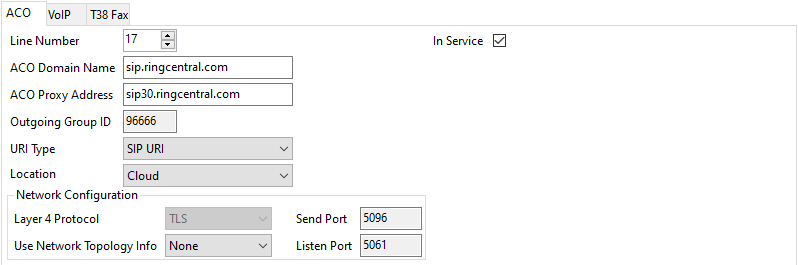
Use the values obtained when setting up the ACO user phone details to configure the ACO line:
ACO Value
IP Office Line Value
SIP Domain
without the port number.
Outbound proxy
without the port number.
- Click the
 icon.
icon.
Next Steps
Go to Edit the system short codes.