

AVAYA DOCUMENTATION CENTER
Find answers to your technical questions and learn how to use our products
Deploying IP Office as an Avaya Cloud Office ATA Gateway
Adding IP Office licenses
You only need to follow this process if you are using a local PRI line for emergency calls and want to license additional PRI call channels above the default 8 per PRI port. Otherwise, go to Adding the ACO certificates.
The file is a single .xml file containing all the system licenses. These are issued against the serial number of the system's Avaya System SD card.
Procedure
- From the navigation pane, select
 License.
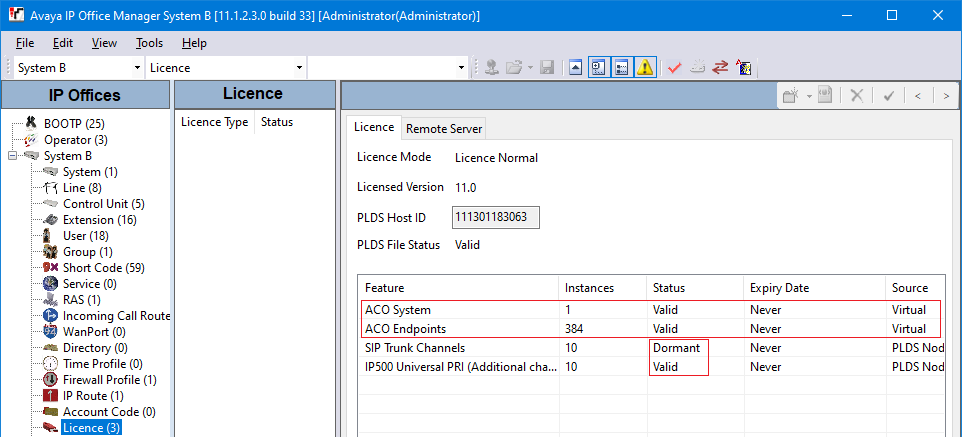
When configured as an IP Office ACO ATA Gateway system, the IP Office shows two virtual licenses:ACO System and ACO User.
If the system already had a license file loaded, any other licenses, except IP500 Universal PRI (Additional channels), should appear as Dormant or Obsolete.
- From the navigation pane, select License again.
Next Steps
Go to Adding the ACO certificates.