

AVAYA DOCUMENTATION CENTER
Find answers to your technical questions and learn how to use our products
Administering Avaya Workspaces for CRM for Avaya Experience Platform™ Public Cloud
Configuring your contact center
Use OpenFrame Configuration to specify your contact center properties. You can determine the groups of users that have access to the Avaya Workspaces for CRM softphone. When performing this procedure, you must indicate the URL that ServiceNow uses to fetch the Avaya Workspaces for CRM softphone from Avaya Experience Platform™ Public Cloud.
Before you begin
Download the contact center configuration file from the Avaya Support website and copy the code that this file contains.
- On the ServiceNow home page, go to .
- At the top of the page, click New.
- At the top part of the page, fill in the fields.
- To provide users with access to the Avaya Workspaces for CRM softphone, in User Group, select a group of users and double-click it.
ADDITIONAL INFORMATION:You can repeat this step to provide more users with access to the Avaya Workspaces for CRM softphone.
- In , insert the code that you copied from the contact center configuration file.
- In , type the required values next to the parts of the code that specify your contact center properties.
- At the bottom of the page, click Submit.
ADDITIONAL INFORMATION:
Figure: Example of the ServiceNow contact center configuration page 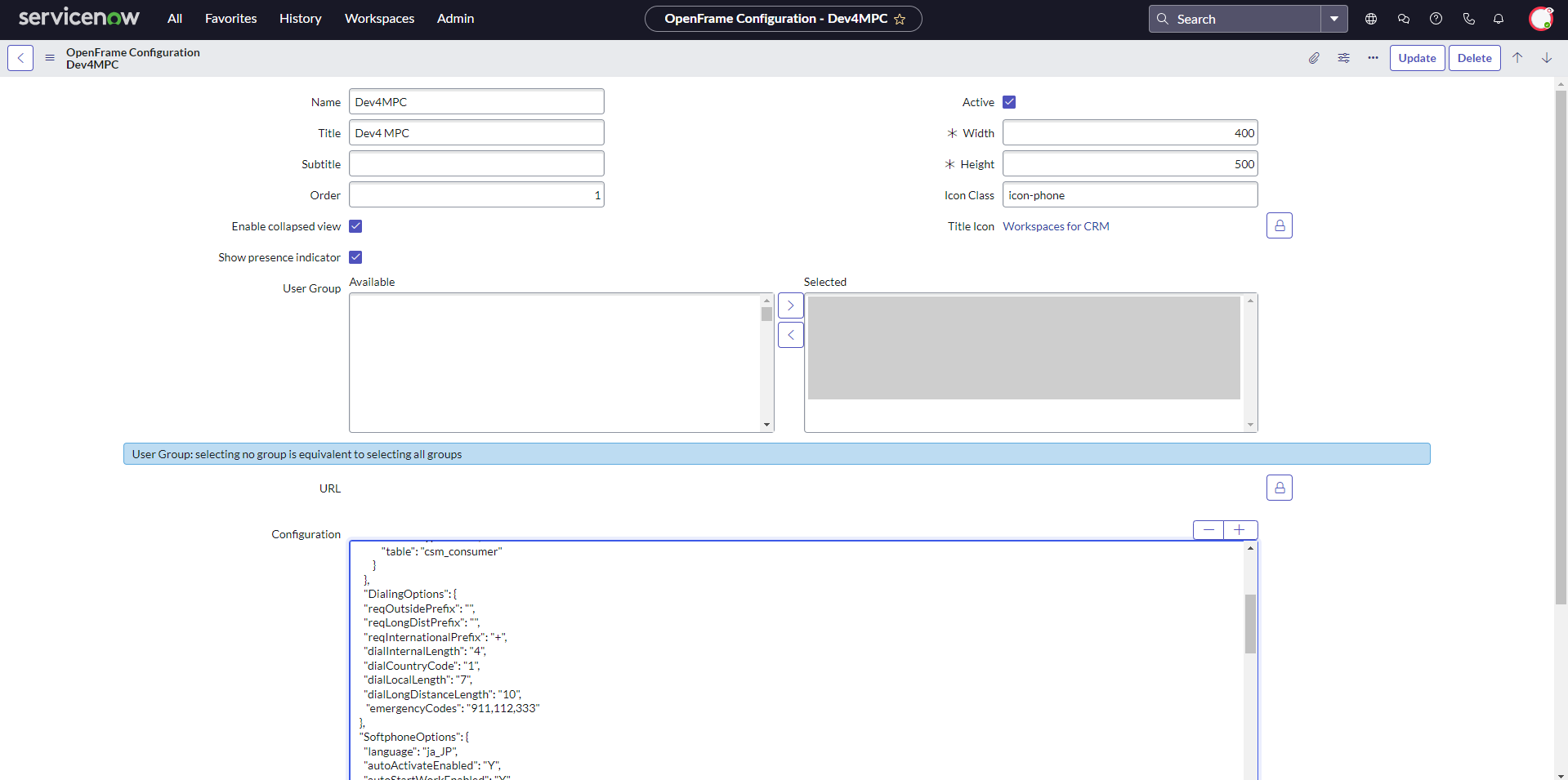
To specify your contact center properties, update the required parts of the code that ServiceNow displays in the field.
For example, the following part of the code enables Avaya Workspaces for CRM to create call logs:
"callLogEnabled": "Y",
To disable Avaya Workspaces for CRM from creating logs, you must update this part of the code as follows:
"callLogEnabled": "N",