AVAYA DOCUMENTATION CENTER
Find answers to your technical questions and learn how to use our products
Administering Avaya Breeze® platform
Performing directory synchronization
- In System Manager, click .
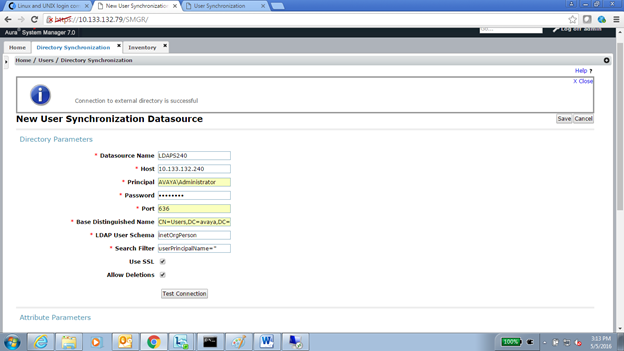
- Add a new data source and enter the following LDAP server details, and click Test Connection.
ADDITIONAL INFORMATION:
-
DS Name
-
Host
-
Principal
-
Port
-
Base DN
-
LDAP User Schema
-
Search Filter
-
Use SSL: Select the check box.
-
Allow Deletions: Select the check box.
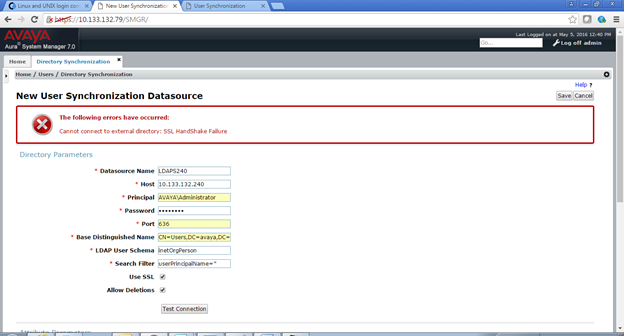 As shown in the figure, the system displays the following error: Cannot connect to external directory: SSL Hand Shake Failure.The system displays this error because we have not imported the Active Directory Certificate in System Manager.
 -
- To resolve we need to import the Certificate:
- Navigate to .
- Select the System Manager instance and click .
- Click Add.
- Select the Import using TLS field.
ADDITIONAL INFORMATION:
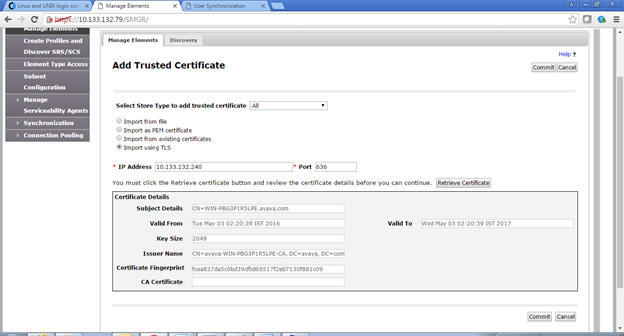
- In the IP Address field, enter the IP address of the LDAP server.
- In the Port field, enter the port of the LDAP server.
- Click Retrieve Certificate to import the certificate
- Click Commit.
- Go to the New User Synchronization data source page and specify the details to test the connection.
ADDITIONAL INFORMATION: