

AVAYA DOCUMENTATION CENTER
Find answers to your technical questions and learn how to use our products
Administering Avaya Breeze® platform
Administering implicit sequencing for Avaya Breeze® platform
Administer implicit sequencing for a user or group of users for Avaya Breeze® platform so that an application sequence can be assigned to those users for call-intercept snap-ins. Avaya Breeze® platform uses implicit sequencing for both SIP and non-SIP endpoints. Therefore, you must administer implicit sequencing for all SIP and non-SIP endpoints that receive call-intercept snap-ins.
Before you begin
Create the application and application sequence for the Avaya Breeze® platform server.
- In System Manager, click .
- Select the Enable Implicit Users Applications for SIP users field.
- Click Commit.
- Click .
- Click New.
ADDITIONAL INFORMATION:
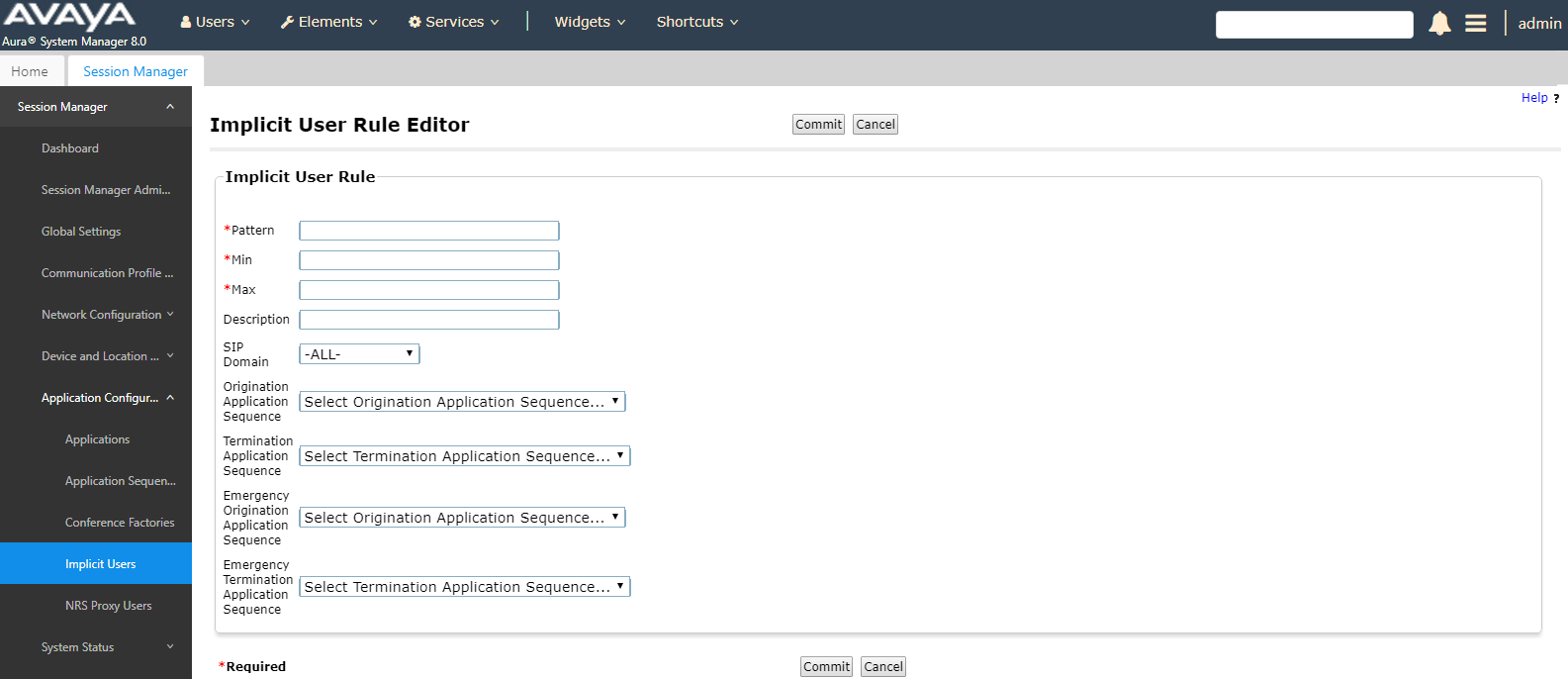
- In the Pattern field, specify the pattern as defined for Session Manager and Communication Manager digit routing.
ADDITIONAL INFORMATION:For non-SIP users, the dial pattern should be the same pattern format as used in the Routing Policy Dial pattern. For SIP users, as a best practice use E.164 patterns to scope the SIP users either singularly or as a range. If that is not desired, use the communication address defined on the Communication Profile tab.The pattern range used can include both SIP and non-SIP users.For example, in the Pattern field, do one of the following:
-
Enter the user’s full E.164 number (or minimally enter the communication address defined on the Communication Profile tab for that user) for a single user.
-
Enter “x” patterns as wildcards to match multiple users.
For example, for a single user using E.164 format, enter +13035551212, alternatively enter +1303555xxxx to match all users with the +1303555 prefix that is 12 digits in total length (including the +). -
- Update the Min value as required.
ADDITIONAL INFORMATION:This value is auto-populated based on the pattern.
- Update the Max value as required.
ADDITIONAL INFORMATION:This value is auto-populated based on the pattern.
- Update SIP Domain as required.
ADDITIONAL INFORMATION:The default value is -ALL-.Note:
-
If you use multi-domain routing, see Administering Avaya Aura® Session Manager for information about what to enter in this field.
-
If you use a snap-in that uses the Remove Service From Call feature, you must select a specific domain. Otherwsie, Avaya Breeze® platform sequences again after the snap-in has requested to be removed from a call.
-
- Select the application sequence from the Origination Application Sequence drop-down menu.
ADDITIONAL INFORMATION:The Origination Application Sequence tells Session Manager to send the call to the Avaya Breeze® platform when the targeted user is making a call.
- Select the application sequence from the Termination Application Sequence drop-down menu.
ADDITIONAL INFORMATION:The Termination Application Sequence tells Session Manager to send the call to the Avaya Breeze® platform when the targeted user is receiving a call.
- Click Commit to save your changes.