

Cloning a Virtual Machine on ASP R6.0.x (KVM on RHEL 8.10)

Last Updated : Jun 10, 2026 |

About this task

Use this procedure to create a clone for backup purposes.

Before you begin

  • Ensure there is sufficient space to create the Virtual Machine Backup (clone). Clones are created as “thick provisioned” and require the same size as the virtual machine you are cloning.

  • Refer to application documentation for guidelines on storage requirements for different application profiles.

    For example,System Manager 10.2 has three profiles, each with different storage requirements. A Profile 4 System Manager requires an additional 850 GB of storage for the clone.

    Resource

    Profile 2

    Profile 3

    Profile 4

    Virtual hard disk/storage

    170 GB

    270 GB

    850 GB

  • Shut down the virtual machine for which you are creating a backup (clone). This is a service impacting activity. Perform these steps within a customer-approved maintenance window.

Note:

You must be root or use sudo with custadm account for CLI commands, and you must enable Administrative access when using the Cockpit user interface.

Note:

These clones must be created through the CLI as the Cockpit UI does not support the necessary required options.

Procedure

  1. Log in to the KVM Cockpit web console as custadm in the following format: https://<IP address or FQDN of KVM host>:9090.
  2. For administration actions, on the top-right of the window, click on the Limited access button.
    Figure : 1. Limited access button


    Note:

    You require administrator access in order to view virtual machines. Administrator access is like root access. Ensure that you take care making updates.

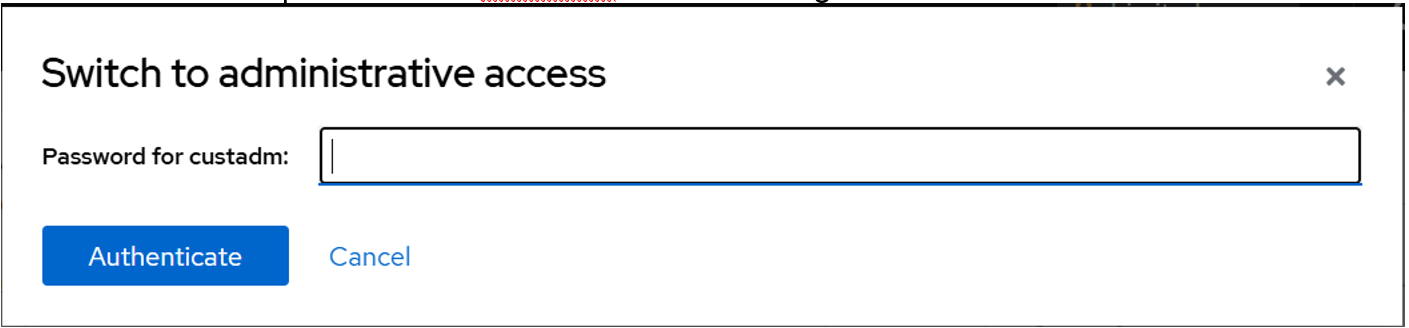
  3. In the Switch to administrative access window, enter the password for custadm.
    Figure : 2. Switch to administrative access


    The Limited access button on the top-right of the window changes to Administrative access.

    Figure : 3. Administrative access button


  4. Navigate to System > Virtual Machines > Storage Pools.

    The Name guest_images is a label for /var/lib/libvirt/images. If you select guest_images, you can see additional information. If you select Storage Volumes, you can view all images in the /var/lib/libvirt/images directory.

  5. Review the images and remove any of them that you no longer use.

    Images that do not have a ‘Used by’ value are typically safe to remove.

  6. Confirm that you have the necessary space for your clone.
  7. Log in to the Avaya Solutions Platform R6.0.x Command Line Interface (CLI) as custadm.
  8. Run the following command to obtain a list of all virtual machines:

    sudo virsh list --all

    Example output:
    [custadm@asp130-r660xs-a31p ~]# sudo virsh list --all
    
    Id          Name                             State9
    ------------------------------------------------------------
    1           8HDD-RHEL-810-Fiotester2         running
    2           8HDD-RHEL810-Fiotester1          running
    -           8HDD-RHEL-810-Fiotester3         shut off
    -           8HDD-RHEL-810-Fiotester3-Clone   shut off
    -           8HDD-RHEL-810-Fiotester3-clone   shut off
    -           Agent_Testing                    shut off
    -           Agent_Testing-Clone              shut off
    -           Agent_Testing2                   shut off
    -           Agent_Testing3                   shut off

    In this example, the virtual machine Agent_Testing3 is shut off state, ready for backup (clone).

  9. Run the following command to backup (clone) the virtual machine. You must use the nonsparse option to ensure the clone is created as thick provisioned.

    sudo virt-clone --original <Domain-to-be-cloned> --auto-clone --nonsparse

    Example output:

    sudo virt-clone --original Agent_Testing3 --auto-clone --nonsparse

    Allocating 'RHEL810-agenttestvm3-fat-clone.qcow2' | 50 GB 00:01:06

    Clone 'Agent_Testing3-clone1' created successfully.

    This command creates a backup (clone) with default values. You can create a clone with any name for the virtual machine and QCOW2 labels by specifying a full path and using the following command:

    sudo virt-clone --original <VM Domain> --name <Clone VM Label> --file /var/lib/libvirt/images/<VM Domain QCOW2 file name>.qcow2 --nonsparse

    Example for single QCOW2 image:

    sudo virt-clone --original RHEL810-fiotester1 --name RHEL810-fiotester2 --file /var/lib/libvirt/images/RHEL810-fiotester2.qcow2 --nonsparse

    Example for multiple QCOW2 images:

    sudo virt-clone --original Duplex_Active_974 --name Duplex_Active_974_CloneTest --file /var/lib/libvirt/images/Duplex_Active_974_CloneTest_system.qcow2 --nonsparse --file /var/lib/libvirt/images/Duplex_Active_974_CloneTest_Var_Disk.qcow2 --nonsparse

    Note:

    Completion time varies depending on the size of original virtual machine disk.