

AVAYA DOCUMENTATION CENTER
Find answers to your technical questions and learn how to use our products
IP Office SIP Telephone Installation Notes
Create an identity certificate for the IP Office
This example assumes that the IP Office Server Edition server is the certificate authority. In that role it can also be used to create identity certificates for other servers including other IP Office's. That includes creating an identity certification for the IP Office service.
- Within the server's web management menus, select Platform View.
- Select Settings and then General.
- Locate the Certificates section and select Create certificate for a different machine.
ADDITIONAL INFORMATION:
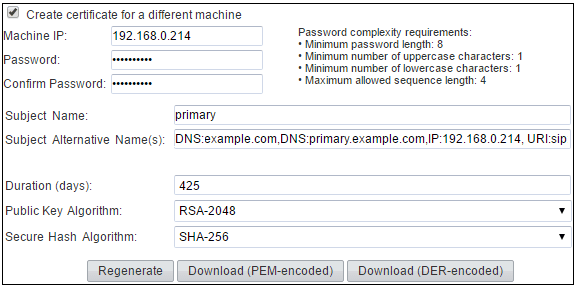
- Enter the details for theIP Office's SIP server. Enter the Subject Alternative Name(s) in the following format:
ADDITIONAL INFORMATION:The field should include the following entries, each separated by a comma. Multiple entries are required if using both LAN1 and LAN2.
-
DNS entries for the system's LAN1 and/or LAN2 SIP Domain Name.
-
For example:
DNS:example.com
-
-
DNS entries for the system's LAN1 and/or LAN2 SIP Registrar FQDN.
-
For example:
DNS:ipoffice.example.com
-
-
IP entries for the system's LAN1 and/or LAN2 IP addresses. For IP Office R12.1, include the IP Office systems IPv6 addresses if also being used.
-
For example:
IP:192.168.42.1,IP:192.168.43.1
-
-
If supporting remote workers, add an IP entry with the public IP address of the IP Office.
-
SIP URI entry for the LAN1 and/or LAN2 SIP Domain Name.
-
For example:
URI:sip:example.com
-
-
SIP URI entry for the LAN1 and/or LAN2 IP address.
-
For example:
URI:sip:192.168.42.1
-
-
If using a separate HTTPS file server, add a SIP URI entry for the file server's domain name.
-
- Click on the lower Regenerate button.
- Click on Download (PEM-encoded) to download the file.