

AVAYA DOCUMENTATION CENTER
Find answers to your technical questions and learn how to use our products
Using Avaya Workspaces for Avaya Experience Platform™ Public Cloud
Working on ainteraction
You can viewinteractions with customers on the Chat and Messaging widget. The widget displays allinteractions with alogo. The Contact Details pane of Customer Journey displays the customer identifiers associated with thebusiness account, such as phone number and email address.
displays customer and agent messages in different colors so agents can differentiate between them.
If an agent does not respond to a customer within 24 hours of the customer's last message, the agent cannot respond in the same engagement.disables the text field in the Chat and Messaging widget and displays the following message:
24hrs passed since last message from customer.
The agent must use a newtemplate from the Digital Library widget to send a message to the customer.
- When you get a messaging interaction card, click
 to accept it.
ADDITIONAL INFORMATION:displays the Chat and Messaging widget.
to accept it.
ADDITIONAL INFORMATION:displays the Chat and Messaging widget. - To send a plain text message, in the Message customer field, type your message and click
 or press the Enter key.
ADDITIONAL INFORMATION:The maximum word limit for a message is 2,000 words.STEP RESULT:The Chat and Messaging widget displays the message that you sent.
or press the Enter key.
ADDITIONAL INFORMATION:The maximum word limit for a message is 2,000 words.STEP RESULT:The Chat and Messaging widget displays the message that you sent. - To send a button message, from WhatsApp Templates in the Digital Library widget, click the required button template, and click .
STEP RESULT:The Chat and Messaging widget displays the buttons in the selected template.
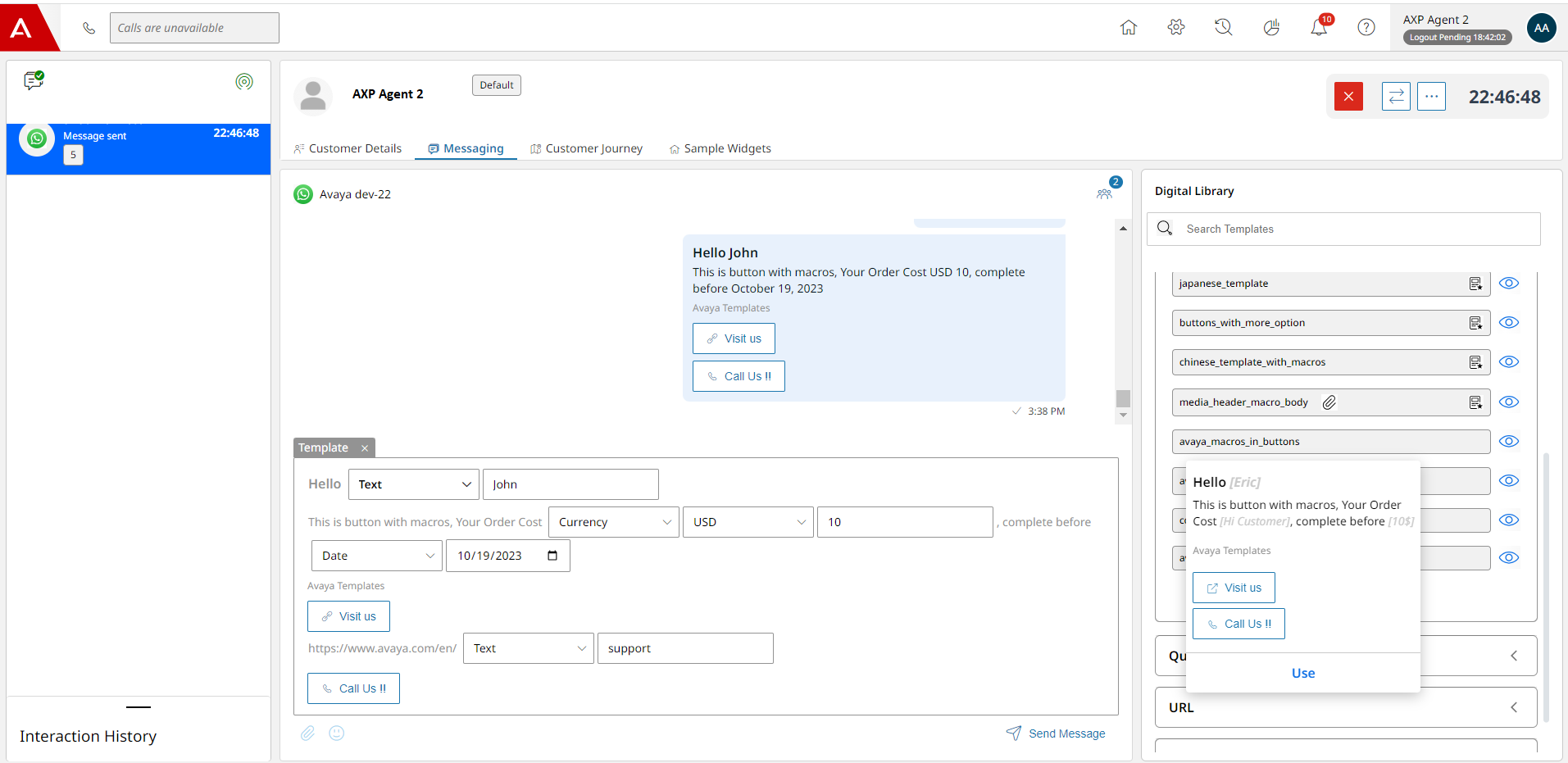
- To send a macro message, from WhatsApp Templates in the Digital Library widget, click the required macro template.
STEP RESULT:The Chat and Messaging widget displays the macros available in the template.
- Select the required macros in the template.
ADDITIONAL INFORMATION:You can select a macro of your choice. For example, select Text, Currency, or Date.
- Update the fields corresponding to the selected macro and click .
ADDITIONAL INFORMATION:For example, if you select Currency, in the corresponding fields, you can select the currency type, for example, USD. Finally, enter the currency amount.
- To send a media message, from WhatsApp Templates in the Digital Library widget, click the required media template.
-
To send an image, select an image media template.
-
To send a video, select a video media template.
-
To send a document, select a file media template.
-
- To use an emoji, click
 and select the required emoji from the emoji window.
 - Click
 to close the messaging interaction card.