

AVAYA DOCUMENTATION CENTER
Find answers to your technical questions and learn how to use our products
Avaya CMS Supervisor Report Designer
The Finish page
When all the required tasks are completed to create a report, you will have to determine whether you want to run the report, edit the report with Report Designer, or exit without doing anything.
Example
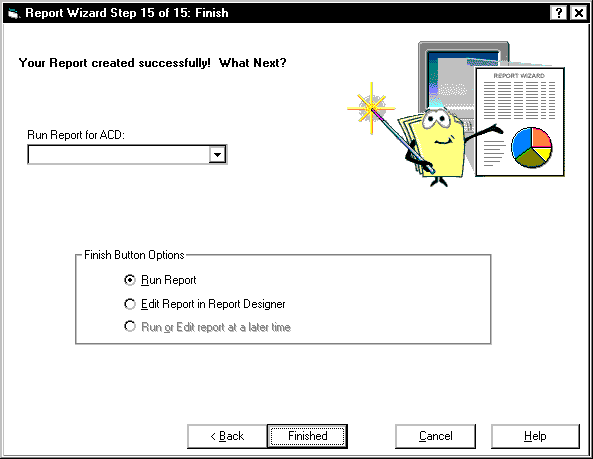
Finish page field descriptions
The following fields are located on theFinish page.
Name |
Description |
|---|---|
Run Report for ACD |
Allows you to select the ACD for your report. |
Run Report |
When you run your report from the Finish page of the Report Wizard, it will run with the appropriate inputs, access the CMS database, and produce real data. You will run a live report. If you run an unsaved report you will be prompted to save the report upon its completion. The report will be saved as a Report Designer report and placed in the appropriate folder (real-time, historical, or integrated). If you elect not to save your report, you can select Exit, to close the report or you can select Return to return to the running report. |
Edit Report in Report Designer |
When you choose to edit your report from the Finish page, Report Designer starts. All edits to your report are now done through Report Designer. When you save the report after making the edits, you get the following options for Tenant Access to Report:
Select the Back button on the wizard pages to edit your report with the Report Wizard. |
Run or Edit report at a later time |
Select this option to exit Report Wizard without running your report or editing your report. This option is unavailable if you have not entered a report name for your report. |
There are two ways to exit Report Wizard:
Name |
Description |
|---|---|
Select Run or Edit report at a later time, and select Finished. Select Cancel. |
If your report has not been saved, Report Wizard will discard your report. Report Wizard will warn you if you try to cancel without first saving your report. |