

AVAYA DOCUMENTATION CENTER
Find answers to your technical questions and learn how to use our products
Avaya CMS Supervisor Report Designer
Format tab
Use the Format tab to alter the format of each column that is included in the table. The database items that make up the columns of the table are listed in the Item column in the Table section. For each Item, you can assign a variety of formatting characteristics.
Example
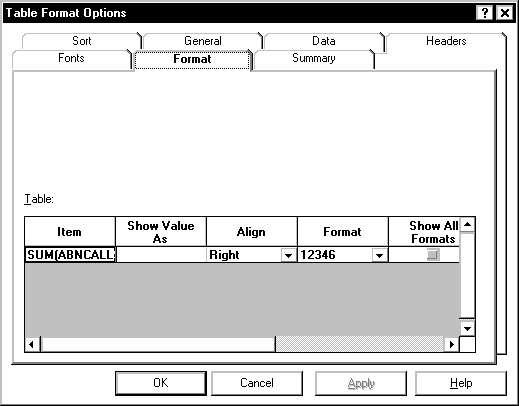
Format tab options
You can specify the following parameters.
Name |
Description |
|---|---|
Item |
Shows the database item, and table from which the data is retrieved, that is used for this column of the table. |
Show Value As |
Use the drop-down list to select the format in which you want the value to be displayed. The Show Value As formatting applies only to data types that can be defined in the Dictionary. |
Align |
Allows you to select the alignment of a field or column in a table. Available options for alignment are Left, Right, and Center. |
Format |
The options available for the format will depend on the type of item you want to edit. For instance, a field that displays time will allow you to choose from a variety of time formats. A field that is a number will allow you to choose from a variety of number formats. |
Show All Formats |
You can select the Show All Formats check box to display the formats that are available for all field types. This check box is active only during the current use of the Format Table window. The next time you access the window, the check box will not be active. |
Zeros as Blanks |
Select this check box to display cells on the table that contain zeros as blank. If you do not select the check box, the cells that contain zeros will display zeros. |
Merge with Next |
Select the check box to merge this column with the column to the right on the table. |